
Reminder Systems for Sales Teams: A Practical Guide
Learn how to plan sales follow-ups in Talkty, set reminders on opportunities, track due tasks, and use stage alerts and appointment management.
By Emily Carter · · 5 min read ·

A good reminder system helps a sales team know who needs a follow-up and when. This guide to reminder systems for sales teams explains how to use Talkty’s Sales CRM follow-up plans, opportunity history, stage automations, and appointment calendar to keep work visible and organized.
What a sales reminder system should track
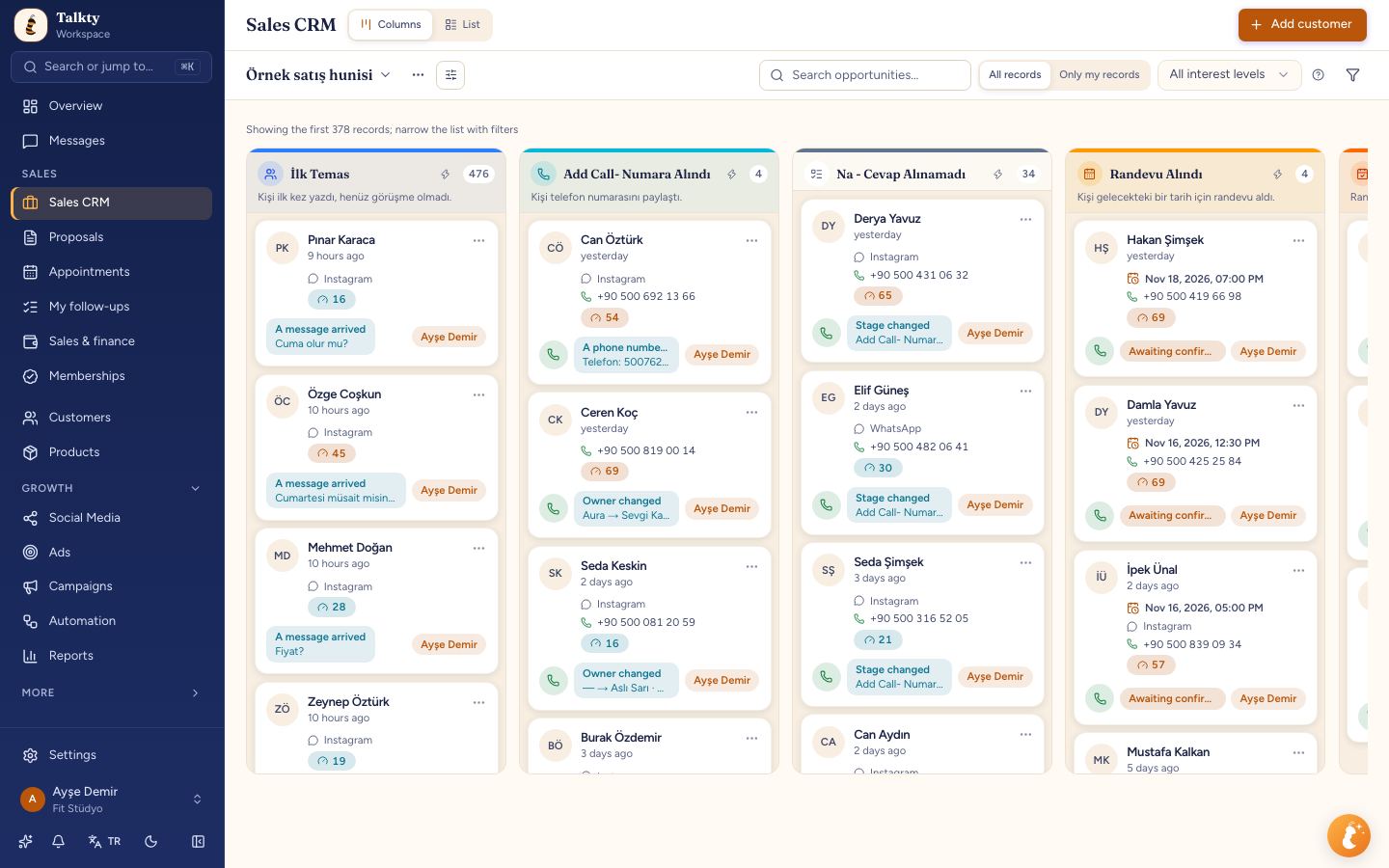
A reminder is most useful when it is attached to the customer and sales opportunity, rather than kept in a separate list. In Talkty, each opportunity is a card in a Sales CRM flow. Move cards between stages as the conversation progresses, and use the card’s follow-up plan to record when and how to contact the customer.
A follow-up can be for a call, a message, confirming an appointment, or meeting again. You can also add an optional note about the product, package, or service the customer is interested in. The opportunity includes a history that helps the team review what has happened before deciding on the next action.
Step by step: add a follow-up reminder to an opportunity
- Open the opportunity in Sales CRM. If you are working from a customer conversation, use the linked opportunity so the follow-up stays with the right sales record.
- In the opportunity panel, choose Follow up.
- Choose when to follow up in Follow-up in using the calendar.
- Select how you plan to follow up, such as calling, sending a message, confirming the appointment, or meeting again. Add the optional product or service interest if it is useful.
- Save the follow-up. The opportunity moves to the sales flow’s follow-up column, and the sales owner stays as assigned. If the opportunity has no owner, the person opening the form is filled in as the owner; for reps, that is the rep themselves.
- Check My follow-ups. Follow-ups due within the next seven days appear in its next-seven-days list. When a follow-up is due, Talkty reminds you; overdue follow-ups are marked Overdue in red.
To change a plan, open the opportunity and choose Edit in the Follow-up section. This opens the same form and updates the follow-up.
Use the pipeline to make reminders easier to see
Sales CRM flows organize opportunities into stages. On the Sales CRM page, choose Create sales flow in the sales flow list and name the flow. Start with ready-made stages using Add pipeline columns, or build your own with Add column. Separate flows can be created for different branches or teams.
Use Columns to see opportunities grouped in stage panels, or List to view them in a table that can be sorted and exported. In column view, each panel shows its stage name and the number of opportunities, along with a description and the total value when the opportunities use the same currency.
A stage can also prompt a team member to act. Open the column header menu and choose Edit column to configure the column. The column type matters because AI and automations use it to identify a stage, even if you change its name. You can also choose Hide from reps for a column that non-managers should not see.
Add automatic alerts for idle opportunities
For reminders that apply to a whole stage, use a column automation instead of setting each alert by hand. In the column header, select the lightning button to see its automations. Choose an existing automation to open its flow or use a switch to turn it on or off.
To create a stage alert, select Add automation, then choose Alert on idle opportunities. This template notifies the opportunity’s owner when an opportunity has stayed in that column for three days. Another available template, Remind if no reply, notifies the owner if the customer has not written one day after the opportunity enters the column.
These alerts suit different situations: use an idle alert to spot opportunities that have not moved, or a no-reply reminder when the next step depends on hearing back from the customer. The notification is tied to the column, so check that the opportunity is in the stage where the rule applies.
Keep appointment management connected to the opportunity
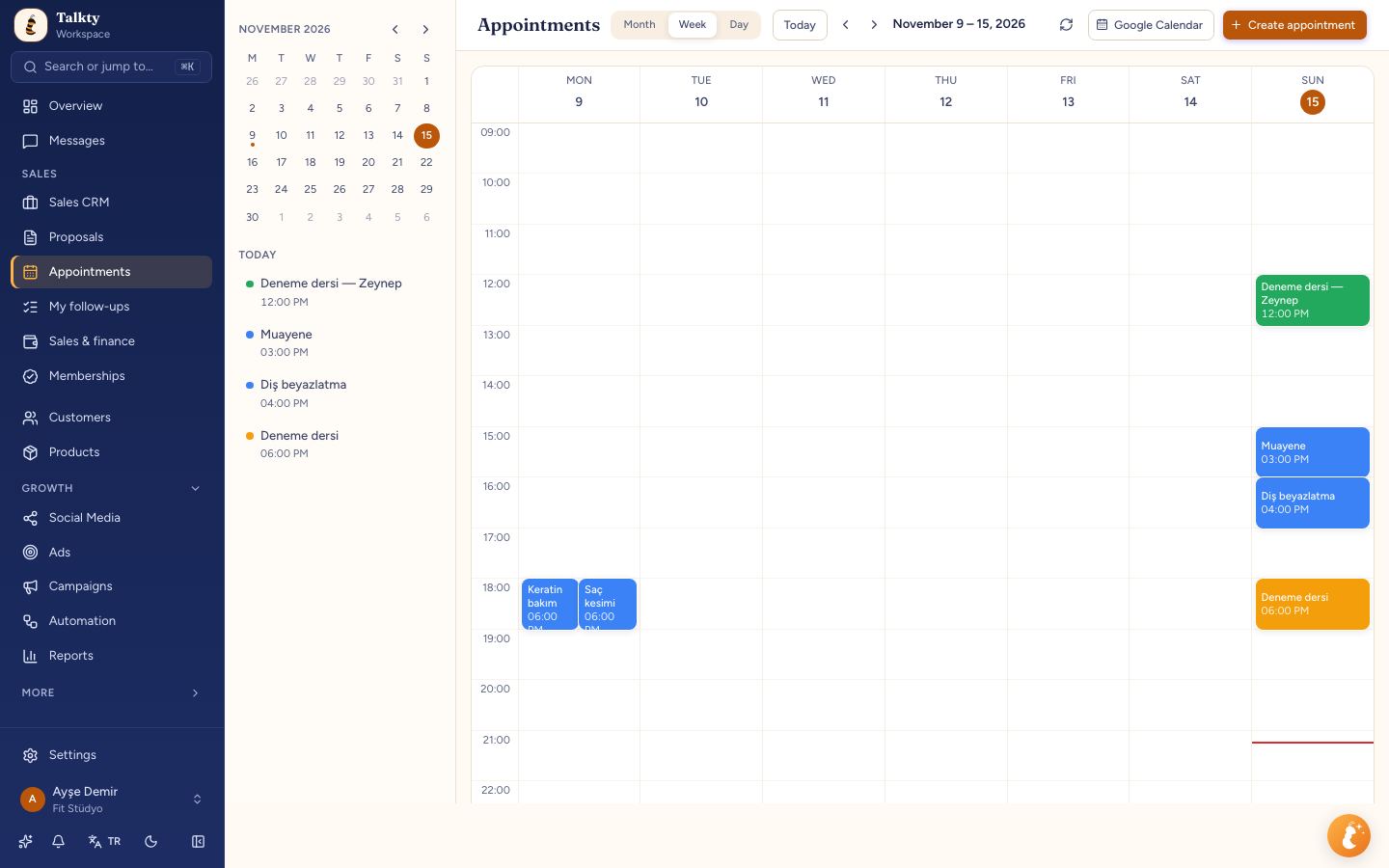
When a customer needs a meeting, use Create appointment in the opportunity panel. The appointment is added to the calendar and linked to that opportunity. Appointments booked by your team or by the AI assistant appear in one calendar, with confirmation, attendance status, and reminders.
For a group of customers with appointments on the same day, Talkty also supports a recurring campaign based on a saved Sales CRM filter. In Campaigns › Templates, create and submit a Utility template with appointment details. In Sales CRM, filter by Appointment date: Today and save the filter, for example as “Appointments today.” Start a send to that group, select the template, and set it to recur daily at the time you choose. The filter is recalculated each morning, so the send targets that day’s appointments.
Make ownership and team visibility clear
A reminder only helps when the right person can act on it. Talkty’s team roles control what users can see and do. Admins can manage day-to-day work as well as users and settings. Managers handle day-to-day work but cannot change users, subscription, or system settings. Reps work with cards and customers on their own sales flows, including messaging and appointments. Read-only users can see information without changing it.
A practical routine for sales follow-ups
When a new opportunity arrives, place it in the appropriate stage and assign an owner. After a conversation, record the next action with Follow up and select a date. If the opportunity is waiting for a reply, use a stage with a no-reply alert; if it is sitting without progress, an idle-opportunity alert can bring it back to the owner’s attention. For a meeting, create an appointment from the opportunity so it is linked to the calendar and sales record.
Review My follow-ups for upcoming and overdue work, and check the opportunity’s history before contacting the customer. This makes it easier to continue the conversation without asking the customer to repeat information.
Summary
Talkty supports sales reminders through follow-up plans on opportunities, a My follow-ups list, stage-based alerts, and appointments linked to the calendar. Set a clear owner and next action for each opportunity, then use the pipeline and history to keep follow-up work visible.
Frequently asked questions
- How do I set a follow-up reminder in Talkty?
- Open the opportunity, choose Follow up, select a date in Follow-up in, choose how you will contact the customer, and save. The opportunity moves to the flow’s follow-up column.
- Where can I see follow-ups that are coming due?
- Follow-ups due within the next seven days appear in the next-seven-days list under My follow-ups. Due reminders are shown, and overdue follow-ups are marked Overdue in red.
- Can Talkty alert a sales rep when an opportunity is idle?
- Yes. Add the Alert on idle opportunities automation to a sales column. It notifies the opportunity’s owner when the opportunity has stayed in that column for three days.
- Can I send appointment reminders to a group?
- You can set up a recurring campaign for a saved Sales CRM filter, such as Appointment date: Today, using a Utility template. The filter is recalculated each morning.
- Are appointments linked to sales opportunities?
- Yes. Choose Create appointment in the opportunity panel to add an appointment to the calendar and link it to that opportunity.
Emily Carter