
Using WhatsApp Templates for Campaigns: A Practical Guide
Learn how to create Meta-approved WhatsApp templates, choose a customer group, personalise campaign messages and review results in Talkty.
By Emily Carter · · 6 min read ·

Using WhatsApp templates for campaigns lets you send approved, personalised messages to customers, including people you have not chatted with before. In Talkty, you create a template, submit it for Meta approval, then select it when building a campaign. Here is how each step works and what to check before sending.
When do WhatsApp campaigns need a template?
WhatsApp requires a Meta-approved template when you message someone who has never chatted with your business or when more than 24 hours have passed since their last message. Talkty also sends WhatsApp campaign messages using approved templates.
Templates have three categories: Marketing for campaigns, discounts and announcements; Utility for appointment reminders and order or membership information; and Authentication for one-time codes. Choose the category that matches the message you plan to send.
A campaign is a commercial electronic message. You are responsible for obtaining recipients’ prior consent and, in Turkey, registering with İYS.
Create a WhatsApp template in Talkty
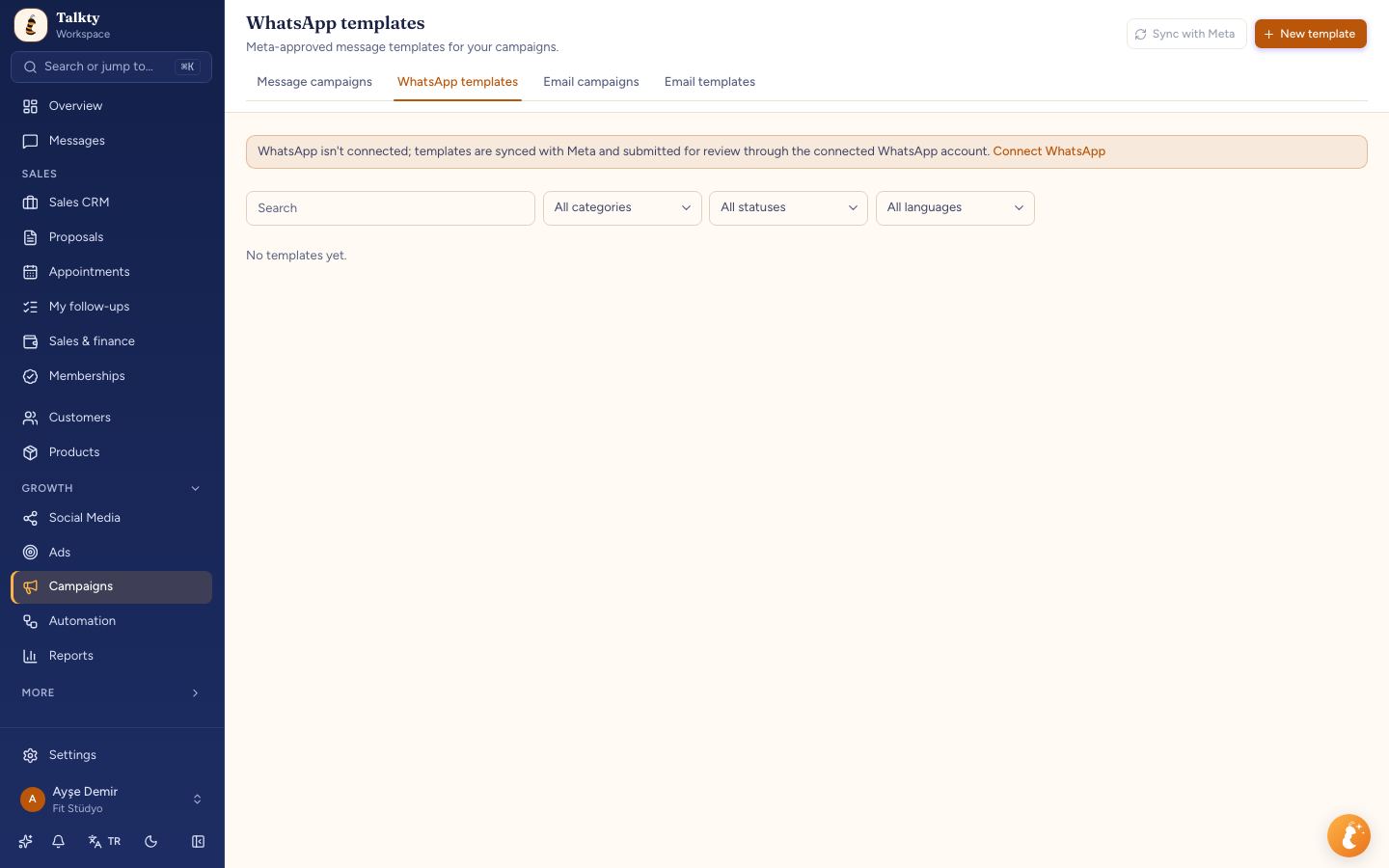
- Open Campaigns › WhatsApp templates and click New template.
- Enter a template name using lowercase English letters, digits and underscores. For example, use
october_discount. Customers do not see this name. - Choose a category and language.
- Select a header type: none, text, image, video or PDF/file. If you choose a media header, provide a sample file for Meta’s review. That same file is used in campaigns.
- Write the message in Body. For personal details, add named variables such as
{{ad}}for a first name,{{ad_soyad}}for a full name or{{randevu_saati}}for an appointment time. Variable names can contain lowercase English letters, digits and underscores. Enter a sample value for every variable. - If useful, add a Reply, Link or Call button. You can also add Carousel cards to show several products. Carousel templates cannot use a template header or template buttons, and every card must use the same header type.
- Check the phone preview on the right, then save the template.
Older templates synced from Meta may use numbered variables such as {{1}}. They continue to work, but do not mix numbered and named variables in one template.
Submit the template and check its status
After saving, find the template in the list and click Submit for approval. Meta’s response usually arrives within a few minutes. The status tells you what to do next:
- Draft means it has not been sent to Meta.
- In review means Meta is reviewing it.
- Active means it is approved and ready to use.
- Rejected means Meta did not accept it; review the reason, make changes and submit it again.
- Paused means Meta temporarily paused it after negative recipient feedback.
Use Sync with Meta to fetch current statuses and templates created earlier in your WhatsApp Business account. WhatsApp must be connected before syncing or submitting. If a sync fails, Talkty shows the reason below the button. The Check WhatsApp connection link opens Settings › Channels & integrations › Channels.
Templates do not sync on a QR-linked account; an official WhatsApp connection is needed. You can also use Visibility to limit a template to selected team members, or choose Everyone to remove that restriction.
Send a campaign with an approved template
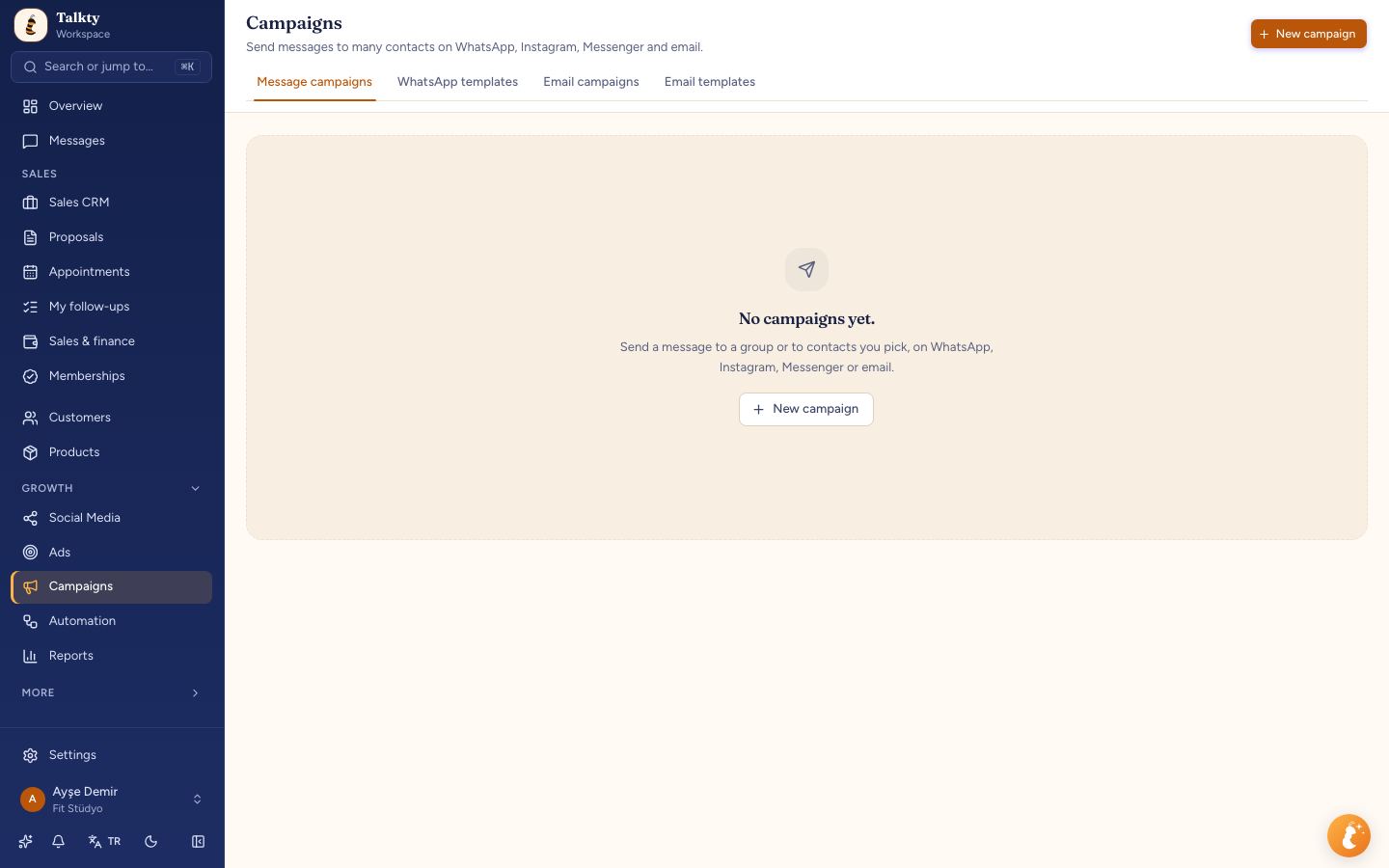
Open Campaigns › Messaging campaigns and click New campaign. The form guides you through the audience, channel, message and timing. A live preview and summary appear on the right.
- Choose recipients. Select a saved group, or choose Pick people one by one and then select a channel. For a manual selection, you can narrow the customer list by filter, tag or sales flow. Contacts without a number are hidden and counted. Talkty removes duplicate people, invalid numbers and people who opted out by writing STOP. The group preview explains when someone cannot be reached.
- Choose WhatsApp. WhatsApp sends the selected approved template to picked contacts who have a number and have not opted out. If you use a saved group, you can also choose Automatic channel, but that option works only with saved groups.
- Select the template. Approved WhatsApp templates appear as cards. For each variable, choose the contact information that should fill it. Each recipient gets their own available value. If Talkty cannot find a value for someone, that person is skipped; the sample value is not sent.
- Choose when to send. Send the campaign right away or set a later date and time. For WhatsApp, you can turn on Skip people who got a campaign recently and choose the number of days to exclude. Meta may hold marketing messages for people who receive them often.
- Name and review the campaign. The campaign name is for your team. Check the summary for recipient count, send time and estimated cost. If something is missing, Talkty notes it under the button. For WhatsApp, Meta charges per message through the payment method linked to your WhatsApp Business account; Talkty displays an estimate in the summary.
- Send or schedule it. With Right away, sending starts as soon as you save the campaign. Otherwise, it is sent at the date and time you selected.
Send yourself a test first
With a WhatsApp template selected, enter your own number under Send yourself a test in the summary and click Send test. Talkty sends the template with sample values to that number. This is a test only; it does not create a campaign.
Review campaign results
Open a campaign by clicking its name or Details in the campaign list. Its results include Sent, Delivered, Read, Replied and Converted, with rates. Talkty counts a reply as the contact’s first message within 72 hours of the campaign being sent. A conversion is recorded when the contact’s card is opened or won.
Use these results to understand what happened to the campaign and decide what to review before a future send. For example, check whether the intended audience was reachable and whether the selected template and its personalisation were correct.
A simple pre-send checklist
Before sending, confirm that the template is Active, its category and content fit the message, and every variable is mapped to the right contact detail. Check the audience preview for people who cannot be reached, review the estimated cost and send time, and use Send yourself a test if you want to see the message with sample values.
For a broader view of how customer conversations and sales records can fit together, see WhatsApp CRM comparison for Turkey (2026). If your team wants to learn how AI can help with customer questions after a campaign, read Using AI for Customer Support 24/7: A Practical Guide.
Summary
To use WhatsApp templates for campaigns in Talkty, create a template under Campaigns › WhatsApp templates, submit it for Meta approval and wait until its status is Active. Then create a messaging campaign, select recipients, map template variables, choose a send time and review the summary. Check consent, reachability and the test message before sending.
Frequently asked questions
- When is an approved WhatsApp template required?
- You need a Meta-approved template to message someone who has never chatted with your business or when more than 24 hours have passed since their last message. WhatsApp campaigns also use approved templates.
- How do I submit a template for approval in Talkty?
- Save the template under Campaigns › WhatsApp templates, then click Submit for approval next to it in the list. Its status changes as Meta reviews it.
- What happens if a campaign variable has no value for a contact?
- That recipient is skipped. Talkty does not send the template’s sample value in place of the missing contact information.
- Can I test a WhatsApp campaign before sending it?
- Yes. With a WhatsApp template selected, enter your number under Send yourself a test in the summary and click Send test. It uses sample values and does not create a campaign.
- Who is responsible for consent and İYS registration?
- The business sending the campaign is responsible for obtaining recipients’ prior consent and registering with İYS in Turkey.
Emily Carter