
Tracking Attendance in a Business Calendar: A Guide
Learn what to record when tracking attendance in a business calendar, then follow Talkty steps to create appointments, update statuses, and sync calendars.
By Emily Carter · · 4 min read ·

Tracking attendance in a business calendar means recording what happened at each scheduled appointment—not just adding bookings. A clear process lets a small business review which appointments are confirmed, attended, missed, cancelled, or need a new time. In Talkty, you can record these outcomes as appointment statuses and, when relevant, link an appointment to a CRM opportunity.
What to track in a business calendar
For each appointment, keep the scheduled date and time visible and record its outcome after it is due. A useful attendance record answers three basic questions: what was scheduled, when it was scheduled, and what happened. If an appointment needs another time, record that it is to be rescheduled rather than treating it as attended or leaving its outcome unclear.
Reviewing these records helps you monitor the state of your schedule: upcoming appointments awaiting confirmation, confirmed bookings, completed appointments, no-shows, cancellations, and bookings that need rescheduling. This is a practical way to keep appointment outcomes visible. It does not require assuming that every missed appointment has the same cause or that attendance records alone explain why it happened.
How Talkty records appointment attendance
Talkty’s Appointments calendar is used for customer appointments, meetings, and other events. Its appointment statuses are Awaiting confirmation, Confirmed, Attended, No-show, Cancelled, and To be rescheduled. The calendar and opportunities display the appointment status.
You can view appointments by Month, Week, or Day. Use Today and the arrows to move through dates. In week and day views, a red line marks the current time. On a wide screen, appointments for the selected day are listed below the mini calendar on the left; select an appointment to open it.
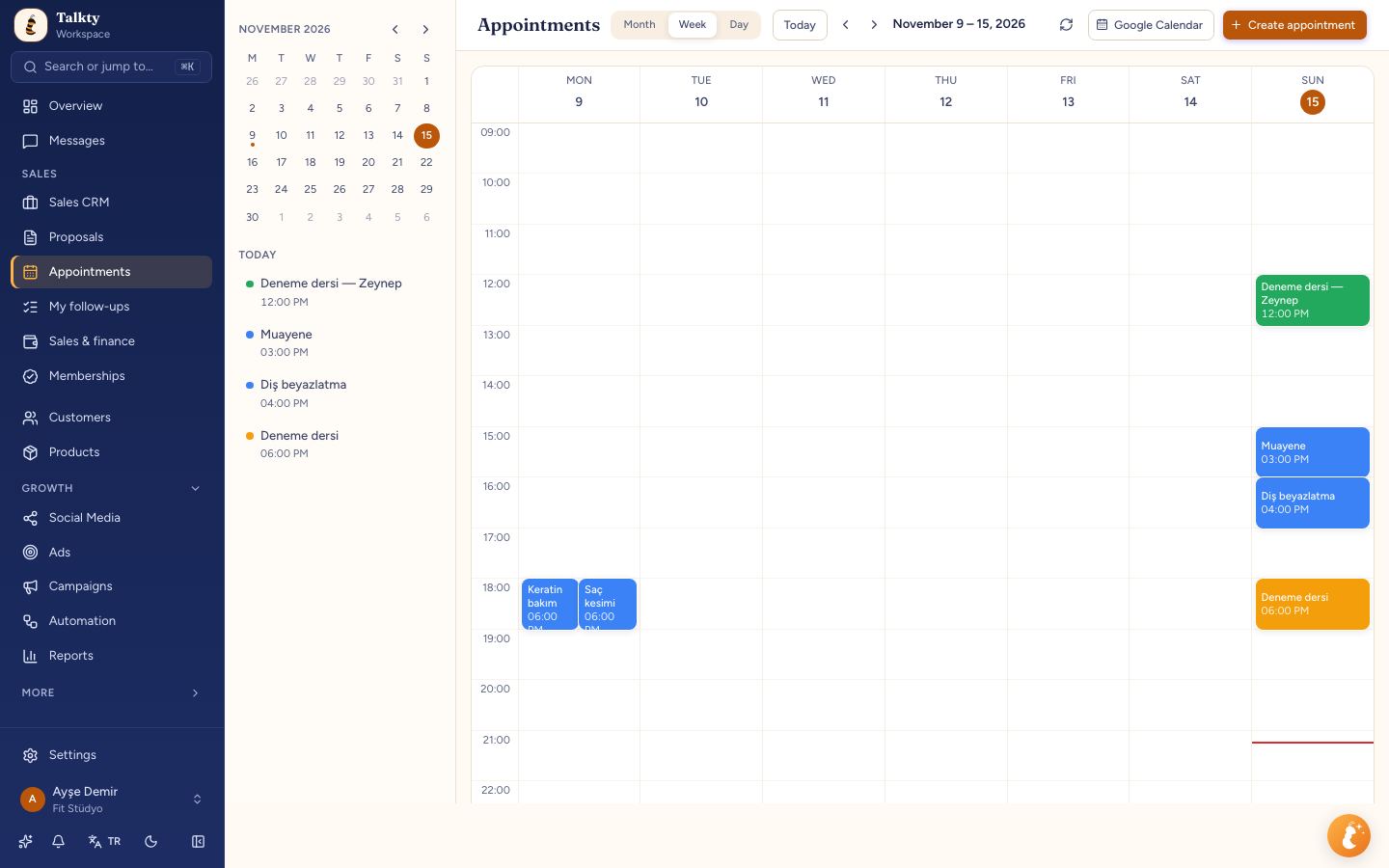
Step by step: track attendance in Talkty
1. Create the appointment
Click a day in the calendar or select Create appointment. On a phone, use the + button. You can also create one from an opportunity’s Appointments tab by selecting Schedule an appointment.
2. Add the date, time, and status
Enter a title and start and end date and time, or choose All day. If you clicked a time in the calendar, Talkty fills it in. Otherwise, the start defaults to the next half hour. When you choose a start time, the end is set one hour later; change it if needed.
Choose a color and an Appointment status. For a new booking, select the status that reflects its current state, such as Awaiting confirmation or Confirmed. After the appointment, open it and update the status to Attended, No-show, Cancelled, or To be rescheduled, as appropriate.
3. Link it to an opportunity when relevant
In the Opportunity field, type the customer’s name and select the matching opportunity. The appointment is then linked to that opportunity and appears on its Appointments tab. Select Unlink if you need to remove the connection.
You can add attendees by email or phone and write notes. Email addresses receive an invitation email. If Google Calendar is connected, the form also lets you turn on Create Google Meet link.
4. Review the day’s schedule
Talkty notifies you when an appointment is coming up. The Overview screen includes a Today’s appointments list. Use it alongside the calendar to review the day’s bookings and their statuses.
Use appointment statuses in your CRM view
In Sales CRM, appointment columns can be organised by status. For example, appointments due today can appear in a Today’s appointments column. This gives you another place to see appointments grouped by their current state.
Be careful when moving an opportunity out of a column for appointments due today. If you move it by hand, its appointment for today is deleted and the opportunity is not pulled back into the column. Appointments marked Attended or No-show are kept. To record what happened, update the appointment status rather than using a manual column move as a substitute for attendance tracking.
Sync Talkty appointments with Google Calendar
To connect calendars, open Settings › Google Calendar, select Connect Google account, and grant access. Upcoming appointments in the workspace—including those booked by the AI assistant—are added to Google Calendar. Edits and deletions sync both ways.
A teammate who connects their own Google Calendar has their appointments sent to that calendar. Events created in Google Calendar also come into the Talkty calendar and are visible to everyone in the workspace. To start a sync manually, select Sync calendar under Settings › Google Calendar.
You can generate a meeting link from an appointment by turning on Create Google Meet link. If you disconnect Google Calendar, events remain in Talkty; only the Google link is removed.
Check the calendar’s time zone
Calendar dates and times are shown and entered using the workspace time zone. To review it, go to Settings › Business & brand › Business profile and check the Time zone field. Talkty also uses this time zone to interpret date references such as “tomorrow” when the AI assistant books an appointment.
Summary
To track attendance in a business calendar, record each booking’s scheduled time and update its outcome after the appointment. Talkty provides statuses for confirmation, attendance, no-shows, cancellations, and rescheduling. Create appointments in the calendar, link them to an opportunity when useful, review Today’s appointments, and connect Google Calendar if you want events to sync between calendars.
Frequently asked questions
- What does tracking attendance in a business calendar involve?
- It means keeping scheduled appointments visible and recording their outcomes, such as attended, no-show, cancelled, or needing rescheduling.
- Which attendance statuses are available in Talkty?
- Talkty offers Awaiting confirmation, Confirmed, Attended, No-show, Cancelled, and To be rescheduled.
- How do I link a Talkty appointment to an opportunity?
- In the appointment form, type the customer’s name in the Opportunity field and select the matching opportunity. The appointment then appears on its Appointments tab.
- How do I connect Talkty to Google Calendar?
- Open Settings › Google Calendar, select Connect Google account, and grant access. Select Sync calendar on the same settings page to run a sync manually.
- Which time zone does Talkty use for calendar appointments?
- Talkty uses the workspace time zone set in Settings › Business & brand › Business profile.
Emily Carter