
Monitoring Outstanding Customer Balances: A Practical Guide
Learn how to monitor outstanding customer balances in Talkty, review remaining amounts, check payment dates, and follow up using customer records.
By Emily Carter · · 5 min read
Monitoring outstanding customer balances helps you see what customers still owe and when payments are expected. Talkty brings sales and payment details together in Finance, while customer profiles and Sales CRM show the balance in context. This guide explains where to look and how to review the information step by step.
What an outstanding balance means in Talkty
In Talkty, a sale’s remaining amount is the balance still due. When you record a sale, the remaining balance is calculated from the sale price and the amount collected. For membership sales, the form also asks for the package, sale price, any discounted price, payment method, instalment count, and start and end dates.
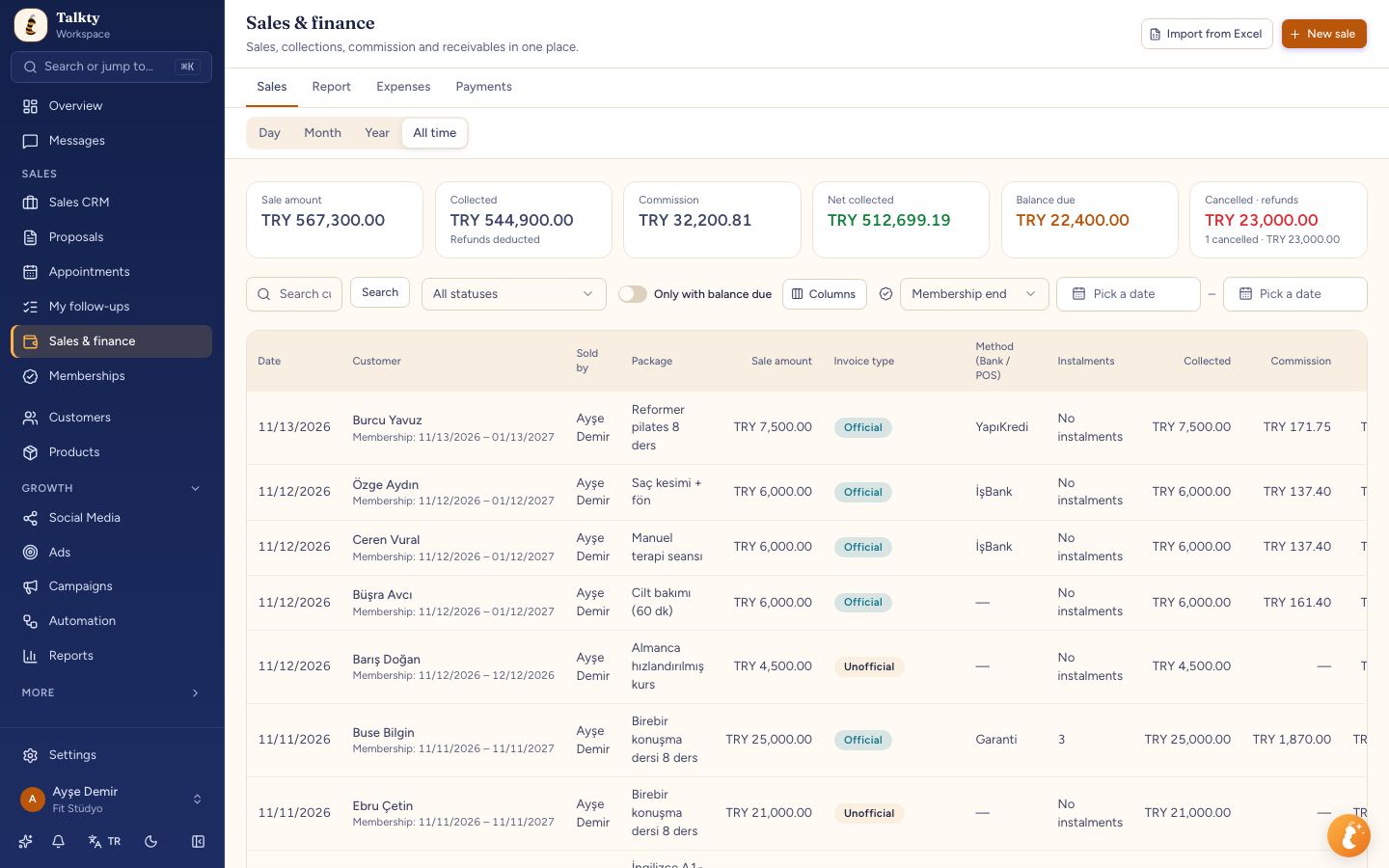
The Finance page shows sales and payments, including the amount paid, remaining balance, and next payment date. Its period selector helps you review sales made in a chosen period and older sales that received a payment during that period. This distinction matters: a sale can appear in the list because a payment arrived in the selected period, even if the sale itself was made earlier.
Review remaining balances in Finance
Use Finance when you want to scan balances across sales and check payment details.
- Open Finance and choose a period beneath the tabs: Day, Month, Year, or All time. The page opens on All time.
- For Day, choose a date or use the arrows to move to the previous or next day. For Month, use the arrows to move between months.
- Review the sales list. It includes the customer, package, sale amount, payment method, instalments, paid amount, commission, net collected, remaining balance, and next payment date.
- Use Columns to hide or show columns you do not need. Date and Customer always remain visible. Your column choice is remembered in the browser.
- Check the Remaining card for sales made in the selected period, and compare it with the remaining and next payment date details in each row.
The Collected and Net collected cards are based on the date a payment was received. For example, a payment received during the selected period can be counted there even when the sale was made earlier. The sale amount and Remaining cards, by contrast, are calculated from sales made in the period. Keep this difference in mind when reviewing a balance alongside collected payments.
Open a sale to check its payment history
When you need more context than the list provides, click a sale in Finance to open its details. Use Add payment to record a later payment. If the sale is linked to an opportunity, the payment is also added to that opportunity’s history as Payment received, with the amount and invoice type.
For a new sale, choose New sale. If the customer already exists, select their opportunity in the Opportunity search. If no existing opportunity is selected, Talkty creates a contact and opportunity in the sales flow and column you choose; Won is the default column. Membership sales and sales recorded from opportunities also appear in Finance.
When you enter a sale, check the amount collected and the resulting remaining balance. For membership sales, the remaining balance is calculated automatically. A membership sale can be entered from the New customer form, by moving a Sales CRM card to Won and choosing Record the sale now, or from Memberships with New sale / Add membership.
Find a customer’s balance from their profile
A customer profile is useful when you want to review one person’s balance together with their other records.
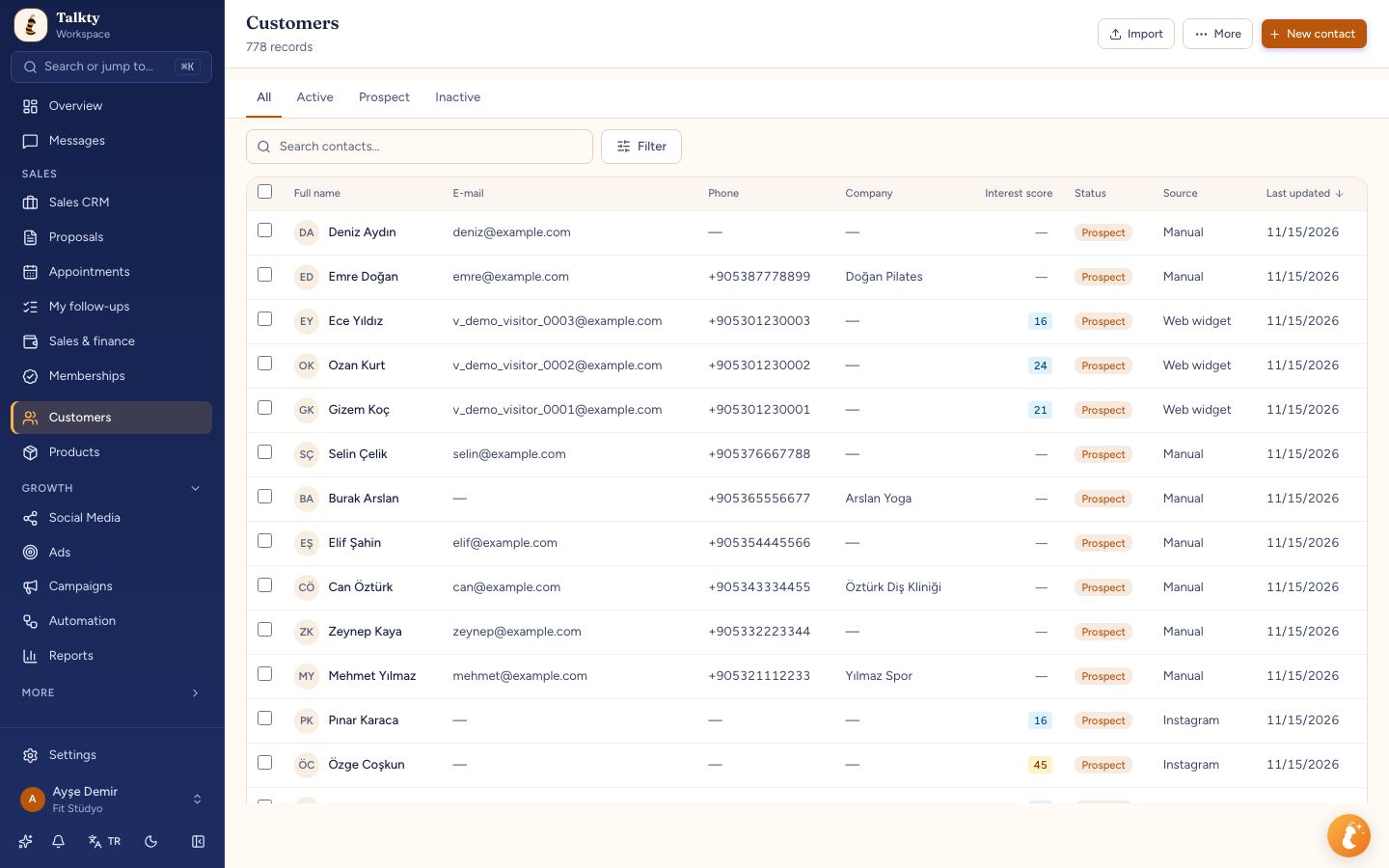
- Open Customers and search by the customer’s name, phone number, or email.
- Click the customer to open the details panel, then select Open profile.
- Check the summary at the top of the profile. It includes the customer’s phone, email, company, lead score, balance due, and quick actions.
- Review the Activity tab for a timeline of records, or open the relevant opportunity to see its details.
If you can view Finance and memberships, the customer panel also shows the open balance as Balance due. For a customer who has bought a package, the opportunity’s full page shows the linked sale’s amount, paid amount, and remaining balance under Memberships. It also shows membership dates, sessions used, and status.
Use Sales CRM to keep balance follow-up in context
Finance is where you review sales and payment amounts; Sales CRM helps you keep the customer’s opportunity and follow-up details together. Every customer record has an opportunity. Open a card to see its details, including the responsible representative, package of interest, follow-up reason, and expected close. If the customer has bought a package, the opportunity page also shows the linked sale and remaining balance.
Use the opportunity’s dated activity history to keep track of recorded events. A payment added to a linked sale appears there as Payment received with the amount and invoice type. This gives the team a record to consult when deciding what needs attention next.
For more on using the opportunity timeline, read Tracking Customer Activity History in Your CRM. If you are setting up customer records and opportunities, Organizing Customer Info in a Sales CRM with Talkty covers how those records fit together.
A simple routine for monitoring balances
Use a consistent review process so you can spot the records that need attention without mixing up sales dates and payment dates:
- In Finance, select the period you want to review.
- Scan the Remaining amount and the row-level remaining balance and next payment date.
- Open a sale when you need to check its details or record a later payment with Add payment.
- Open the customer profile or linked opportunity if you need the balance alongside the customer’s activity and sales context.
- After recording a payment, review the updated sale details and, where applicable, the opportunity’s activity history.
This process keeps the balance review grounded in Talkty’s recorded sales and payments. It also helps the team distinguish between money collected during a period and balances from sales made during that period.
Summary
To monitor outstanding customer balances in Talkty, use Finance to review remaining amounts and next payment dates, open a sale to check details or add a payment, and use the customer profile or linked opportunity for context. Remember that collected payments are grouped by the date received, while the sale amount and Remaining card reflect sales made in the selected period.
Frequently asked questions
- Where can I see outstanding customer balances in Talkty?
- Open Finance to review remaining balances and next payment dates by sale. A customer profile can also show Balance due when you have access to Finance.
- How does Talkty calculate the remaining balance?
- The remaining balance is calculated from the sale price and amount collected. For membership sales, Talkty calculates it automatically.
- Why does a sale appear in Finance for a period when it was made earlier?
- Finance can show older sales that received a payment during the selected period. Collected amounts are grouped by the date the payment was received.
- How do I record a later payment?
- Click the sale in Finance to open its details, then choose Add payment. For a sale linked to an opportunity, the payment is also recorded in the opportunity’s history.
Emily Carter