
Integrating Chat Apps in One Platform: A Small Business Guide
Learn how to bring customer chats into one platform, assign conversations, use AI replies, and connect inbox activity with CRM and appointments.
By Emily Carter · · 6 min read ·

Customers may contact your business through WhatsApp, Instagram, Messenger, or web chat. Integrating chat apps in one platform gives your team one place to manage conversations, assign follow-ups, and connect customer messages with sales and appointments.
Talkty brings WhatsApp, Instagram, Messenger, and web chat into a shared inbox. It also includes an AI assistant, Sales CRM, appointments calendar, automations, and team permissions. Here’s how to think through the setup and use those tools together.
What a shared inbox changes
When conversations arrive in separate apps, your team has to switch between them to check for new messages and follow up. In Talkty, connected conversations appear in the Messages screen. Team members can assign and tag conversations, making it easier to see who is handling each customer and what needs attention.
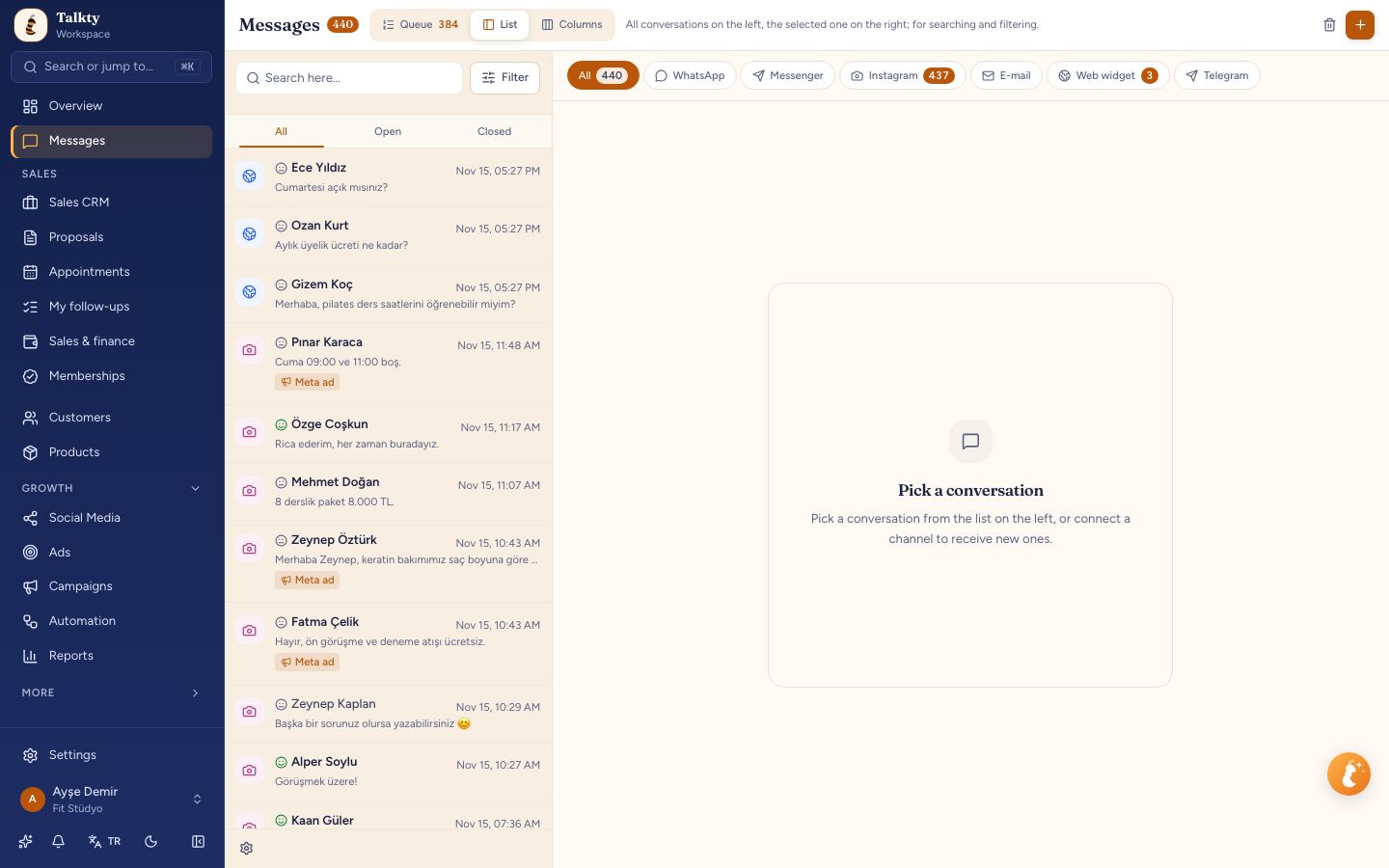
A shared inbox is most useful when your team agrees on a simple routine: check the conversation, assign it to the person responsible, and use a tag to make the next step clear. For more practical guidance, see How to Manage Multiple Chats in One Inbox.
Connect channels and prepare your inbox
Talkty’s shared inbox supports WhatsApp, Instagram, Messenger, and web chat. Connect the channels your business uses, then manage their conversations from the Messages screen.
For WhatsApp Business app, Talkty documents a specific connection process. You need an active number in the app, a supported app version, and your phone available to approve the connection. On the connect screen, choose Connect my WhatsApp Business app number, follow the steps in Meta’s window, and approve the request from your phone. You can choose whether to share chat history. The connection status appears on the WhatsApp card and under Settings › Channels & integrations › Channels.
If you want website visitors to start a conversation, configure the web chat bubble. In Messages, choose Web Widget in the channel filter and press Configure now if it is not set up yet. You can also open the same configuration from the Web card under Settings › Channels & integrations › Channels. Use the Design tab for the bubble’s color, position, and corner style. In Content, set the welcome title, welcome message, input placeholder, and offline message. The live preview shows your changes.
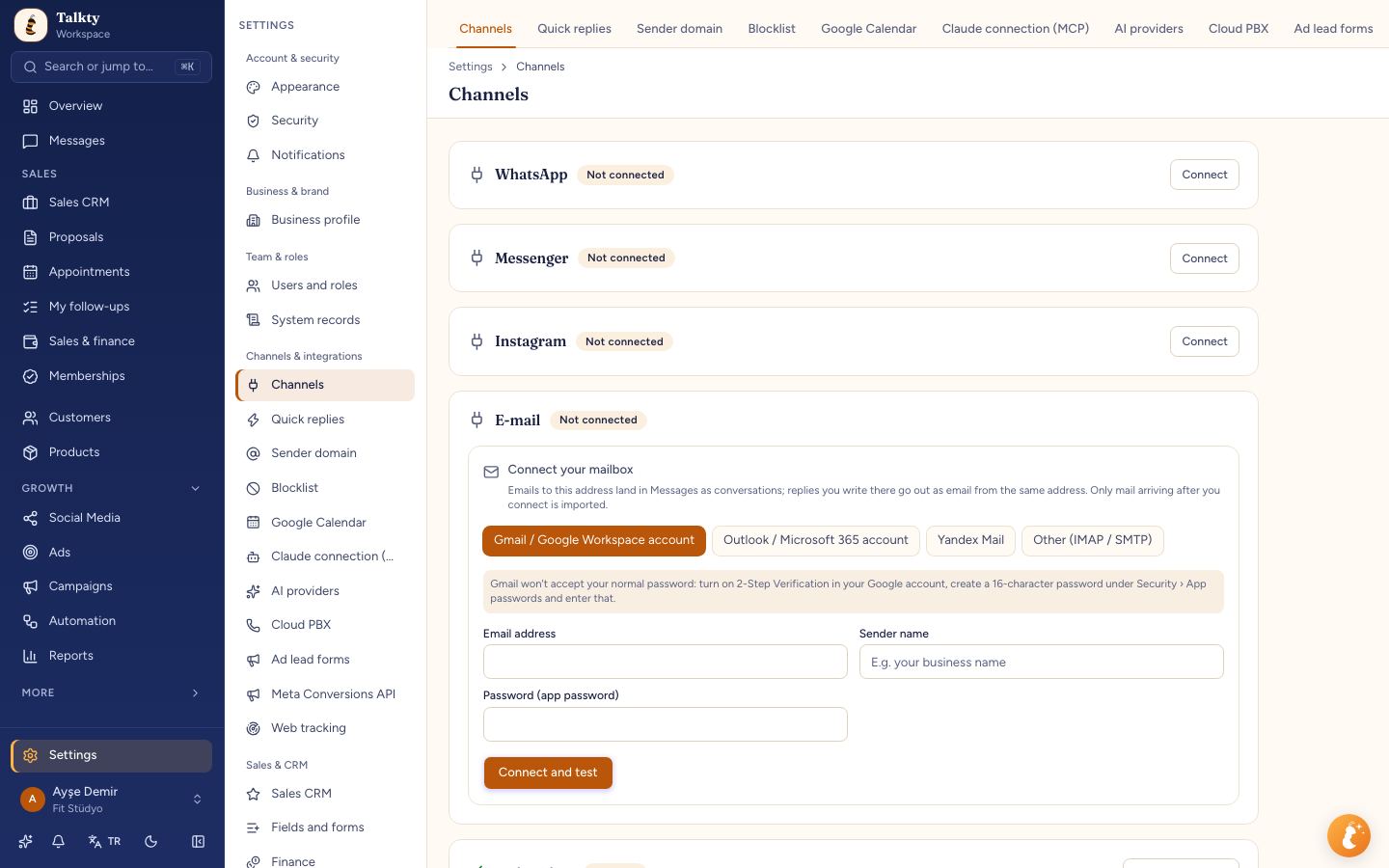
For the full widget setup, see Adding a chat bubble to your website.
Set up AI replies for common questions
Talkty’s AI assistant can be trained on your website and documents to answer questions about topics such as prices, hours, and packages. It can respond around the clock and hand a conversation over to your team when needed.
Before customers rely on it, connect the assistant to the channels where it should reply. On the assistant’s page, find Auto-reply on these channels, select the connected channels, and press Save channels. In Messages, select a channel, choose the assistant in AI agent for this channel, and turn on Auto-reply to incoming messages. For a website bubble, select the assistant in the widget settings under Linked AI Agent.
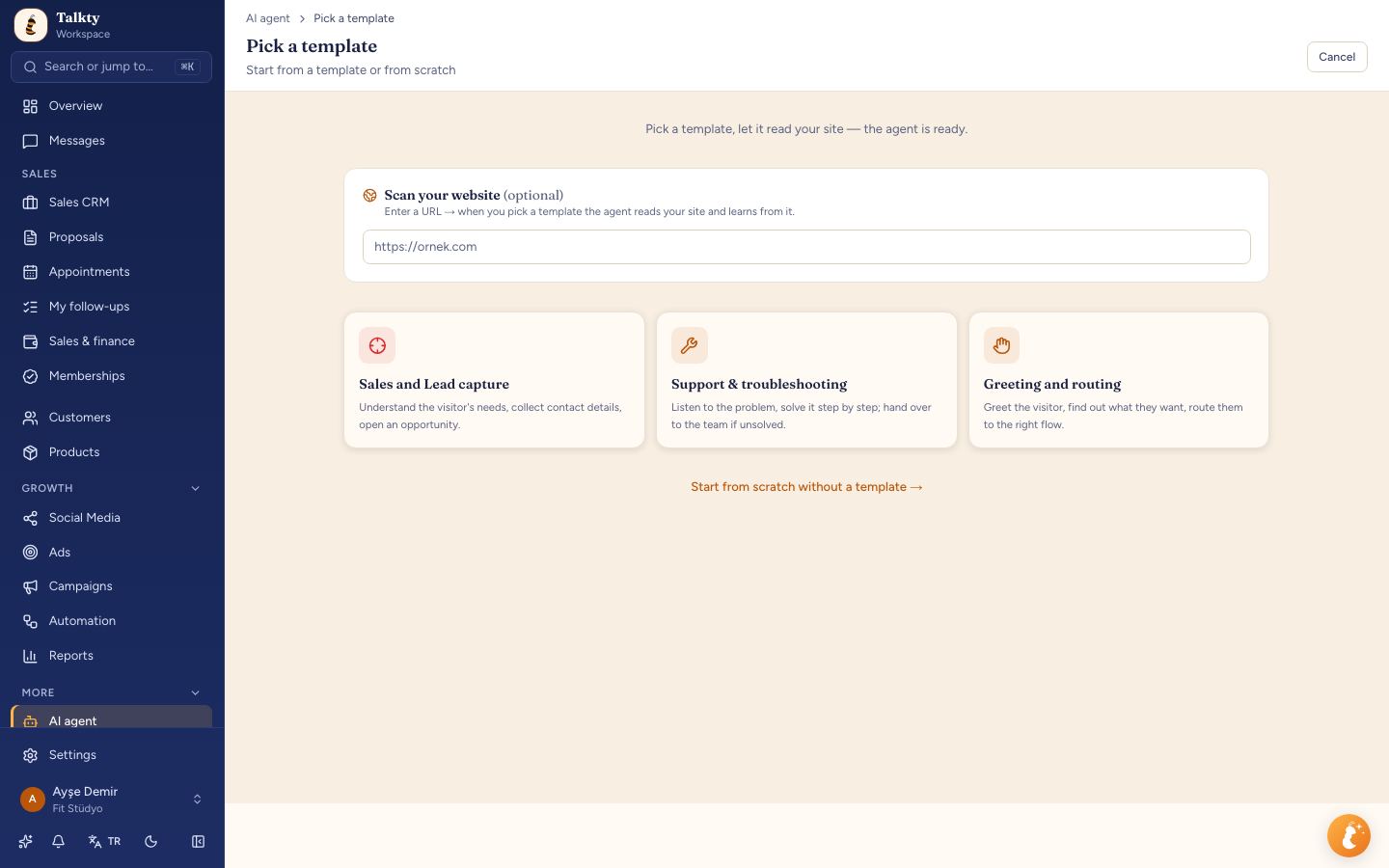
Test the assistant before enabling it for customers. Check that its answers reflect the information in your website and documents, and that a handover reaches your team when a question needs human attention. The assistant testing and connection guide explains the channel settings in more detail.
Keep sales follow-ups connected to conversations
Talkty’s Sales CRM represents each customer as a card. You can move cards across boards with drag and drop, set follow-up plans and reminders, and review a dated activity history. This gives your team a place to track what should happen after an inquiry, rather than relying on someone to remember it.
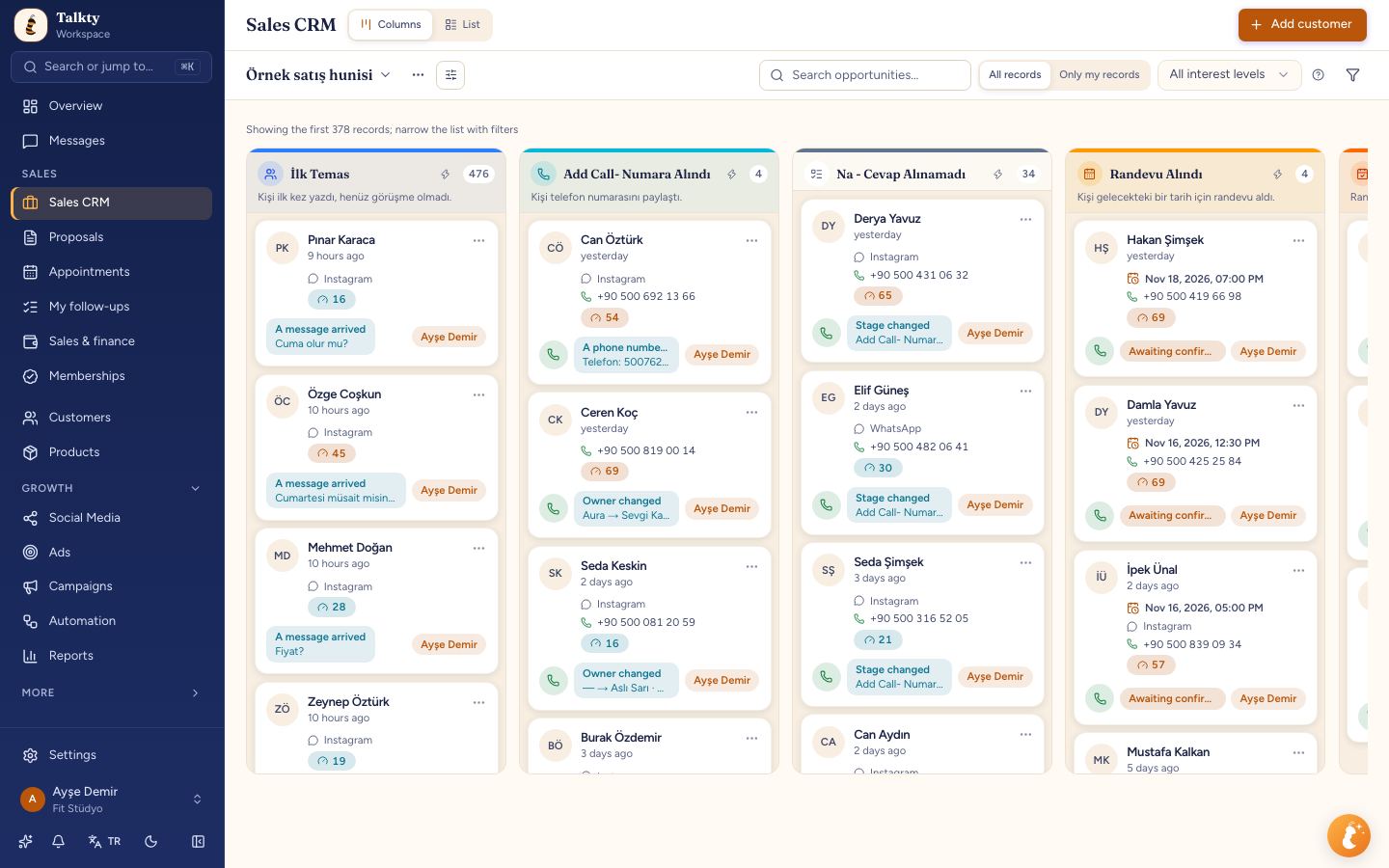
A straightforward process is to review a customer’s conversation, make sure the customer is represented in the CRM, and set a follow-up plan or reminder when another contact is needed. Assigning conversations clearly helps the team know who should take that next step. For ideas on distributing inbox work, read Best Ways to Assign Chat Conversations for Small Businesses.
Manage appointments in one calendar
Appointments booked by your AI assistant or your team land in Talkty’s calendar. The calendar includes confirmation and attendance status, as well as reminders. This lets your team check appointment activity in one place alongside its other customer work.
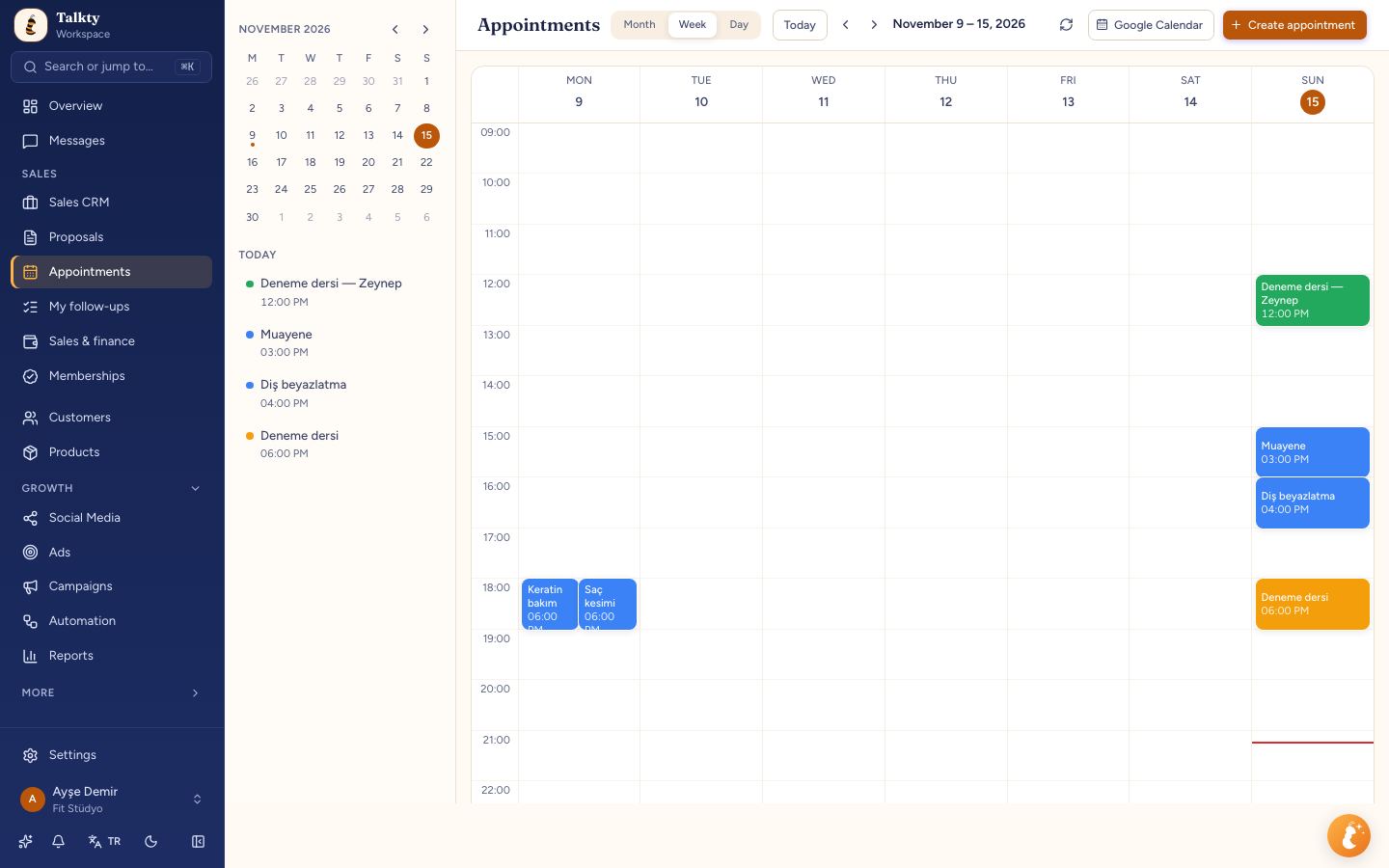
When setting up your process, decide how your team will check appointment status and handle follow-ups. Use the calendar to review upcoming bookings and attendance information, and use CRM reminders for sales follow-up plans that need a separate next step.
Use automations and team permissions carefully
Talkty’s visual flow builder can automate repetitive work, including welcome messages, stage changes, and notifications. Start with a routine your team already understands, then define the trigger and the action you want the flow to take. For example, a welcome message can help make the first interaction consistent. Avoid adding a flow until the team knows what should happen when it runs.
Team roles and permissions help control who can see or do what. You can, for example, show representatives only their own boards. Review these settings when responsibilities change so access matches each person’s role.
Step-by-step: bring your customer conversations together
- Connect WhatsApp Business app if you use it. On the connect screen, press Connect my WhatsApp Business app number, follow the steps in Meta’s window, and approve the request from your phone. Choose whether to share chat history. Check the WhatsApp connection card or Settings › Channels & integrations › Channels for its status.
- Configure web chat if customers contact you through your site. In Messages, select Web Widget and press Configure now. Set the appearance in Design, the text in Content, and an assistant in Linked AI Agent if you want one to answer visitors.
- Review the shared inbox. Open Messages, select a channel, and assign and tag conversations so ownership and follow-up are clear.
- Connect and test an AI assistant. Select the channels under Auto-reply on these channels, press Save channels, and enable Auto-reply to incoming messages for the relevant channel. Test its answers and handover before relying on it.
- Track customer follow-ups in Sales CRM. Use customer cards, board stages, follow-up plans, reminders, and dated activity history to keep the next action visible.
- Review appointments in the calendar. Check bookings, confirmations, attendance status, and reminders in one place.
- Add automations and permissions to fit your process. Use the visual flow builder for repetitive tasks, then set team roles and board access to match responsibilities.
Summary
Integrating chat apps in one platform gives a small business a shared place to manage customer conversations and the work that follows them. Talkty combines a shared inbox for WhatsApp, Instagram, Messenger, and web chat with AI replies, CRM follow-ups, appointments, automations, and team permissions. Connect the channels you use, make conversation ownership clear, and add AI and workflows where they support a process your team already understands.
Frequently asked questions
- Which chat channels can Talkty bring into one inbox?
- Talkty’s shared inbox brings together WhatsApp, Instagram, Messenger, and web chat.
- How do I connect WhatsApp Business app to Talkty?
- On the connect screen, choose Connect my WhatsApp Business app number, follow the steps in Meta’s window, and approve the request from your phone. You can choose whether to share chat history.
- How do I connect the AI assistant to a channel?
- On the assistant’s page, select connected channels under Auto-reply on these channels and press Save channels. In Messages, choose the assistant for the channel and turn on Auto-reply to incoming messages. For web chat, choose the assistant under Linked AI Agent in the widget settings.
- Can the AI assistant hand a conversation to a team member?
- Yes. The assistant can hand a conversation over to your team when needed.
- Where do appointments booked by the AI or team appear?
- They appear in one calendar, with confirmation, attendance status, and reminders.
Emily Carter