
Automating Repetitive Sales Tasks: A Practical Guide
Learn how to automate routine sales follow-ups, lead updates, and appointment reminders with clear triggers, actions, and a simple review process.
By Emily Carter · · 6 min read

Routine sales work can take attention away from conversations with potential customers. Automating repetitive sales tasks can help your team send timely follow-ups, update opportunity records, and notify the right person when something changes. The key is to choose a clear trigger, decide what should happen next, and check that the flow works as intended.
What sales tasks can you automate?
An automation is a flow that starts when an event happens, at a scheduled time, or when another system calls it. For sales teams, useful examples include:
- Sending a follow-up after a new opportunity is opened.
- Following up when an opportunity has stayed in a stage without moving.
- Updating an opportunity’s stage or adding a tag.
- Setting a follow-up date or notifying a teammate.
- Sending an appointment reminder before a booked appointment.
- Replying to incoming WhatsApp messages with an AI assistant.
These flows can reduce the need to remember every routine step manually. They do not replace the judgment involved in a sales conversation: instead, they handle defined actions when their conditions are met.
For a broader look at keeping customer records useful, see Organizing Customer Info in a Sales CRM. For follow-up planning in particular, read Reminder Systems for Sales Teams.
Step by step: build a sales follow-up flow
Use a simple follow-up as a starting point. The example below sends a message two days after a new opportunity is opened.
- Open Automations. Go to the automation list and look above it for ready-made templates. Templates are filtered based on the sales model chosen in your business type. Each one describes what it does and how to measure it.
- Choose a template or start a flow. Select a template that fits the task. For the example, choose New lead follow-up. Clicking a template opens the flow builder with that flow. You can also build a flow by choosing its trigger and adding steps.
- Check the trigger. A trigger is the event that starts the flow. Opportunity triggers include Opportunity created, Opportunity updated, and Stage changed. For the new-lead example, the trigger is a new opportunity. If you choose an opportunity event, you can select a Sales flow and a Stage; leave the stage empty if the flow should apply across stages.
- Set the message step. The ready-made new-lead follow-up sends a message two days after a new opportunity is opened. When using a WhatsApp template, open the template step, choose your approved template under WhatsApp template, then save and activate the flow.
- Save and activate. Review the trigger and steps, then save and activate the flow. If you are testing a message-received flow, you can use Only this opportunity to select one customer’s opportunity. Leaving it empty applies the flow to all opportunities that match the trigger.
A separate ready-made flow, Bulk follow-up to potential customers, sends the same approved WhatsApp template once per opportunity when an open opportunity has not moved for three days. For a one-off bulk send, use Campaigns instead of creating an ongoing follow-up flow.
Choose a trigger that matches the work
The trigger determines when a flow runs, so choose the event that reflects the task you want to automate. Available triggers include incoming messages, opportunity events, contact events, appointment timing, and schedules.
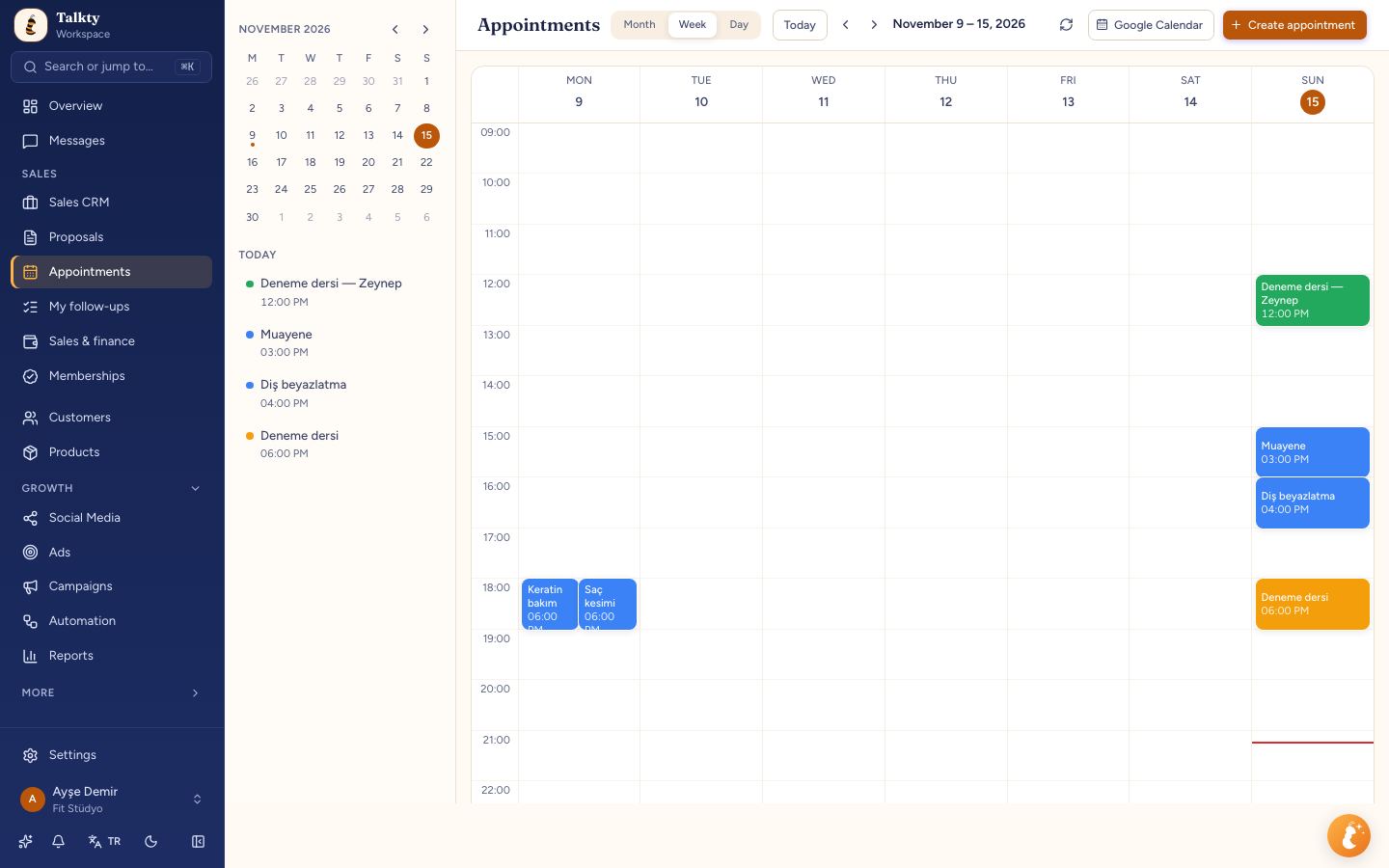
For example, Appointment in 24 hours can start an appointment reminder flow. The ready-made Appointment reminder template sends a template message to the customer 24 hours before the appointment. The appointment may have been booked by the AI or by your team; appointments are shown in one calendar with confirmation, attendance status, and reminders.
Time-based triggers can also start a flow when a customer has not written for 30 days or when an opportunity has been idle in a stage. For an idle-stage trigger, set Idle for (days). The flow is checked hourly and runs once per record. If the opportunity moves to another stage and later waits there again, the flow can run again.
You can also choose Schedule to run a flow at set times and days, such as every day at 09:00. Use a schedule when the task is tied to a regular time rather than a customer event.
Add actions that keep opportunities moving
A flow can do more than send a message. An Opportunity action step changes the opportunity that triggered the flow. Depending on the action, you can move it to another stage, move it to the first stage of another sales flow, assign it to a person, or assign it from a pool.
Other available actions include adding an existing tag, adding a note, setting a follow-up date, or notifying a teammate. If no teammate is selected for a notification, the opportunity owner receives an in-app notification. When an opportunity moves through an automation, that move does not trigger the same automation again.
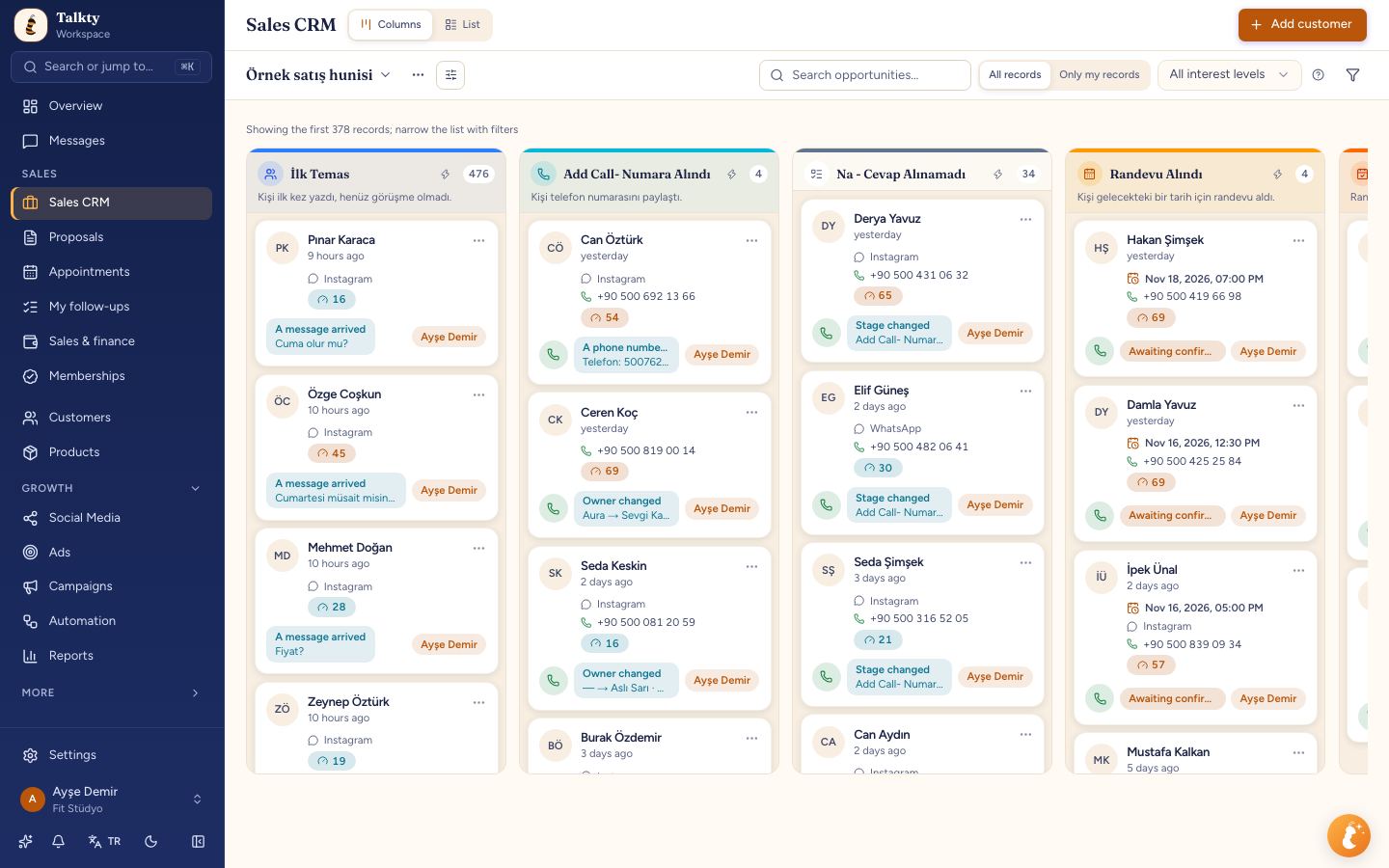
These actions work alongside the Sales CRM, where opportunities move through columns such as New, Called, Appointment booked, Attended, and Won / Lost. A team can use stage changes to make the next step visible and keep customer work organized. For more on how those stages relate to results, see Analyzing Sales Conversion Funnels.
Use AI for incoming questions, with a handoff when needed
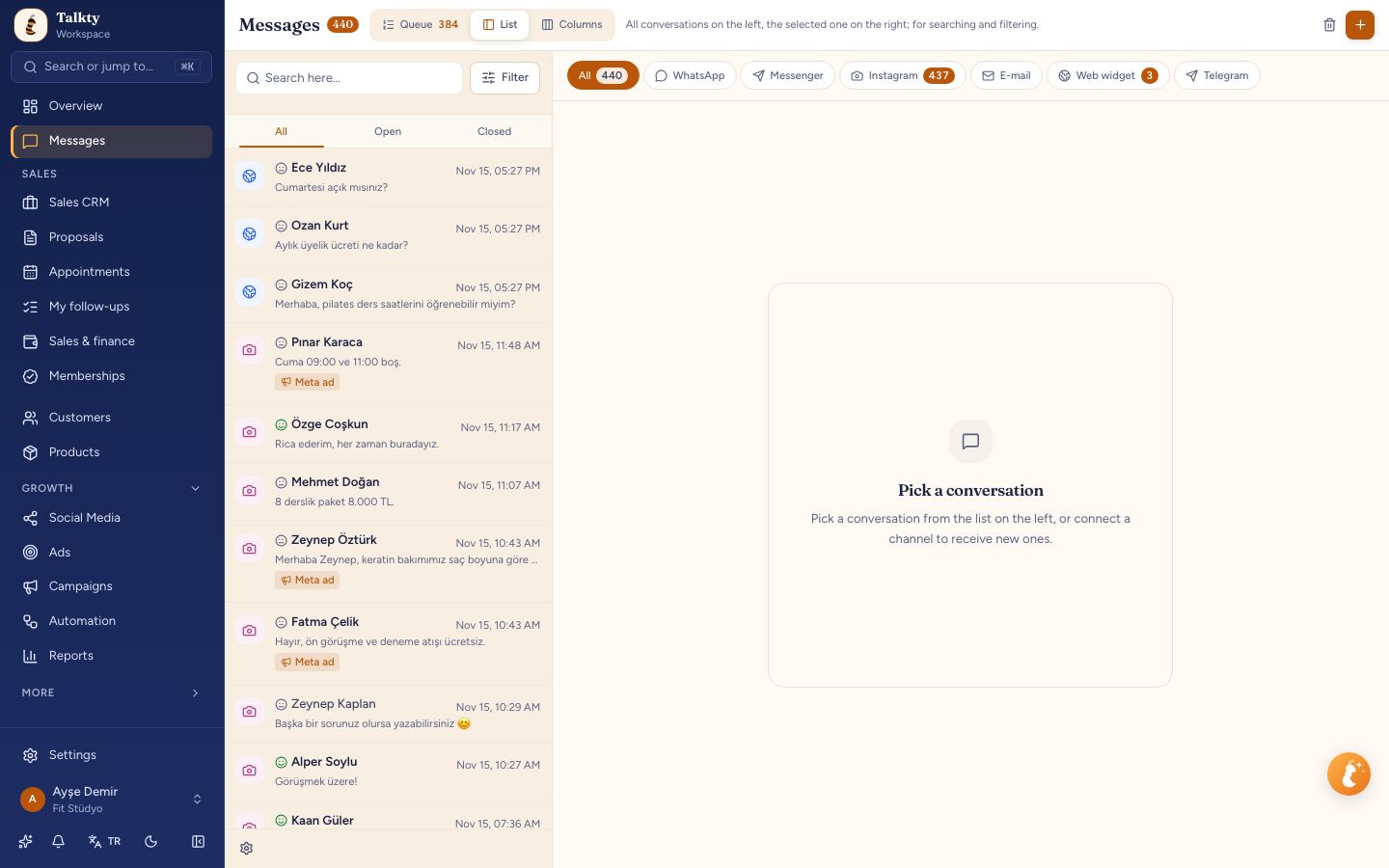
For incoming WhatsApp messages, an AI assistant trained on your website and documents can answer questions about prices, hours, and packages around the clock, then hand the conversation to your team when needed. This can help handle common questions while keeping a route open for a person to take over.
AI auto-reply is set up from the assistant’s Auto-reply on these channels settings. The channel AI bar in Messages and the website chat bubble can also be used to configure this system automation. The system automation appears in the Automations list as a view of the setting; its source setting does the work.
When using an automation flow for messages, remember that message steps on opportunity events go to that opportunity’s conversation. Sent and failed messages are written to the opportunity’s history, which gives the team a record of what happened.
Test and maintain your flows
Before relying on a flow, check its trigger, target, and message or action steps. For a message-received flow, use Only this opportunity to limit a test to one opportunity. Confirm that the selected event and stage match the cases you want to handle.
The automation list shows each flow’s trigger and, when set, its sales flow or stage. You can filter the list with All, Sales flow automation, and Other flows. Some automations are created by settings on other screens and show a System badge. They are read-only in the flow list; choose Open settings to return to the screen that controls them.
Avoid leaving two flows active that perform the same job. For example, if you build a custom flow to replace a system automation, turn off the system setting; otherwise, both may send a reply. Review flows when your sales stages or follow-up process changes so their triggers and actions still match the way your team works.
Summary
Start by identifying a repetitive task and the event that should trigger it. Build a flow with a suitable message or opportunity action, test it on a single opportunity when possible, then activate it and check its history. Clear triggers and occasional reviews help automation support your sales process without losing track of customer conversations.
Frequently asked questions
- What does automating repetitive sales tasks mean?
- It means using flows to handle defined routine actions when an event occurs or at a scheduled time, such as sending a follow-up, updating an opportunity, or notifying a teammate.
- What can trigger a sales automation?
- Triggers can include an incoming message, an opportunity being created or updated, a stage change, an appointment approaching, an opportunity being idle in a stage, or a set schedule.
- Can an automation send a follow-up to a new lead?
- Yes. The ready-made New lead follow-up flow sends a follow-up message two days after a new opportunity is opened. For WhatsApp, choose an approved template in the WhatsApp template step, then save and activate the flow.
- How can I test a message automation on one customer?
- For a Message received trigger, use Only this opportunity to find and select one customer’s opportunity. Leave it empty when the flow should apply to all matching opportunities.
- Can AI handle sales questions automatically?
- An AI assistant trained on your website and documents can answer incoming WhatsApp questions about prices, hours, and packages 24/7, and hand the conversation to your team when needed.
Emily Carter