
Benefits of a Shared Inbox for Small Businesses
See how a shared inbox helps small businesses organize messages, assign conversations, use AI replies, and keep customer follow-ups in view.
By Emily Carter · · 5 min read ·

A shared inbox can help small businesses handle customer conversations without switching between separate messaging apps. The benefits of a shared inbox for small business include seeing messages from supported channels in one list, assigning conversations, and keeping follow-ups connected to customer records. With Talkty, teams can also use an AI assistant and manage appointments alongside conversations.
What a shared inbox helps a small business do
Talkty brings WhatsApp, Instagram, Messenger, and website chat conversations into one Messages list. Instead of checking each channel separately, your team can work from one place. Email and Telegram are also available in Talkty, but the shared-inbox channel list described here includes WhatsApp, Instagram, Messenger, and web chat.
A shared view is useful when more than one person handles customer questions. Team members can see conversations, assign them, and add tags to organize the work. This gives the team a way to keep ownership and message status visible rather than relying on separate app histories or informal handoffs.
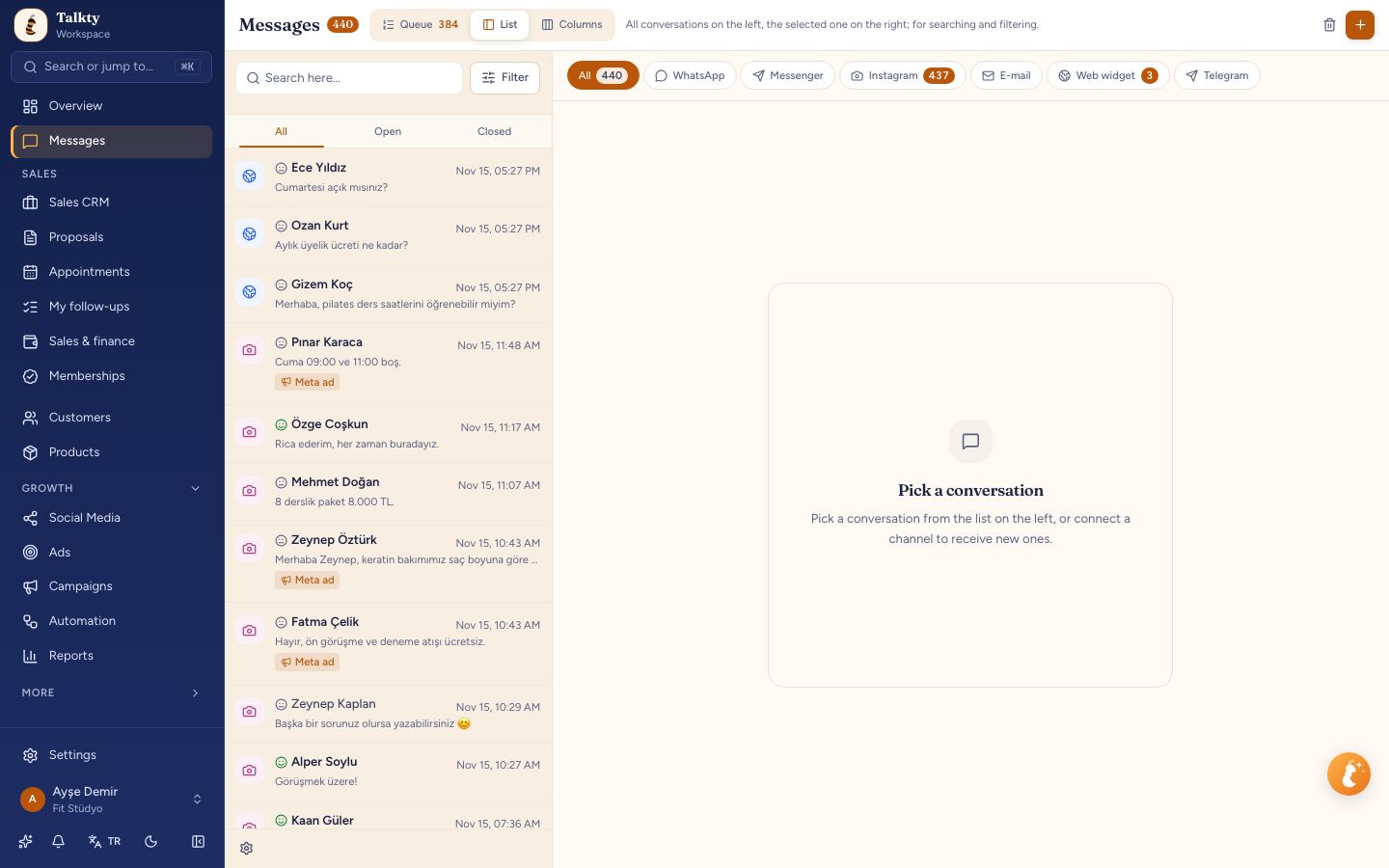
Benefits of a shared inbox for small business teams
Keep conversations in one place
Messages from supported channels appear in the same inbox list. Your team can review conversations and reply from the Messages screen, instead of moving between channel apps to find the latest customer question.
Make conversation ownership clearer
Assign a conversation to the team member who should handle it, and use tags to group or identify conversations. If your team needs a more detailed guide to assigning chats, see Best Ways to Assign Chat Conversations for Small Businesses.
Keep unanswered messages visible
Talkty’s inbox settings include Keep unread until replied. In List view, select the gear button at the bottom left of the conversation list to open Inbox settings. When this setting is on, opening a conversation does not clear its unread badge; the badge clears only after a reply is sent from the Messages screen. This can help teams spot conversations that have been opened but not answered.
Let AI handle routine questions
Talkty’s AI assistant can use your website and documents to answer questions about prices, hours, and packages. It can respond around the clock and hand a conversation to your team when needed. For more on this use, read Using AI for Customer Support 24/7 with Talkty.
Connect conversations to follow-up work
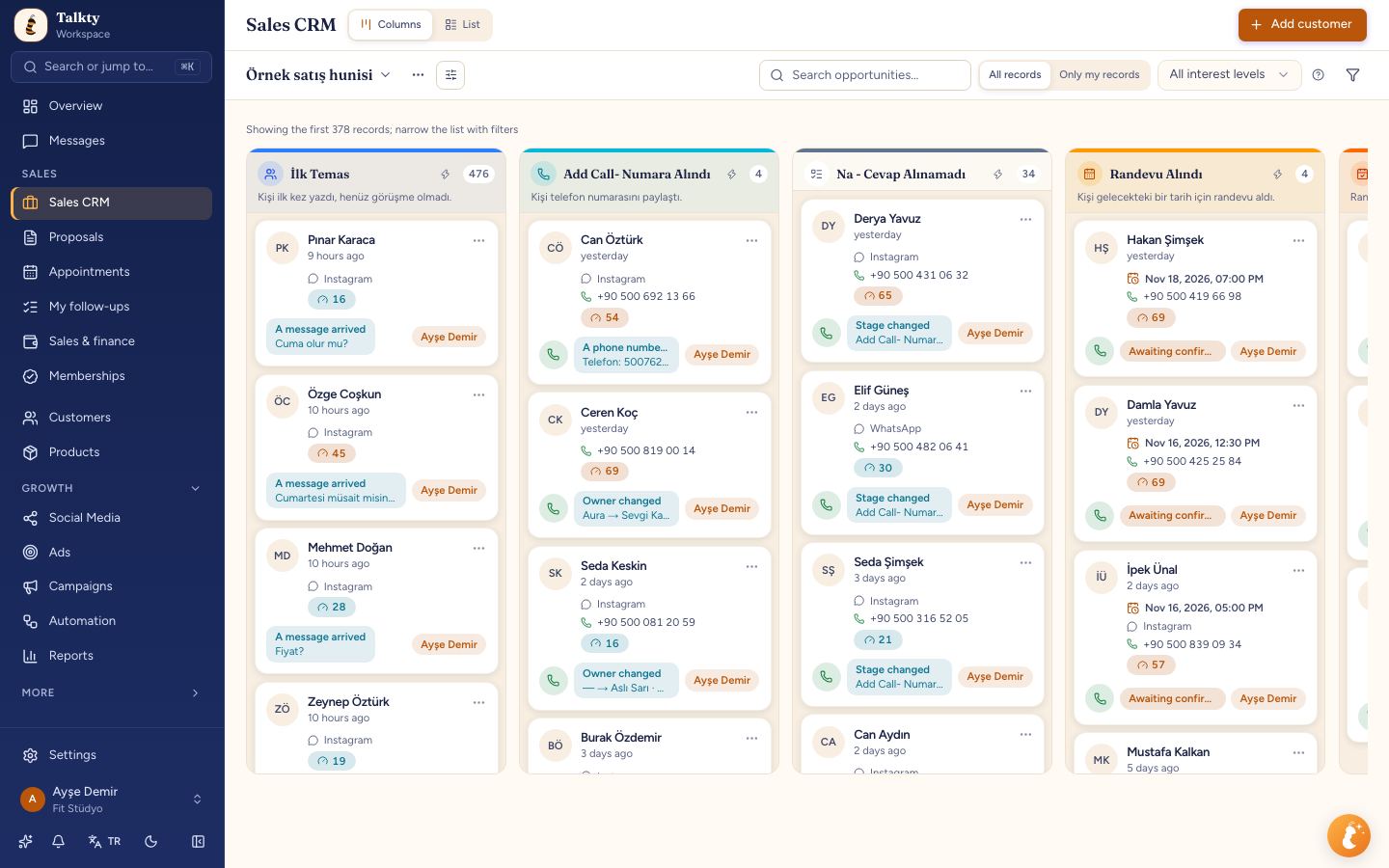
Talkty’s Sales CRM represents each customer as a card. The board supports drag-and-drop, follow-up plans, reminders, and a dated activity history. This helps a team keep sales follow-ups connected to customer records rather than treating every message as an isolated chat.
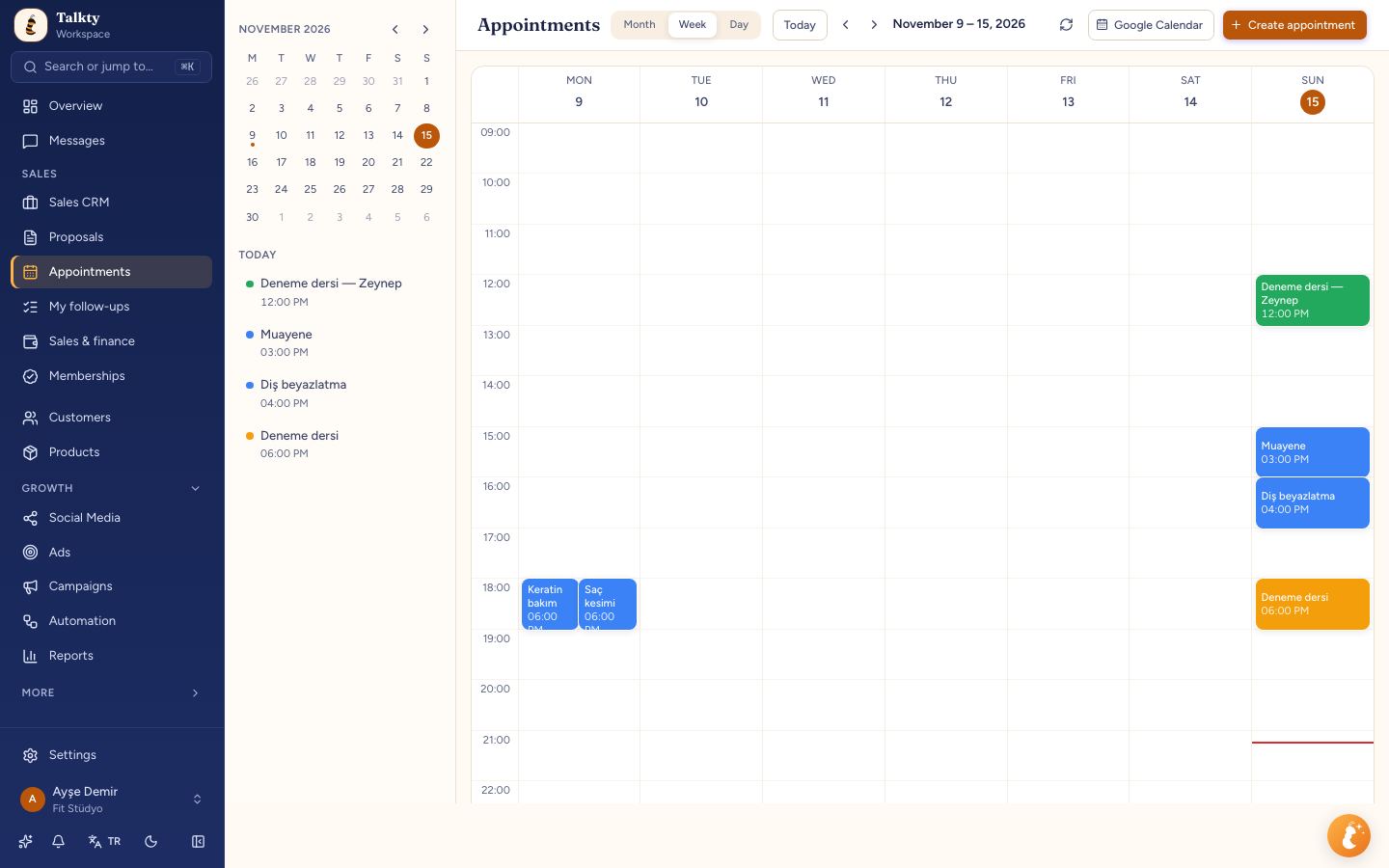
Appointments booked by the AI or your team appear in one calendar, where you can manage confirmation, attendance status, and reminders. This is useful when a conversation leads to a booking and the team needs to keep the appointment visible alongside its customer work.
How to start using Talkty’s shared inbox
Follow these steps to bring your channels and team workflow together:
- Open Messages and connect a channel. In Messages, choose a channel from the filter at the top left, or open its card under Settings › Channels & integrations › Channels. For WhatsApp, select Connect a new number and follow the Meta setup window. If you use a WhatsApp Business app number, the connection screen also offers Connect my WhatsApp Business app number. See Connecting WhatsApp for the requirements and steps.
- Connect the other channels your business uses. Use the relevant channel connection option in Talkty. Once connected, messages from WhatsApp, Instagram, Messenger, and web chat can appear in the shared inbox. For an overview of bringing chat apps together, see Integrating Chat Apps in One Platform for Small Businesses.
- Review the conversation list. Open Messages and use the channel filter to focus on a particular source when needed. Select a conversation to read it and reply. You can also search, assign, close, and use quick replies from the inbox.
- Assign and tag conversations. Give each conversation an owner and add tags that suit your team’s way of organizing work. Use these consistently so team members can understand what needs attention.
- Set the unread behavior your team needs. In List view, click the gear button at the bottom left of the conversation list. In Inbox settings, turn on Keep unread until replied if you want a conversation to remain unread until a reply is sent from Messages.
- Set up customer follow-up. Use the Sales CRM board to manage customer cards, follow-up plans, reminders, and dated activity. If a conversation results in an appointment, manage it in the appointments calendar.
Keep team access and handoffs clear
Talkty provides roles and permissions so you can decide who sees what. The available team setup can also show reps only their own boards. Use these controls to match access to your team’s responsibilities, while assigning conversations to make day-to-day ownership clear.
A shared inbox works best when the team agrees on a simple routine: review the list, assign conversations, use tags consistently, and check that unanswered messages remain visible. CRM reminders and activity history can then support follow-up beyond the initial reply.
Summary
The main benefits of a shared inbox for small business are a single place to handle supported channel conversations, clearer assignment, and a more visible way to track unanswered messages. Talkty adds an AI assistant for common questions, Sales CRM follow-up tools, and a calendar for appointments booked by your team or AI. Together, these tools help small teams keep conversations and next steps organized.
Frequently asked questions
- Which channels appear in Talkty’s shared inbox?
- Talkty’s shared inbox brings WhatsApp, Instagram, Messenger, and website chat conversations into one list.
- Can I assign conversations to team members?
- Yes. You can assign conversations and add tags to organize them.
- How can I keep opened but unanswered conversations visible?
- In List view, open Inbox settings with the gear button at the bottom left of the conversation list and turn on Keep unread until replied. The unread badge then clears only after you reply from Messages.
- What does Talkty’s AI assistant do in the inbox?
- It can answer questions about prices, hours, and packages using your website and documents, and hand conversations to your team when needed.
- Can a shared inbox help with customer follow-up and appointments?
- Talkty’s Sales CRM provides customer cards, follow-up plans, reminders, and dated activity history. Appointments booked by the AI or your team appear in one calendar with confirmation, attendance status, and reminders.
Emily Carter