
Best Ways to Assign Chat Conversations for Small Businesses
Learn effective ways to assign chat conversations using Talkty's shared inbox, AI assistant, and team roles to improve customer service.
By Emily Carter · · 3 min read

Why Assigning Chat Conversations Matters
Handling multiple chat conversations efficiently is essential for small businesses to provide timely and personalized customer service. Assigning conversations to the right team members ensures no message slips through and customers get the help they need quickly. Talkty’s shared inbox lets you manage WhatsApp, Instagram, Messenger, and web chat messages all in one place, making assignment easier and more organized.
Using Talkty’s Shared Inbox to Assign Conversations
Talkty collects messages from different channels into a single inbox. Here you can view conversations in three ways: Queue, List, and Board.
- Queue View: Conversations with unread messages appear one by one, starting with the longest waiting. After replying, the next conversation opens automatically. This helps focus on one chat at a time.
- List View: Shows all conversations with filters to see only assigned or unassigned chats. You can assign chats by selecting a conversation and tagging it to a team member.
- Board View: Displays conversations as cards in columns like Waiting for reply, AI on, With the team, and Closed. You can drag cards between columns to assign or change status.
This system helps you keep track of who is handling which conversation and prevents messages from being overlooked.
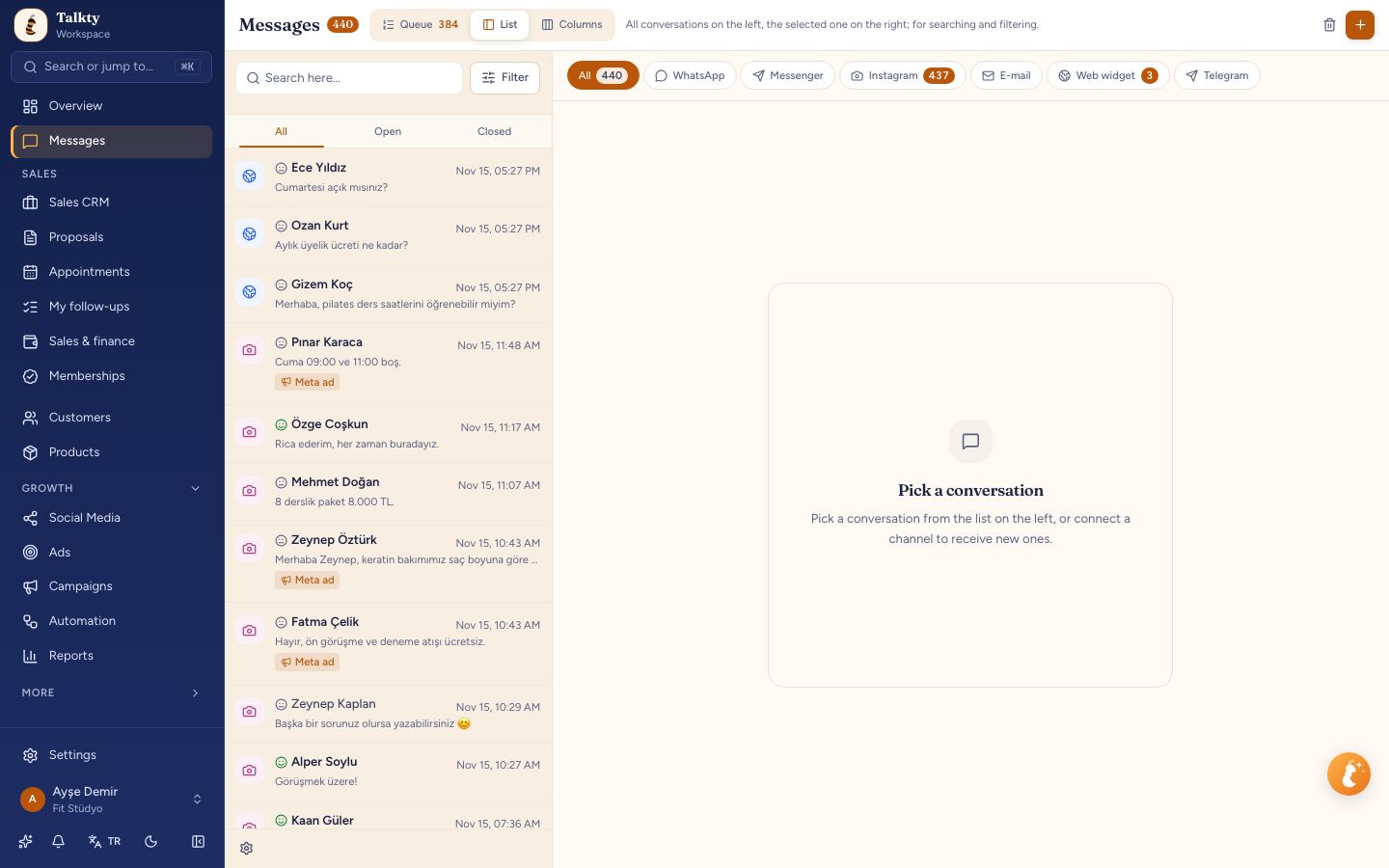
Step-by-Step: Assigning Chats in Talkty
- Open the Inbox: Choose List or Board view for easier assignment.
- Filter Unassigned Conversations: Use the filter to show only chats that need to be assigned.
- Select a Conversation: Click on the chat to see details and customer information.
- Assign to a Team Member: Use the assign feature to tag the conversation to a specific rep.
- Confirm Assignment: The assigned rep will see the conversation in their view.
- Monitor and Follow Up: Use the CRM features to track follow-ups and next steps.
Using this method, your team can divide work efficiently and customers receive quicker responses.
Leveraging AI to Assist and Assign Conversations
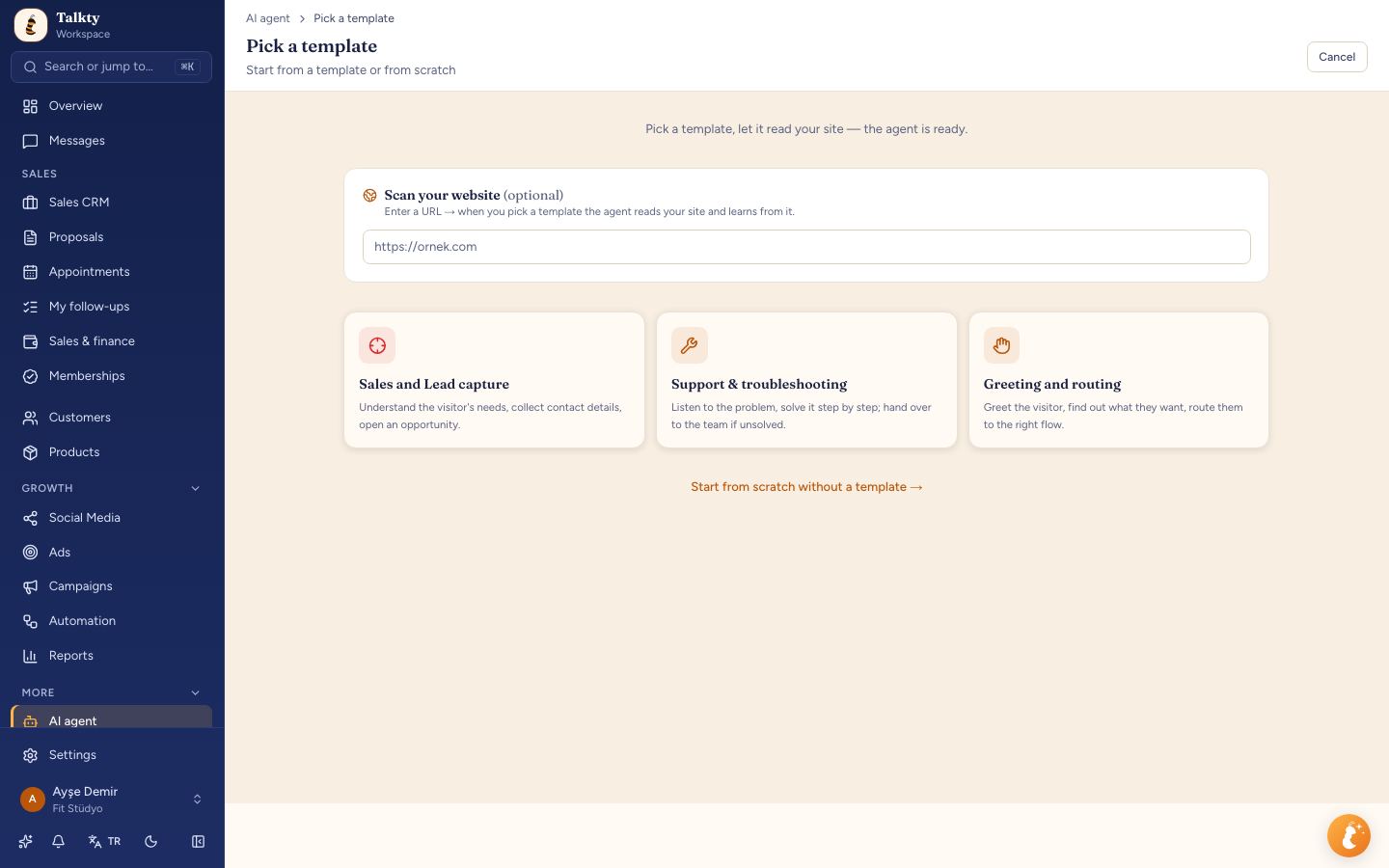
Talkty’s AI assistant can handle common questions about prices, hours, and packages 24/7. When the AI cannot answer, it hands off the chat to a human agent smoothly. This reduces the workload on your team and speeds up response times.
You can turn AI on or off per conversation, and assign chats that need personal attention to your reps. Learn more about when to hand off AI chats to human agents in our related article.
Managing Team Roles and Permissions for Better Assignment
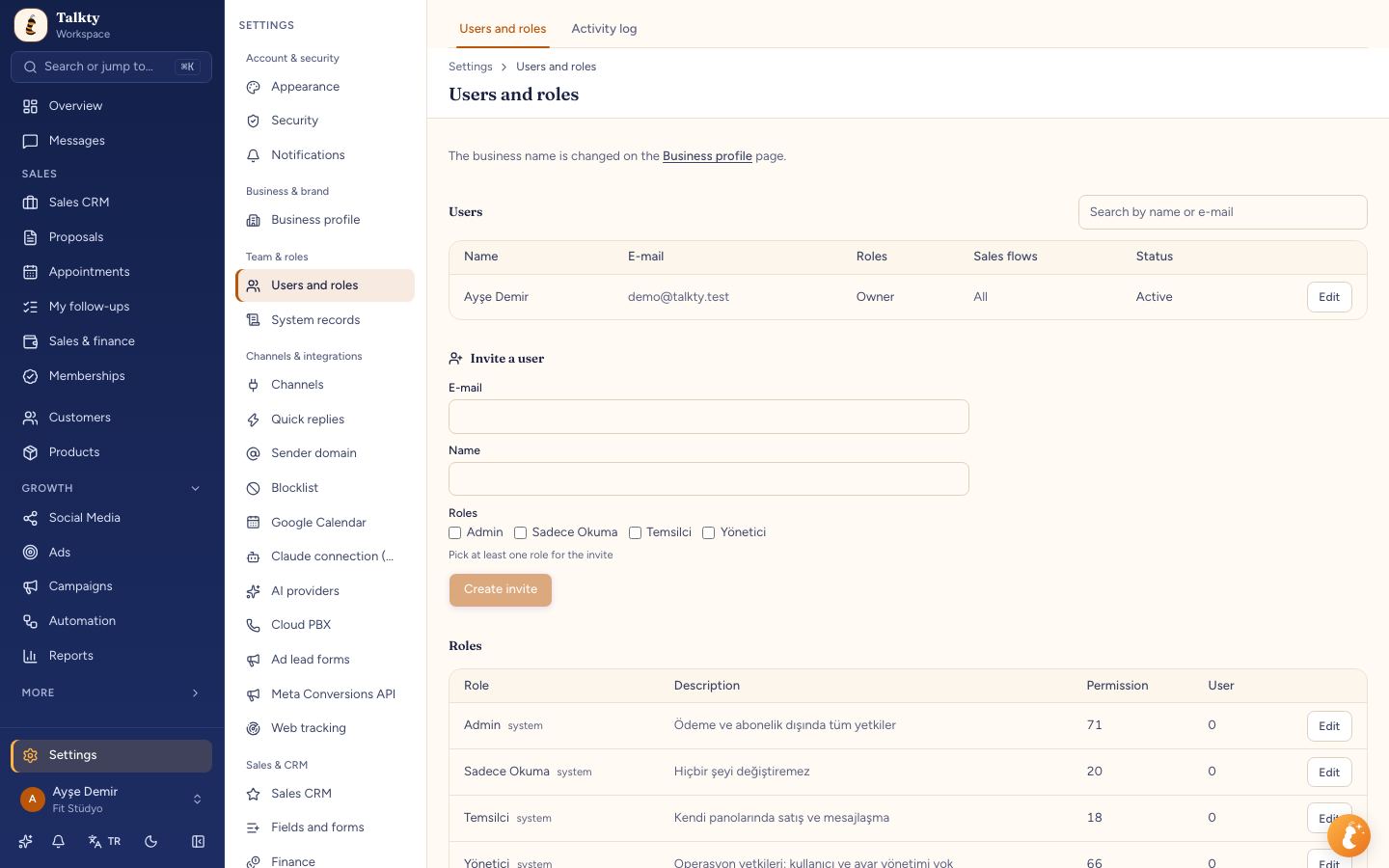
Talkty allows you to invite teammates and assign roles with specific permissions. This means reps only see their own boards and assigned chats, while managers have broader access.
- Admin: Full access except subscription settings.
- Manager: Day-to-day work without user or system changes.
- Rep: Access to their own customer cards and chats.
- Read Only: Can view but not edit anything.
By setting clear roles, you can control who handles what and keep sensitive information secure.
Summary
Assigning chat conversations effectively helps small businesses stay organized and responsive. Talkty’s shared inbox collects all messages in one place, where you can assign chats easily using List or Board views. The AI assistant handles routine questions and passes chats to your team when needed. Clear team roles ensure everyone sees only their tasks, improving workflow and customer satisfaction.
For more tips on managing chats in one inbox, see our guide: How to Manage Multiple Chats in One Inbox with Talkty.
Frequently asked questions
- How do I assign a chat conversation to a team member in Talkty?
- You can assign chats by selecting a conversation in the List or Board view and tagging it to a specific team member. This ensures the right person handles the conversation.
- Can AI handle chat conversations automatically?
- Yes, Talkty’s AI assistant can answer common questions 24/7 and hand off conversations to human agents when needed.
- How do team roles affect chat assignment?
- Roles define what each team member can see and do. Reps see only their assigned chats, while managers and admins have broader access to assign and monitor conversations.
- What views help with managing chat assignments?
- Talkty offers Queue, List, and Board views. List and Board views are especially useful for assigning and tracking who is handling each conversation.
Emily Carter