
Booking Appointments Online with AI: A Practical Guide
Learn how to book appointments online with AI using Talkty, connect an assistant to a customer channel, and manage bookings in one calendar.
By Emily Carter · · 4 min read ·

Booking appointments online with AI can help a small business respond to booking questions and keep appointments organised. With Talkty, an AI assistant can answer questions using your website and documents, then book appointments during a conversation. Bookings made by the assistant or your team appear in the same calendar.
How AI appointment booking works in Talkty
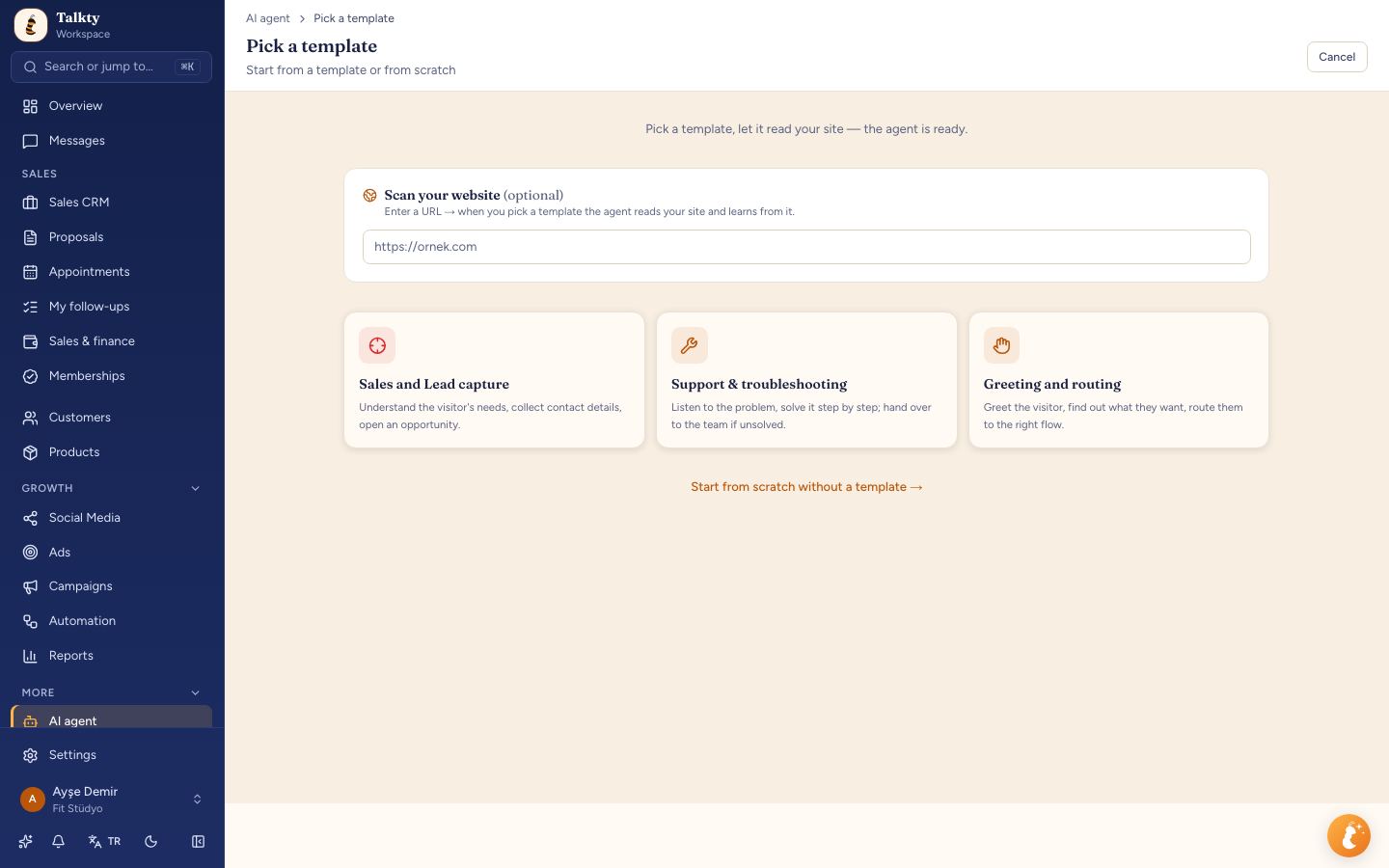
Talkty’s AI assistant can answer customer questions about prices, hours and packages using information from your website and documents. When a customer is ready to book, the assistant can book an appointment during the conversation. If a question needs a person, the assistant can hand the conversation over to your team.
Appointments booked by the AI and your team are managed in Talkty’s calendar. Each appointment can have a status and can be linked to a customer’s opportunity in Sales CRM, giving your team a place to review the booking and its history.
Prepare and connect your AI assistant
If you are setting up Talkty for the first time, the setup wizard can prepare an assistant for your business type. In the Your business step, choose your business type and what you sell. You can also enter your business name and website. If you add a website, the assistant is prepared with information from it. Press Next to continue setup.
Before customers use the assistant, test it in Test and try on the right side of the assistant page. Enter a realistic customer question and press Test agent or Enter. Try questions about prices, available times, cancellations, or speaking to a person. The test shows details collected from the conversation and actions taken, such as booking an appointment.
To let customers reach the assistant, connect it to a supported channel: WhatsApp, Instagram or web chat. The channel connection is managed from the assistant setup. For the connection steps, see Testing and connecting the assistant.
Step-by-step: book and manage appointments
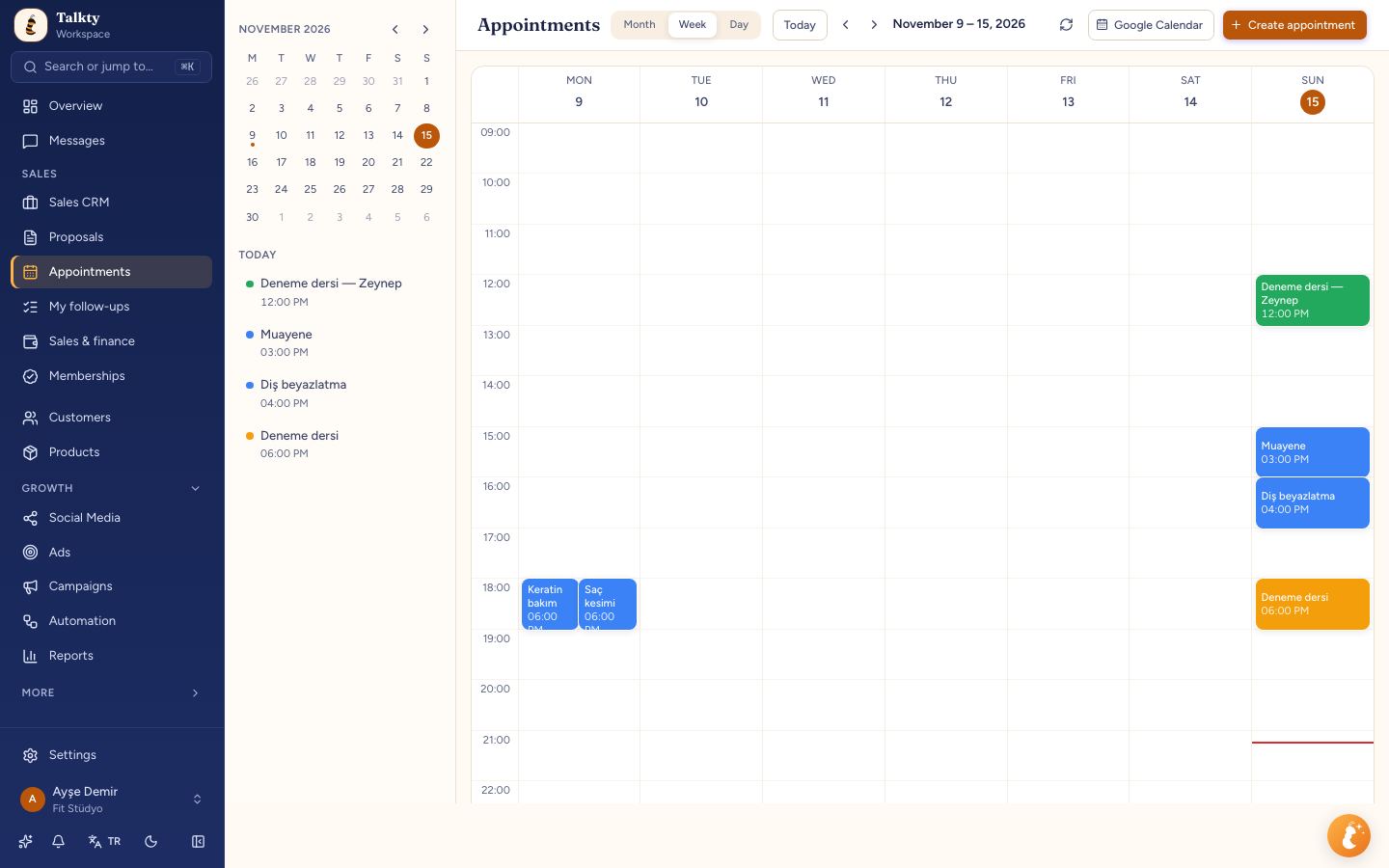
- Open the calendar. Go to Appointments to see customer appointments, meetings and other events. Use Month, Week or Day to change the view. Use Today and the arrows to move between dates.
- Create an appointment when needed. Click a day in the calendar or press Create appointment. On a phone, use the + button. Enter a title and start and end date and time, or select All day. When you set a start time, the end time is set one hour later; change it if the appointment needs a different length.
- Link the customer. In Opportunity, type the customer’s name and select their opportunity. This links the appointment to the opportunity and displays it on its Appointments tab. You can remove the link with Unlink.
- Set the appointment details. Choose a color and Appointment status. Add attendees by email or phone and write notes if useful. Email attendees receive an invitation. If Google Calendar is connected, you can turn on Create Google Meet link for a meeting.
- Review status and changes. Available statuses are Awaiting confirmation, Confirmed, Attended, No-show, Cancelled and To be rescheduled. If you change the date, time or status in the calendar, the linked opportunity’s appointment information updates too.
Schedule from a customer opportunity
You can also create an appointment from a customer’s opportunity. Open the opportunity and go to its Appointments tab, then select Schedule an appointment. The calendar form opens with the opportunity already linked and the customer’s name filled in as the title. Complete the date, time and other details, then save.
The opportunity keeps a record of past and upcoming appointments and their statuses. Its activity history also shows events such as appointment status changes and actions taken by the AI. This makes it easier to review what happened without searching through separate records.
For more on appointment outcomes, read Tracking Attendance in Your Business Calendar with Talkty.
Keep upcoming bookings visible
Talkty’s My follow-ups screen brings together follow-ups, reminders and appointments. In Today, you can see appointments for the current day. Next 7 days shows upcoming appointments and follow-ups for the coming week, while Overdue highlights follow-ups and reminders whose dates have passed.
Use Assigned to me to see items assigned to you, or Everyone to view the team’s items on boards you can access. Select a customer’s name to open their opportunity. Appointment outcomes such as attended or no-show are recorded on the Appointments screen.
Sync appointments with Google Calendar
To connect a Google Calendar, open Settings › Google Calendar and press Connect Google account, then grant access. Upcoming Talkty appointments are added to Google Calendar, including appointments booked by the AI assistant. Edits and deletions sync both ways. Events created in Google Calendar also appear in Talkty and are visible to everyone in the workspace.
To run a sync manually, press Sync calendar under Settings › Google Calendar. When you disconnect, appointments remain in Talkty; the Google link is removed.
Summary
Talkty lets an AI assistant book appointments during customer conversations and brings those bookings together with appointments created by your team. Test the assistant before customers use it, connect it to WhatsApp, Instagram or web chat, and manage appointment details and statuses in the calendar. You can also review upcoming appointments in My follow-ups and sync them with Google Calendar.
Frequently asked questions
- Can Talkty’s AI assistant book appointments?
- Yes. The assistant can book appointments during a customer conversation. Appointments booked by the AI and your team appear in the Talkty calendar.
- Which channels can I connect the AI assistant to?
- The assistant can be connected to WhatsApp, Instagram or web chat. See the [assistant connection instructions](/help/ai-agent-test-and-publish).
- How do I create an appointment manually?
- Open Appointments, click a day or press Create appointment, then enter the title, date and time. You can link the appointment to an opportunity and add attendees and notes.
- Can Talkty appointments sync with Google Calendar?
- Yes. Connect an account under Settings › Google Calendar. Upcoming appointments sync, and edits and deletions sync both ways.
Emily Carter