
Building Workflows with Visual Automation in Talkty
Learn how to build visual workflows in Talkty, choose a trigger, add steps, activate automations, and keep sales follow-ups on track.
By Emily Carter · · 6 min read ·

Building workflows with visual automation can help small businesses handle repeat tasks consistently. In Talkty, you create flows on the Automation screen, choosing what starts a flow and what it should do next. Flows can run when a message arrives, an opportunity changes, or a schedule comes around.
What visual automation does in Talkty
Talkty’s visual flow builder lets you set up actions such as sending a message, notifying an advisor when an opportunity changes stage, or running a task at a set time. It can also support follow-ups for customers who have gone quiet.
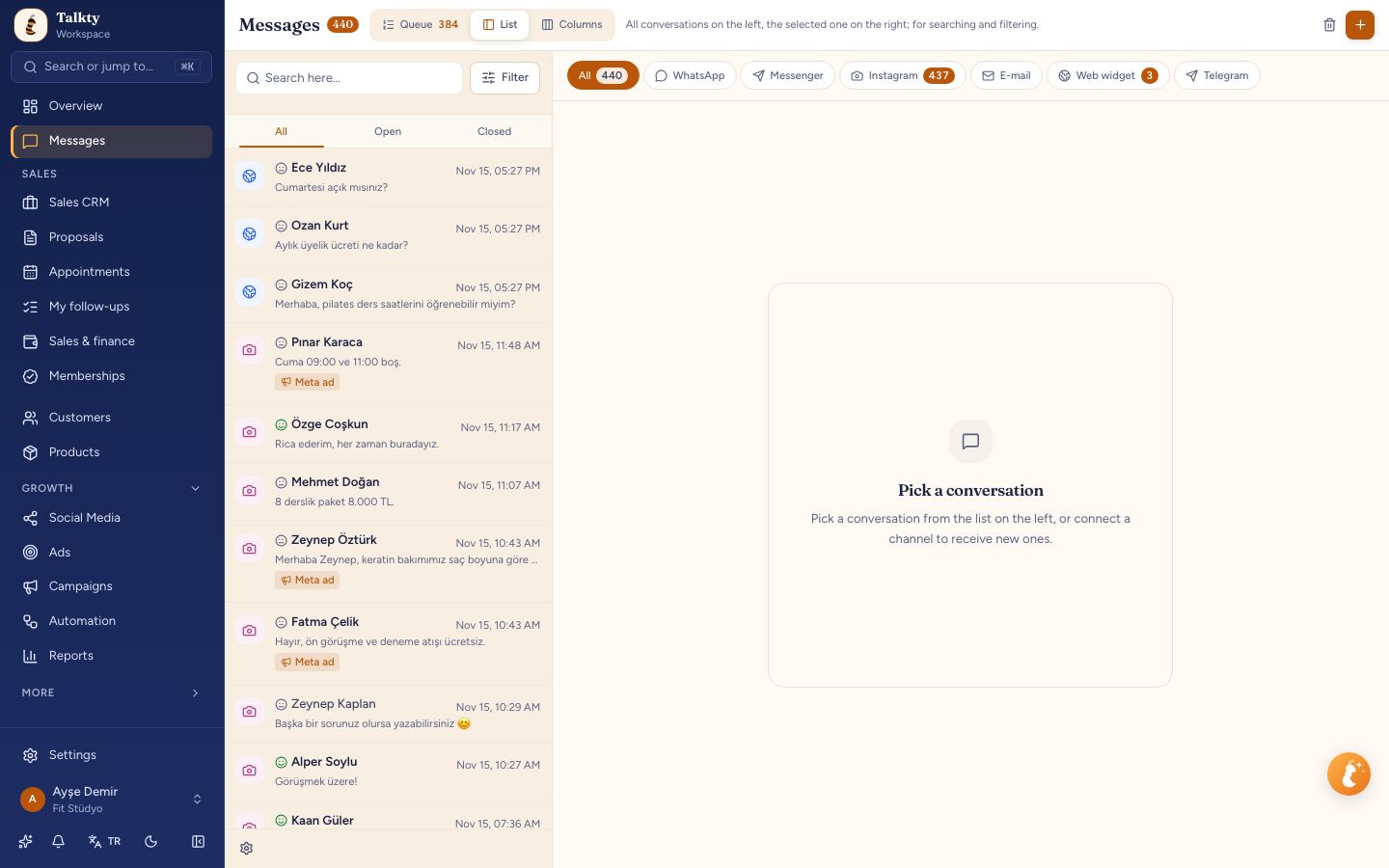
Automations are one part of Talkty’s wider workflow. The shared inbox brings WhatsApp, Instagram, Messenger, and web chat conversations into one list. Sales CRM uses cards and stages to track opportunities. A flow can respond to events in these processes, helping your team take the next step without repeating the same manual task.
Before you build: choose the right kind of flow
Start by identifying the event that should trigger the work. Talkty’s Automation screen supports flows that run on an incoming message, an opportunity change, or a schedule. For example, you might send a quick message when a customer writes, notify an advisor when an opportunity changes stage, or run a task every morning.
Some ready-made templates are available above the flow list. They are filtered according to the sales model selected in your business type. Each template explains what it does and how to measure it. Click a template to open it in the flow builder, then review its steps before saving and activating it.
There are also automations configured on other Talkty screens. These appear in the Automation list with a System badge and are read-only there. Use Open settings to return to the screen where the setting is managed. For example, AI auto-reply is configured on the Assistant page, while scheduled campaigns are managed from Campaigns. These system automations do not count toward the automation quota or use extra credits.
How to build a workflow with visual automation
Use these steps to create a flow from a ready-made template or build one for your process:
- Open Automation. In the left menu, go to Growth and select Automation. The list shows existing flows and their triggers.
- Choose a starting point. To use a template, select one above the list. To work with a sales flow automation, look for an opportunity-related trigger and the relevant sales flow or stage in the Trigger column. You can use the filters above the list to view All, Sales flow automation, or Other flows.
- Review the flow in the builder. Check what event starts it and what steps follow. For a template that sends a WhatsApp message, open the template step and choose an approved template under WhatsApp template.
- Save and activate. Save the flow, then activate it when you are ready for it to run. If you are editing a sales flow automation, you can turn it on or off from the Automation list.
- Check the result in context. For a flow tied to a sales stage, review the relevant opportunity and stage in Sales CRM. For a system automation, use Open settings to check the setting that controls it.
The exact steps available depend on the flow and the template you choose. Build around a documented trigger and action rather than assuming every event or action is available in every flow.
Examples of ready-made workflows
The templates cover common follow-up needs. Available examples include:
- Appointment reminder: sends a template to the customer 24 hours before an appointment.
- New lead follow-up: sends a follow-up message two days after a new opportunity is opened.
- Win back: sends a message to customers who have not written in 30 days.
- Membership renewal: sends a renewal message seven days before a membership ends; this template is for membership sellers.
- Bulk follow-up to potential customers: sends the same approved WhatsApp template once per opportunity to each open opportunity that has not moved for three days.
These are template examples, not a reason to send the same message in every situation. Review the flow and select the appropriate approved WhatsApp template before activating it. For a one-off bulk send, use Campaigns rather than a recurring automation.
Sales flow automations and regular automations
Talkty distinguishes sales flow automations from regular automations. A flow that starts with an opportunity event and uses only message, template, wait, condition, opportunity action, or notification steps is a sales flow automation. The builder shows a badge next to its title.
Sales flow automations are available on every plan, do not count toward the plan quota, and use no credits. If you add AI, HTTP, a subflow, an A/B split, or a loop, the flow becomes a regular automation. Regular automations count toward the plan’s automation quota and use credits per step.
The Automation screen can still open if your plan does not include regular automations. In that case, you can see and switch existing sales flow automations on or off, while new regular flows and templates are replaced by an upgrade box.
Automations connected to Sales CRM stages
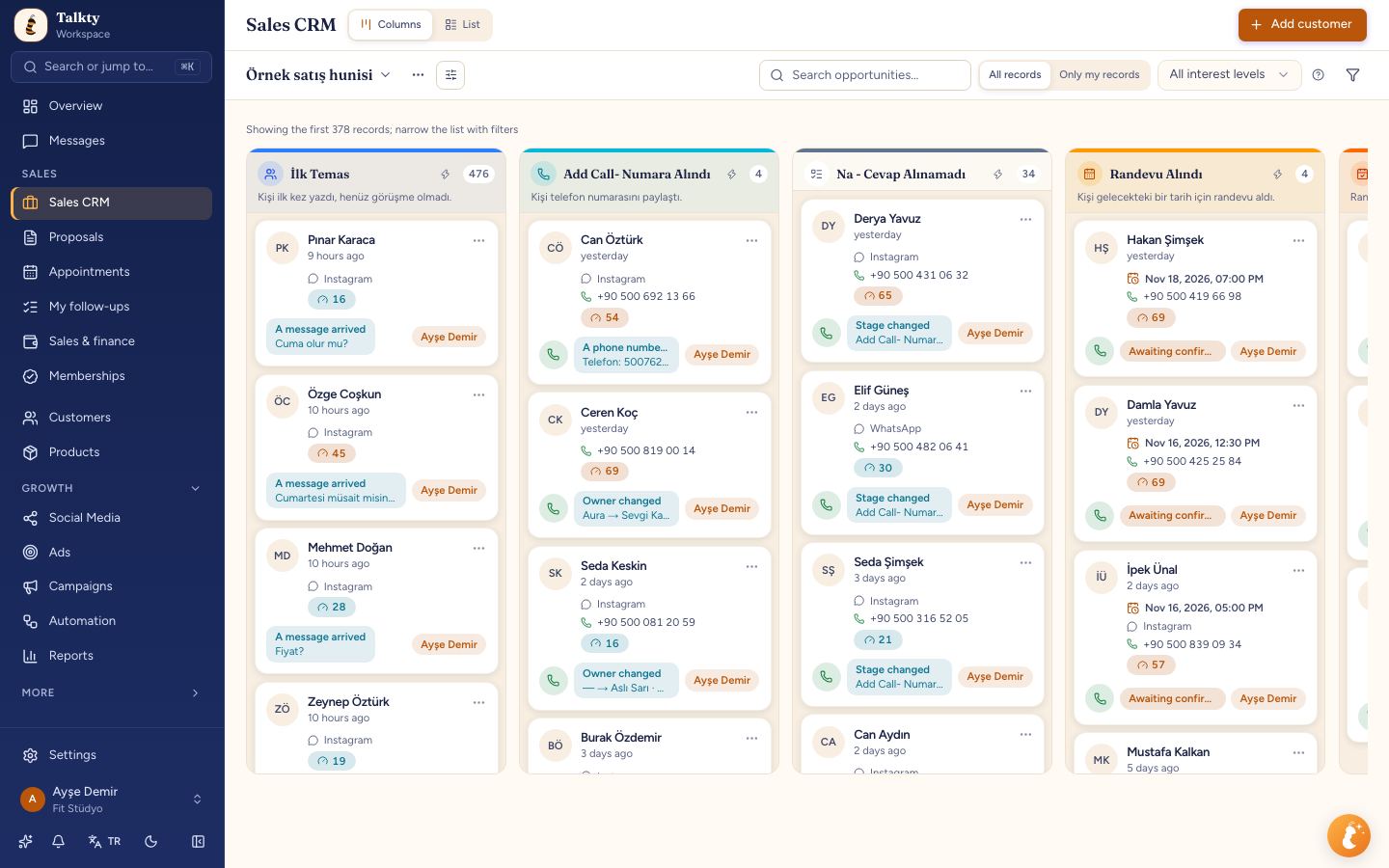
Some stage-specific automations are set up directly in Sales CRM, not in the general Automation list. In the column header, select the lightning button to open the automations for that column. These can include a message when an opportunity enters a stage, a reminder if there is no reply, assignment from a pool, or an alert for idle opportunities.
This keeps the setup close to the sales stage it affects. If you are managing a sales process, check the relevant CRM column rather than expecting every stage rule to be created from the general Automation screen.
Keep system automations from duplicating work
A system automation is a view of a setting configured elsewhere; the setting itself does the work. Examples include AI auto-reply, auto-assignment, group sends, and scheduled campaigns. If you want to customise a system automation, build a new flow that performs the same job and turn off the system automation. Leaving both active can send two replies.
For more detail on how Talkty’s reporting can help you review response times, read Improving Response Times with Reports in Talkty.
Summary
To build a workflow with visual automation in Talkty, open Growth > Automation, choose a suitable template or flow, review its trigger and steps, select an approved WhatsApp template where needed, then save and activate it. Use Sales CRM’s column automations for stage-specific rules, and check system settings to avoid duplicate actions.
Frequently asked questions
- Where do I find the visual automation builder in Talkty?
- Open **Automation** from **Growth** in the left menu. Choose a ready-made template above the list or open a flow to work with it in the builder.
- What can start a Talkty automation?
- Flows can run when an incoming message arrives, an opportunity changes, or a schedule is reached.
- How do I set up a WhatsApp message in a template flow?
- Open the template in the flow builder, select the approved template under **WhatsApp template**, then save and activate the flow.
- Where are automations for a specific CRM stage configured?
- In Sales CRM, use the lightning button in the relevant column header to open that column’s automations.
- Can a system automation and a custom flow do the same job?
- They can, but leaving both active may send duplicate replies. If you replace a system automation with a custom flow, turn off the system automation.
Emily Carter