
Improving Response Times with Reports in Talkty
Learn how to use Talkty’s messaging reports to review first response times, compare channels and AI replies, and decide what to improve next.
By Emily Carter · · 4 min read ·

Customers contact small businesses through different channels, and it can be hard to see where replies are getting delayed. Improving response times with reports starts with a clear view of first response time and channel activity. Talkty brings WhatsApp, Instagram, Messenger and web chat into one shared inbox, while its reports help you review messaging performance and choose practical next steps.
What response-time reports can tell you
Talkty’s Messaging reports include first response time, a channel breakdown, the share of AI versus manual replies, AI quality and AI reply review. These views help you examine how quickly conversations receive an initial reply and understand how replies are being handled.
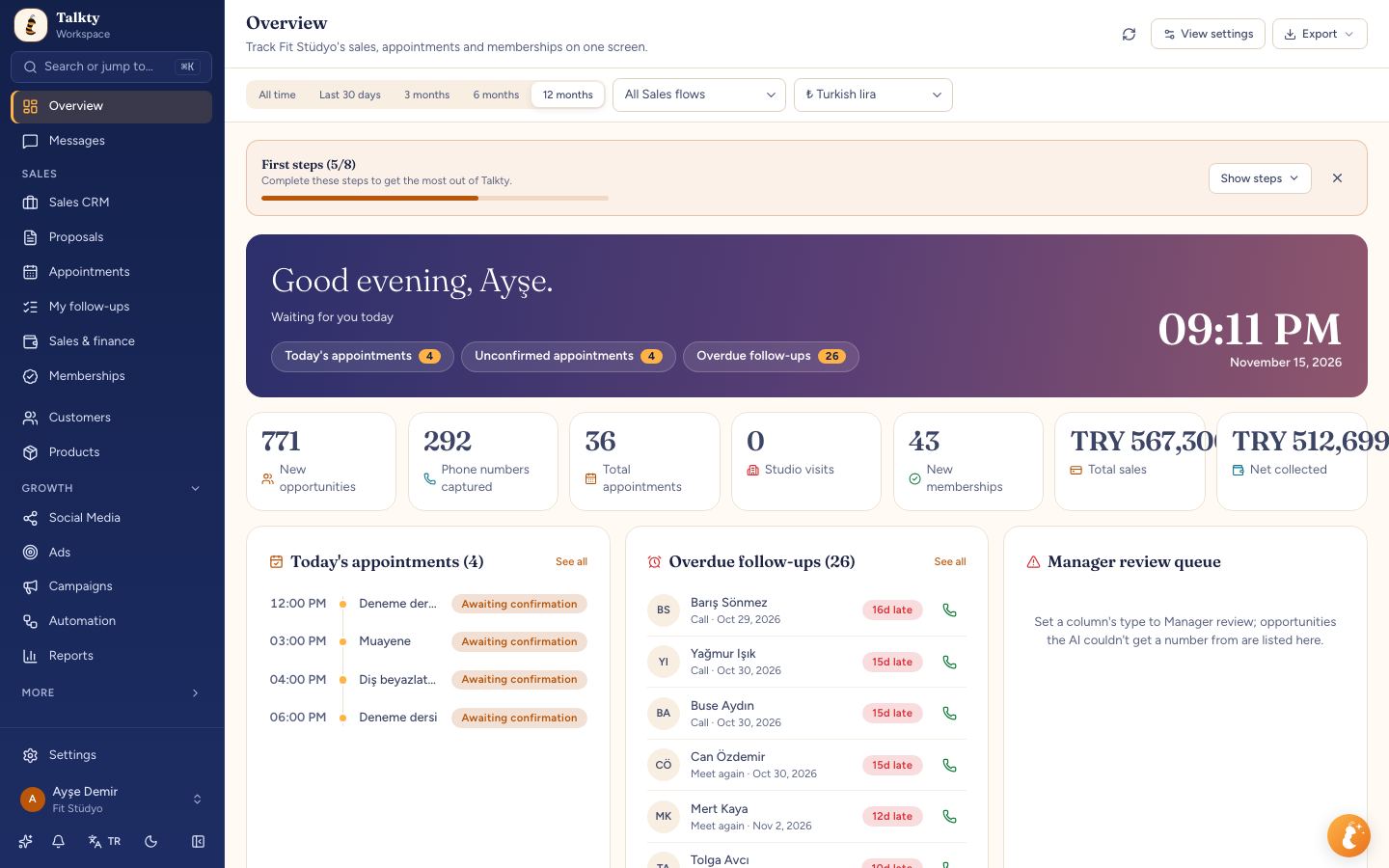
The Overview dashboard also brings together incoming leads, the conversion funnel, rep performance and response times. Use it as a high-level view, then open Reports when you want to examine messaging data in more detail.
Step by step: review response times in Reports
- Open Reports. Go to the Reports area in Talkty to see the available report types.
- Choose Messaging. Find the messaging reports, including First response time and Channel breakdown.
- Review first response time. Use this report to understand how quickly incoming conversations receive their first reply. Look for areas that may need attention rather than assuming the same process works equally well for every channel.
- Compare the channel breakdown. Check how messaging activity is distributed across channels. This can help you decide where to look more closely when a channel’s first response time needs improvement.
- Check AI and manual reply share. Review the share of replies handled by the AI assistant and by your team. This gives context for understanding how conversations are being answered.
- Use AI quality and AI reply review. When you are assessing AI replies, consult the available quality and review reports alongside the response-time view.
- Choose one operational change to test. For example, you could clarify who handles a channel or review how conversations are assigned. Then return to the reports to see what the data shows after the change.
Turn report findings into clear inbox ownership
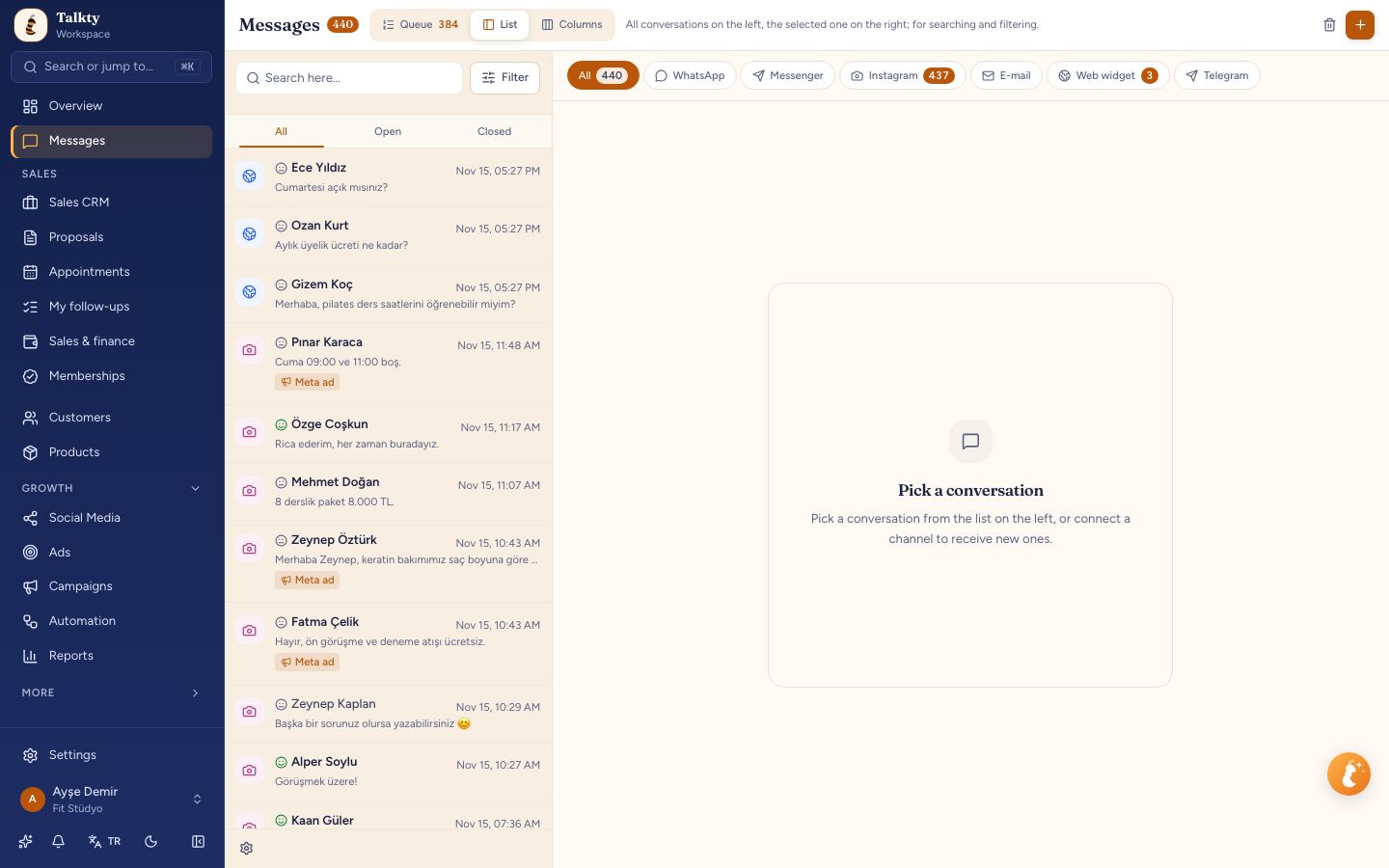
Talkty’s shared inbox puts WhatsApp, Instagram, Messenger and web chat conversations in one list. You can assign and tag conversations so the team can see who is responsible and keep messages from slipping through.
If a report draws your attention to a channel, review how its conversations are handled in the inbox. Make sure each conversation has a clear owner and use tags to make relevant topics easier to identify. This is a practical way to act on a report without guessing which individual message needs attention.
For access control, Talkty’s team roles let an account owner decide what users can see and do. In Settings › Team & roles › Users and roles › Roles, create or edit a role and choose permissions for modules such as Messages and Reports. This can help you give teammates the access they need for their work.
Use AI replies as part of the response-time picture
Talkty’s AI assistant is trained on your website and documents. It can answer questions about prices, hours and packages around the clock, and hand a conversation over to your team when needed. The Messaging reports’ AI-versus-manual reply share and AI quality views provide useful context when reviewing how this assistance is being used.
Keep the report review focused: check first response time, look at the channel breakdown, and then consider the AI and manual reply mix. If you want to learn about a related way to reduce routine work, see Building Workflows with Visual Automation Using Talkty.
A simple review routine
Use a consistent sequence when you review the reports:
- Start with First response time to see the response-time picture.
- Check Channel breakdown to understand how activity is distributed.
- Review AI vs manual reply share and the AI quality information for context.
- Decide whether inbox ownership, tagging or team permissions need attention.
- Return to the reports after making a change and review the available data again.
Talkty also supports scheduled report emails. These can help your team receive reports without relying only on someone remembering to open the Reports area. For details on the reports available, see the Reports help page.
What not to infer from a response-time report
A report is a way to inspect the information Talkty provides; it does not by itself explain why a reply took longer or prescribe a staffing plan. Use the channel and reply-type views as prompts for a closer look at your inbox process. Assignments, tags and team permissions can help make responsibilities clearer, while the reports help you review the outcome.
Avoid treating a single observation as proof that a particular person or channel is the cause. Check the relevant messaging views together, then decide whether a process change is appropriate for your business.
Summary
To improve response times with Talkty reports, open Reports, review Messaging › First response time, and compare it with the channel breakdown and AI reply views. Use what you learn to clarify inbox ownership, tags or team access, then revisit the reports. This keeps improvements grounded in the information Talkty actually provides.
Frequently asked questions
- Which Talkty report shows response times?
- The Messaging reports include First response time. The Overview dashboard also includes response times alongside incoming leads, the conversion funnel and rep performance.
- Can I compare response activity by channel?
- Yes. Talkty’s Messaging reports include a channel breakdown, which you can review alongside First response time.
- Do Talkty reports show AI and manual replies?
- Yes. Messaging reports include the share of AI versus manual replies, as well as AI quality and AI reply review.
- How can I act on a report that highlights a channel?
- Review that channel’s conversations in the shared inbox, assign conversations to responsible teammates, and use tags to organize them. You can then return to the reports to review the available data.
- Can Talkty send reports by email?
- Yes. Talkty supports scheduled report emails.
Emily Carter