
Designing Social Media Posts Easily with Talkty
Learn practical ways to choose a post format, keep text readable, use brand colours consistently, and create and review designs in Talkty’s Studio.
By Emily Carter · · 6 min read ·

Designing social media posts easily is not just about making an image quickly. A useful post should fit its purpose, be easy to read, and look like it belongs to your business. Talkty’s Studio can help you create images and captions with AI and your brand kit; a few simple design checks can help you make each result clearer before publishing.
Start with the post’s purpose and format
Before opening a design tool, decide what the post needs to do. Is it announcing something, explaining an offer, or sharing an update? Keep the main idea focused so a viewer can understand what the post is about without searching through several competing messages.
Then choose a format that suits the content and destination. Talkty’s post workflow offers Post, Story, Reels, and Carousel types. A carousel can contain multiple images in a chosen order. For a single video published as a Reel, you can select a cover frame or choose a separate cover image from the library. In the Studio, you can choose Reels video under Drafts › Generate designs › Layout size.
Think about how the format will be viewed. A single image works well when one visual can carry the idea. A carousel can separate information into a sequence, while a video format suits content that needs movement. Keep the design focused on the selected format rather than trying to fit every detail into one image.
Make the text easy to read
A design can look polished but still be difficult to use if its message is hard to read. Keep the main message short and give it clear visual priority. Supporting details should be secondary, not competing with the headline.
Use a clear contrast between text and its background. Avoid placing important words over a busy part of a photo, and leave enough open space around text so the layout does not feel crowded. Before approving a design, check it at the size people are likely to see it on a phone. If the main point is difficult to understand at a glance, simplify the wording or adjust the layout.
For text that appears inside a Talkty Studio image, the template draws the text and logo; AI does not draw them. This is useful to know when reviewing a result: check the actual wording, placement, and readability in the generated design rather than assuming the image-generation step has settled every detail.
Use brand colours consistently
A small, consistent set of brand colours helps posts feel connected without making every design identical. Choose a main colour for prominent elements and use other colours to support it. Check that the text remains readable against each colour and background.
Talkty’s Studio uses your brand kit when preparing images and copy. The Brand kit tab is in Social Media › Studio. The brand kit form shares information with the business profile, including the logo, brand colour, and business details. Updating one is reflected in the other.
Keep the logo clear and avoid placing it where it competes with the main message. The Studio’s templates draw the logo and text onto the design, helping preserve those elements in the image. For more on setting up brand details, read Using Brand Kits for Social Media Images with Talkty.
Create a design in Talkty’s Studio
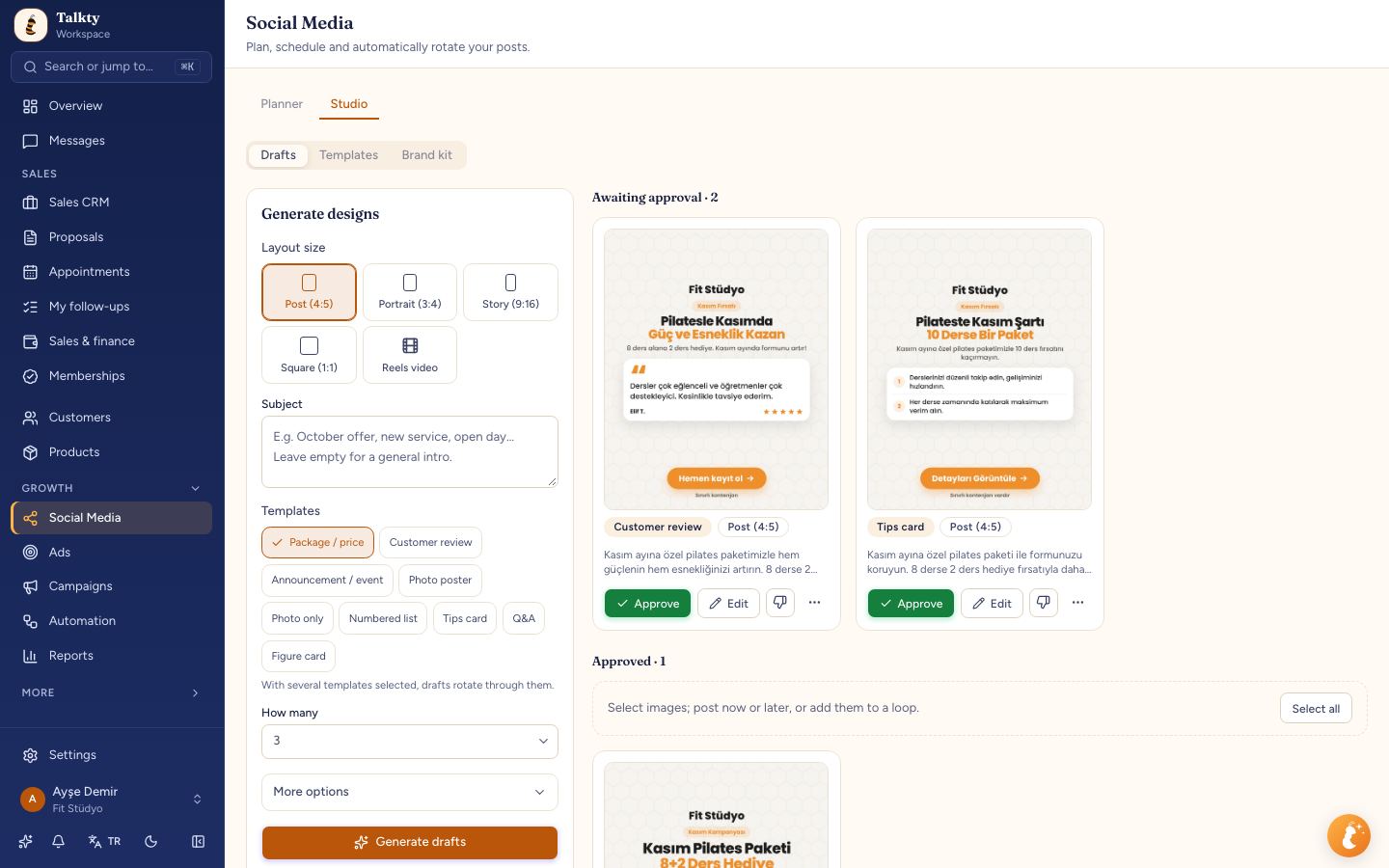
Talkty’s Studio has three tabs: Drafts, Templates, and Brand kit. Use this sequence to create and review a design:
- Open the Studio. Go to Social Media › Studio and select Drafts.
- Check your brand kit. Open Brand kit to review your business details, logo, and brand colour. Return to Drafts when ready.
- Use Generate designs. In the Drafts tab, use the Generate designs form to prepare an image and caption with AI based on your brand kit.
- Review the result. Check whether the visual supports the post’s purpose, whether the text is readable, and whether the colours and logo look consistent with your business.
- Choose a layout size. For a Reels video design, go to Drafts › Generate designs › Layout size and select Reels video.
- Move to the publishing workflow when ready. You can prepare designs before connecting a social account, but you need a connected account to publish.
The Drafts gallery shows designs awaiting approval first and approved designs below. On a phone, the form appears above the gallery. Content the autopilot holds for approval also appears under Awaiting approval; the Autopilot button at the top right takes you to the Loops tab.
Review the design for its platform
A design should be checked in the context where it will appear. Before publishing, confirm that the selected account and post type match your intention. Check that the main message remains easy to see and that the image, caption, and format work together.
Talkty’s post form includes a preview on the right. If you select multiple accounts, use the channel buttons at the top of the preview to switch between them. Use this to review how the post will look on each selected channel instead of checking only one version.
When creating a post, select New post, choose the account or accounts, and select Post, Story, Reels, or Carousel. Add an image or video, or choose one from the library; images made in the Studio are available there too. Enter a caption, or use Write with AI to prepare a caption and hashtags based on your brand kit. You can also use it to improve text already in the caption box. The button is available when your plan includes the Studio and uses AI tokens.
For Instagram, the post form may also show settings such as a video cover, whether a Reel appears in the profile feed, collaborators, tagged people, location, and comments. Review the options shown for the selected account and format. Choose Now, Schedule for a later date, or Add to loop under When? Talkty’s post workflow describes publishing and scheduling for Instagram and Facebook.
For more on the publishing steps, see Scheduling Posts on Instagram and Facebook with Talkty.
Use approval when a post needs review
If your team uses post approval, a prepared post can be checked before it is published. When approval is enabled, a team member without approval permission sees Submit for approval. The post is saved with its chosen time but waits for an approver.
In the Planner, Needs approval opens the list of posts waiting for review. An approver can choose Approve, Edit and approve, or Reject on a post card. Rejection requires a note. If the scheduled time has passed, the approver can choose Publish now or Pick a new time. A rejected post can be corrected with Edit and resubmit.
Approval is useful for a final design check: confirm that the message is accurate, the visual is readable, the brand details are right, and the selected account and timing make sense before the post goes out.
Summary
To design social media posts easily, start with the post’s purpose, choose a suitable format, and keep the main message readable. Use brand colours consistently, check the logo and text, and review the preview for each selected channel. Talkty’s Studio helps prepare images and captions with AI and your brand kit; the Planner and approval workflow help you review posts before publishing. Explore the guides to brand kits and Instagram and Facebook scheduling for the related setup steps.
Frequently asked questions
- How do I make social media post text easier to read?
- Keep the main message short, make it visually prominent, use clear contrast, and avoid placing important text over a busy image area. Check the design at a phone-sized view before approving it.
- How should I use brand colours in a post?
- Use a consistent set of colours, give them clear roles, and check that text remains readable against the background. Talkty’s Studio uses the brand colour in your brand kit.
- What post formats can I choose in Talkty?
- The post workflow offers Post, Story, Reels, and Carousel. A carousel can contain multiple images in a chosen order.
- Where do I create a design in Talkty?
- Go to Social Media › Studio and open Drafts. Use Generate designs to prepare an image and caption with AI based on your brand kit.
- How can I check how a post will look on different selected channels?
- Use the preview on the right of the post form. If you selected multiple accounts, switch between them with the channel buttons at the top of the preview.
Emily Carter