
How to Manage Multiple Chats in One Inbox
Learn how to bring WhatsApp, Instagram, Messenger and web chat into one inbox, then organize conversations with assignments, tags, AI and CRM.
By Emily Carter · · 4 min read ·

When customer messages arrive through different apps, it can be hard to keep track of who needs a reply. This guide explains how to manage multiple chats in one inbox with Talkty: bring supported channels together, assign conversations, use tags, and keep follow-up details in view.
What you can manage in one inbox
Talkty brings WhatsApp, Instagram, Messenger and your website’s web chat into one shared inbox. Conversations appear together in the Messages screen, so your team can work from one list instead of checking each channel separately.
The inbox is also connected to Talkty’s AI assistant and Sales CRM. The assistant can answer questions using your website and documents, then hand a conversation to your team when needed. Customer cards in the CRM help you track follow-up plans, reminders and dated activity history.
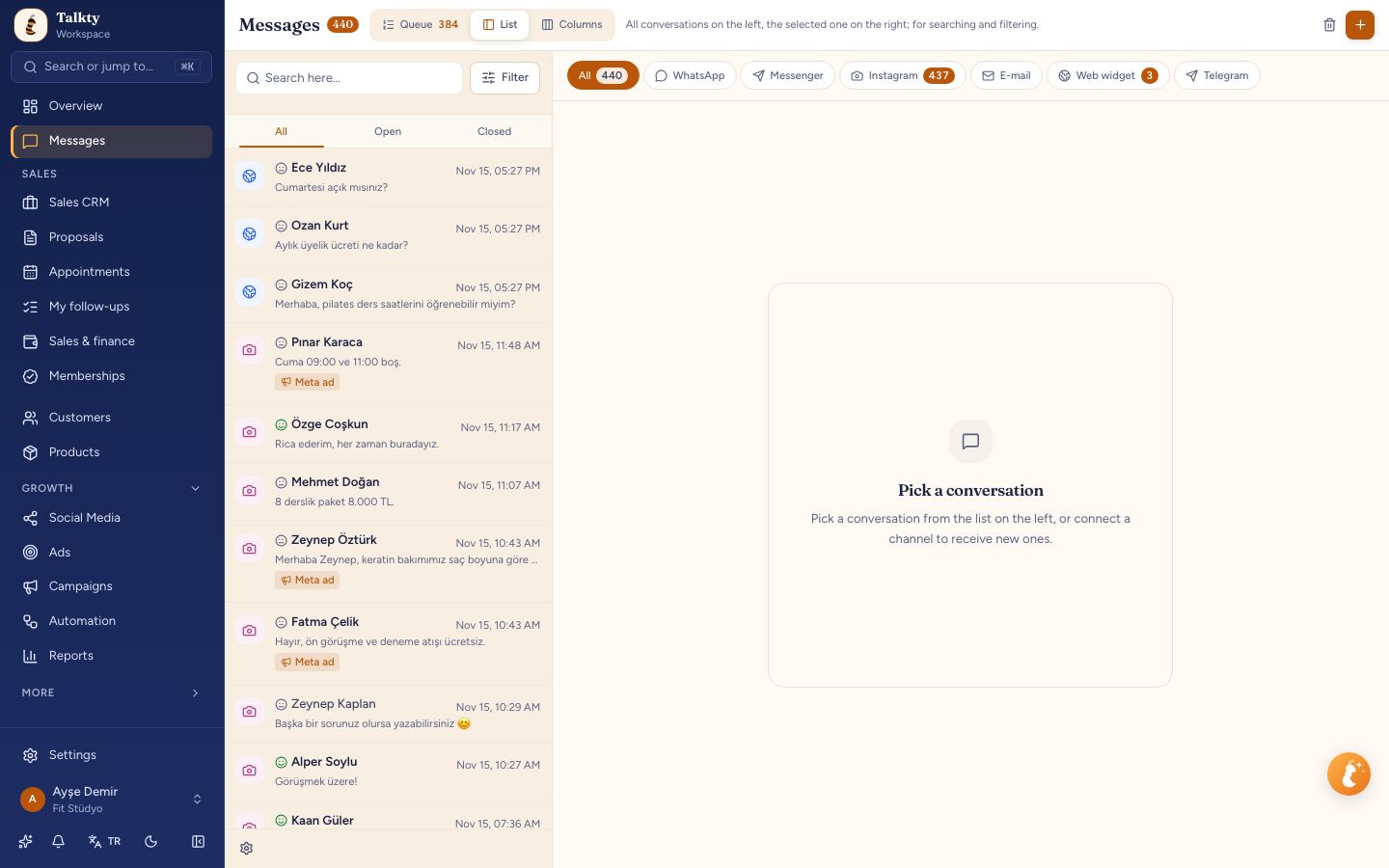
Step 1: Connect your messaging channels
Connect the channels your business uses so their conversations can appear in the shared inbox. Talkty supports WhatsApp, Instagram, Messenger and web chat. Channel setup is managed in Settings › Channels & integrations › Channels.
For WhatsApp Business app numbers, Talkty’s connection guide describes a specific option: on the connect screen, select Connect my WhatsApp Business app number, follow the steps in Meta’s window, and approve the connection from your phone. You can choose whether to share chat history. If you do, contacts and recent chats begin importing; imported chats do not trigger AI replies or automations. New customer messages continue in the inbox as usual.
Once channels are connected, open the Messages screen to work with conversations in one place. Follow the instructions shown for each channel as you connect it.
Step 2: Assign conversations and use tags
Assign conversations to make it clear who is responsible for replying. Talkty’s shared inbox supports assigning conversations, helping your team keep ownership visible as messages come in.
Chats can also be tagged to group conversations and support follow-up. Use labels that make sense to your team, such as a customer type or campaign. Talkty’s tag tools also support tags on opportunities, including creating and managing tags under More › Tags. For a walkthrough of tagging opportunities for team follow-up, see How to Tag Messages for Team Follow-Up with Talkty.
For more ways to reduce overlooked conversations, read How to Prevent Missed Customer Messages with Talkty.
Step 3: Let the AI assistant handle common questions
Talkty’s AI assistant is trained on your website and documents. It can answer customer questions about prices, opening hours and packages around the clock, and hand conversations over to your team when needed.
The assistant can handle routine questions while your team takes over when a conversation needs human attention. Review how handoffs fit your support process in When to Hand Off AI Chats to Human Agents.
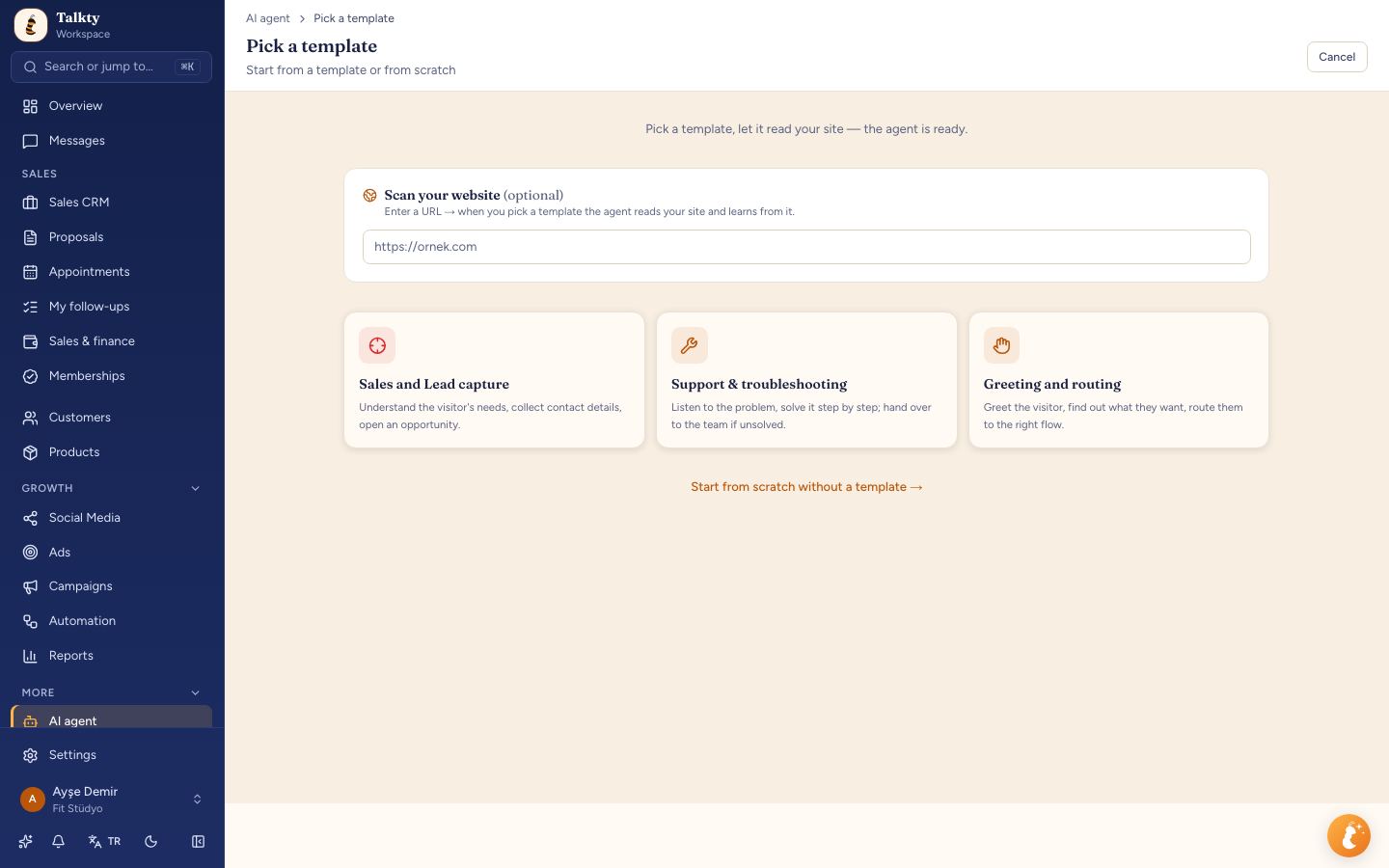
Step 4: Keep customer follow-up in the CRM
A customer is represented by a card in Talkty’s Sales CRM. The CRM uses drag-and-drop boards, follow-up plans, reminders and a dated activity history. This gives your team a place to track what should happen after a chat, rather than relying on memory alone.
Use the board to keep customer opportunities organized, and add a follow-up plan or reminder when a conversation needs another step. The activity history helps you review dated interactions associated with the customer.
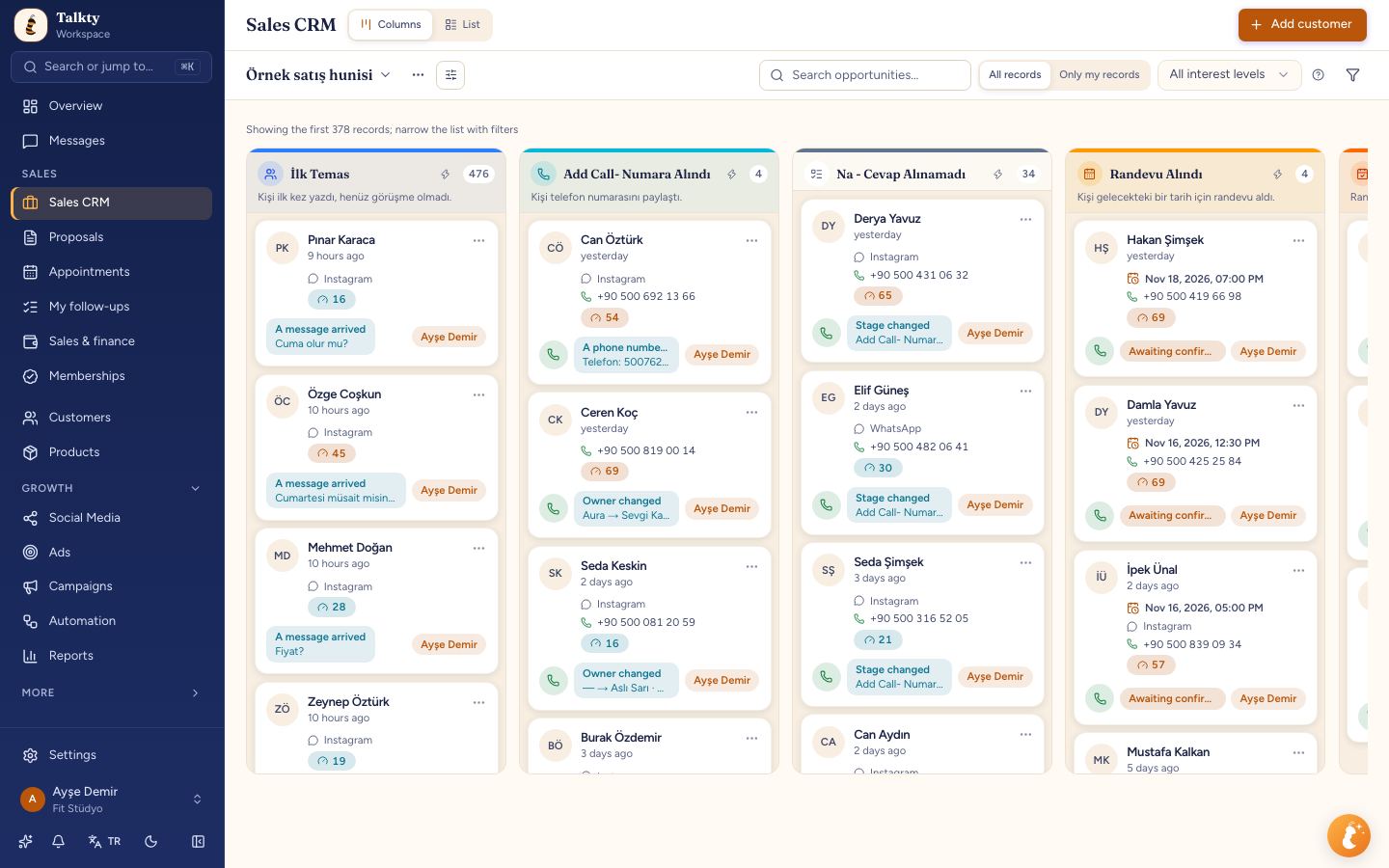
Step 5: Keep appointments in one calendar
Appointments booked by your AI assistant or your team land in Talkty’s calendar. The calendar includes appointment confirmations, attendance status and reminders. When a chat leads to a booking, your team can use the shared calendar to keep appointment details together with the rest of its customer workflow.
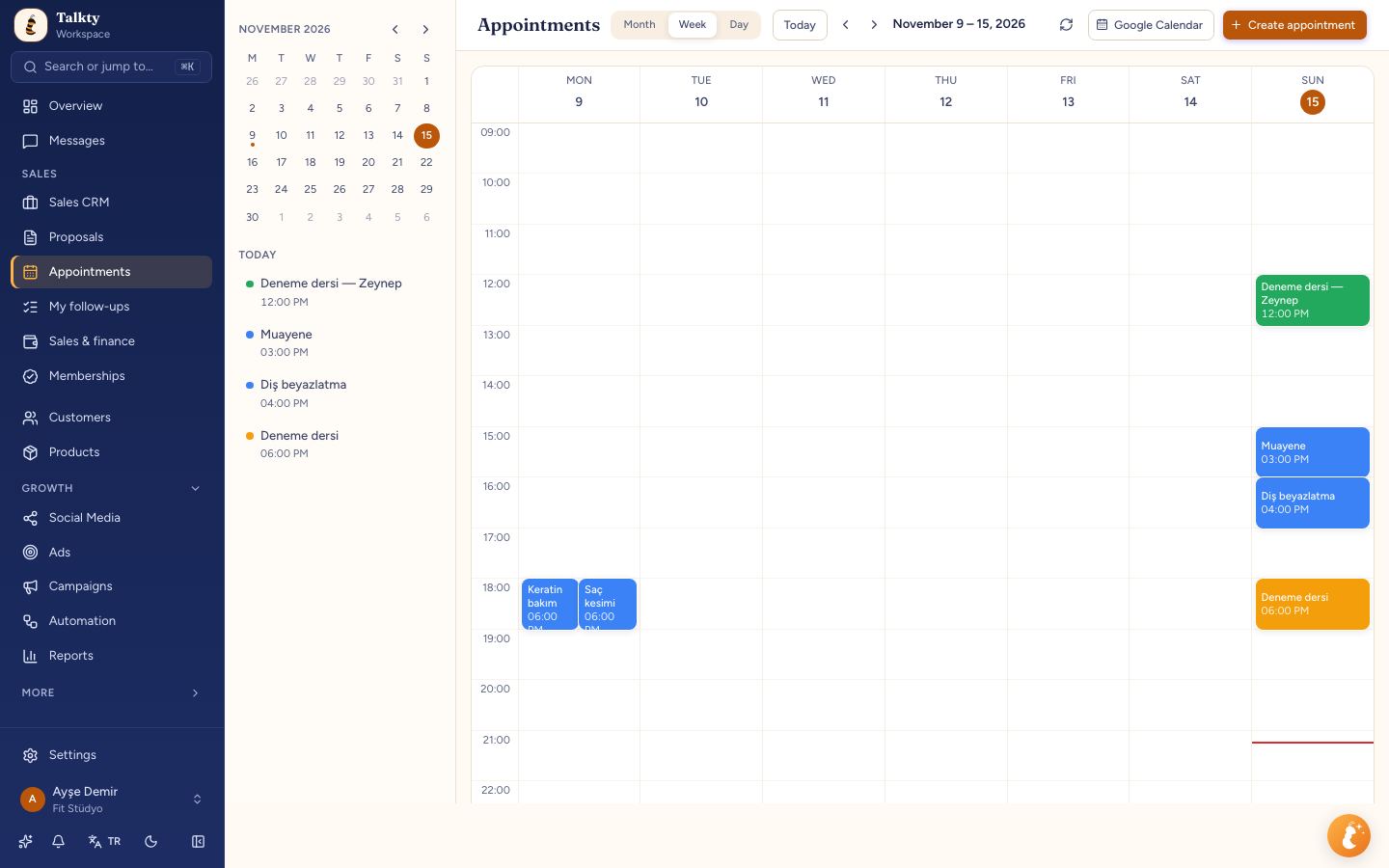
A simple routine for managing chats
Start in the Messages screen and review conversations in the shared list. Assign each conversation so responsibility is clear, and use tags to group chats for follow-up. Let the AI assistant answer suitable questions, and take over when the conversation needs your team. For customers who need a next step, use the CRM card to record a follow-up plan or reminder; use the calendar for appointments.
This routine keeps the inbox focused on conversations while the CRM and calendar hold related follow-up and booking details.
Summary
To manage multiple chats in one inbox, connect your WhatsApp, Instagram, Messenger and web chat channels, then work from Talkty’s Messages screen. Assign conversations, use tags to organize chats, let the AI assistant answer common questions and hand off when needed, and use CRM cards and the calendar to track follow-ups and appointments.
Frequently asked questions
- Which channels can I manage in Talkty’s shared inbox?
- Talkty brings WhatsApp, Instagram, Messenger and web chat from your website into one shared inbox.
- How can I organize conversations for my team?
- Assign conversations to make ownership clear, and use tags to group chats for follow-up. Talkty also supports tags on opportunities, which can be managed under More › Tags.
- What can Talkty’s AI assistant do with customer chats?
- Trained on your website and documents, the assistant can answer questions about prices, opening hours and packages, and hand conversations over to your team when needed.
- How does Talkty help with follow-up after a chat?
- Customer cards in the Sales CRM include follow-up plans, reminders and a dated activity history. Appointments booked by your team or AI appear in one calendar with confirmations, attendance status and reminders.
Emily Carter