
Calculating Commissions and Instalments: A Practical Guide
Learn how to calculate card commissions and instalments, record payments, and check net collections in Talkty’s Finance screens.
By Emily Carter · · 5 min read

If you’re calculating commissions and instalments, start with the payment method, the number of instalments, and the amount the customer will pay. Talkty’s Finance screens let you set bank-specific card commission rates, record sales and payments, and review what was collected after commission. Here’s how to work through the figures and where to find them.
Know which payments have a commission
In Talkty, commission applies to banks marked Card / POS. It does not apply to cash or transfer payments. The commission rate for a card payment depends on the number of instalments, and you can set different rates for different banks.
Before recording sales, check that your banks and rates are set up:
- Go to Settings › Sales & CRM › Finance.
- Under Banks and POS, add the banks you use.
- Mark the banks that should use card commission as Card / POS.
- In the Commission table, enter rates by number of instalments.
- If a bank has its own rates, set those rates for that bank.
When you review a sale or payment, the selected bank or payment method and instalment count help explain the commission shown. Cash and transfers should not be treated as card payments when checking commission.
Record a sale with instalments
You can enter a sale from the Finance screen with New sale. If the customer already has an opportunity, find it in the Opportunity search. If there isn’t an existing opportunity, Talkty creates a new contact and opportunity in the sales flow and column you choose; Won is the default column.
In the sale form, choose the product and enter the sale details, including the payment method and instalment information. The Discount amount (₺) is the amount taken off the sale price, not the final price. Check the To pay line to see what the customer pays after the discount.
If you are recording a membership sale, the form asks for the package, sale price, discounted price, amount collected, bank or POS, number of instalments, and membership start and end dates. The remaining balance is calculated automatically. When you complete the sale, it is sent to Finance and the membership appears in the membership list.
You can also record a membership sale from the New customer form or by moving a Sales CRM card to Won and choosing Record the sale now. For more on the figures shown after payments are entered, see Tracking Sales and Payments Efficiently with Talkty.
Add later payments and check the balance
A sale can receive payments over time. Open the sale and choose Add payment to record a later payment. The sale details show the amount paid and the remaining balance, along with the instalment and commission information available for that sale.
For memberships, the remaining balance is calculated from the sale price, discount, and amount collected. The payment method and instalment count are part of the membership sale details, so enter them carefully when you create the sale.
To review payments received during a period:
- Open Finance and select the Payments tab.
- Choose Day, Month, Year, or All time.
- Check the payment rows for the date, customer, package, seller, amount, invoice type, method, instalments, and commission.
- Select a row to open the sale details, where you can correct or delete the payment.
The selected period is based on the date the payment was received, not the date the sale was made. If you cannot open a payment’s sale details, clear the search and filters on the Sales tab first.
Understand collected and net collected amounts
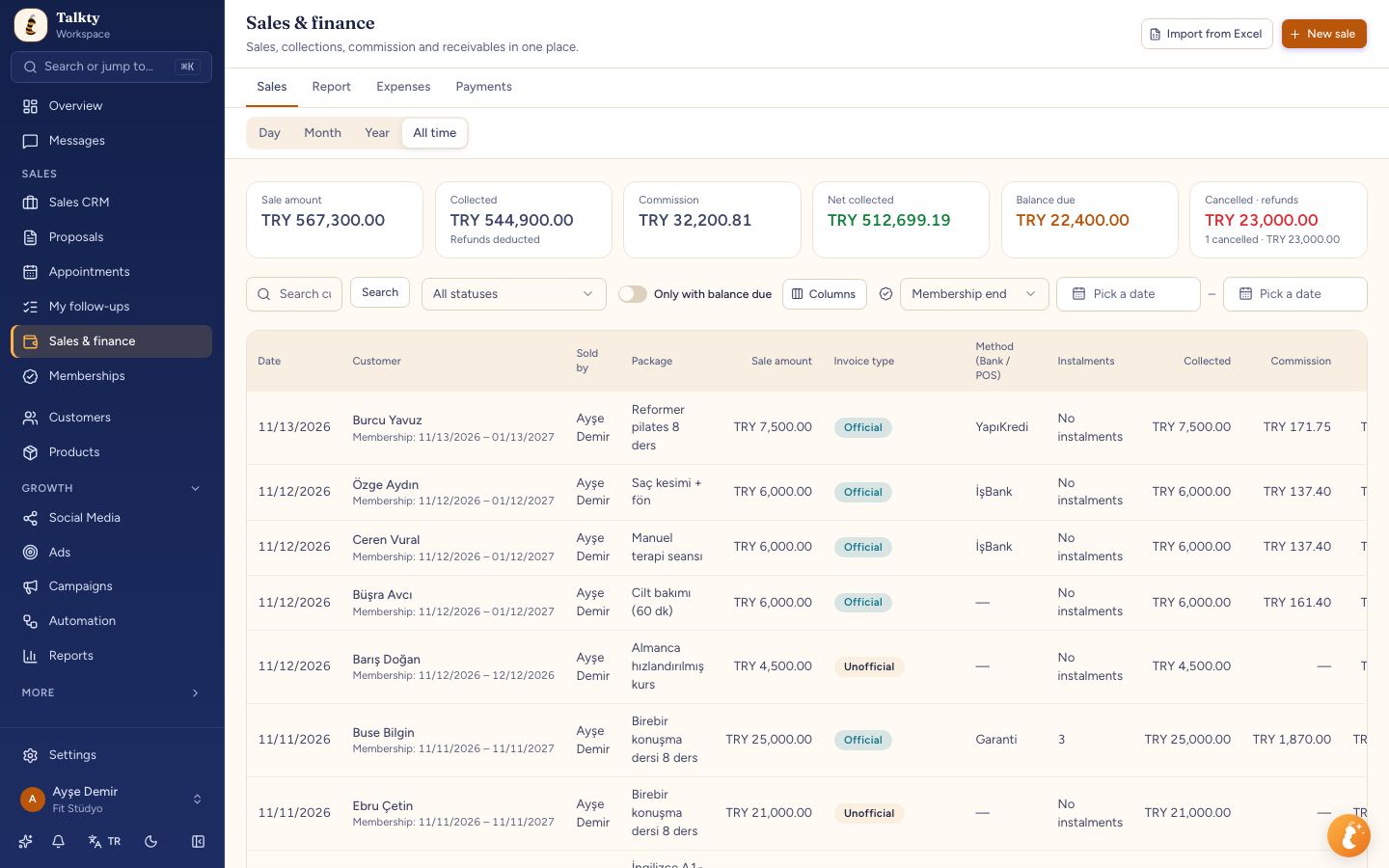
The Finance Sales tab shows sales made in the selected period and older sales that received a payment during it. Its table can include the customer, package, sale amount, invoice type, payment method, instalments, paid amount, commission, net collected amount, remaining balance, and next payment date.
The Collected and Net collected cards at the top are based on when the payment was received. For example, a payment received in one month for a sale made in an earlier month is included in the period when the payment arrived. On a sale row, This period under Collected shows the amount received during the selected period.
The sale amount and remaining balance cards are based on sales made during the selected period. This is why the period’s collected amount may not match the sale amount shown for that same period: one follows payment dates, while the other follows sale dates.
Use Columns to show or hide table fields you don’t need, such as Package, Method (Bank / POS), or Commission. Date and Customer always remain visible. The column choice is remembered in your browser.
Review commission and collections in reports
The Finance Report summarizes the selected period with sale amount, credit card commission, net collected by card and by cash or transfer, and remaining revenue. Cancelled sales are excluded from the sale amount and count. A refund is deducted from net collected in the period when the refund was made.
For a broader view, the Payment records and Cash flow projection reports on the Reports page use the same collection calculation. The Collections row in Period comparison and Net collected on the Overview also follow that calculation. Net collected deducts commission, so it gives you a view of collections after card commission rather than just the amount received.
If you’re also checking unpaid amounts, Monitoring Outstanding Customer Balances: A Practical Guide explains how to keep an eye on balances still due.
Quick checklist
- Set up banks under Settings › Sales & CRM › Finance.
- Mark card-processing banks as Card / POS and enter rates by instalment count.
- Record the correct payment method, instalments, discount, and amount collected for each sale.
- Use Add payment for payments received later.
- Choose the period based on whether you’re checking sale dates or payment dates.
- Compare Commission and Net collected in Finance and Reports to review card costs and collections after commission.
With the payment method and dates recorded correctly, Talkty’s Finance screens make it easier to follow instalments, commission, and remaining balances without mixing up sales with payments received.
Frequently asked questions
- Does Talkty apply commission to cash or transfer payments?
- No. Commission applies to banks marked Card / POS, not to cash or transfer payments.
- Where do I set commission rates by instalment count?
- Go to Settings › Sales & CRM › Finance. Add your banks under Banks and POS, mark card-processing banks as Card / POS, then set rates in the Commission table. You can also set bank-specific rates.
- When does a payment count toward a Finance period?
- Payments are counted by the date they were received, not the date the sale was made.
- How is a membership’s remaining balance calculated?
- When you record a membership sale, Talkty calculates the remaining balance from the sale details, including the amount collected.
- What does net collected show?
- Net collected reflects collections after commission. Refunds are deducted in the period when they were made.
Emily Carter