
How to Create Effective Follow-Up Plans in Talkty
Learn how to create effective follow-up plans with Talkty: record the next step on a CRM card, set a due date, and review what needs attention.
By Emily Carter · · 5 min read ·

A useful follow-up plan makes clear who needs to contact a customer, why, and when. If you’re learning how to create effective follow-up plans, start with the customer’s opportunity in Talkty’s Sales CRM: record the next action, choose a date, and check the follow-up list when it is due. This keeps the plan attached to the customer rather than relying on memory.
What to include in a follow-up plan
Keep each plan tied to a clear reason for getting back in touch. For example, you may need to call, send a message, confirm an appointment, or meet again. Talkty’s opportunity details include a Follow up action for recording when and how to follow up. You can also add the product, package, or service the customer is interested in.
A plan should also have an owner and a due date. The opportunity keeps its current sales owner. If it has no owner, the person who opens the follow-up form is assigned; for team members with a rep role, that is always themselves. Choosing a date makes the next action easier to find and act on.
Create a follow-up from a CRM opportunity
- Open Sales CRM and select the customer’s opportunity card. Talkty opens the Customer details panel. Use Open full page if you want to see the details on a wider screen.
- Choose Follow up in the quick actions. This opens the follow-up form.
- Select how you plan to follow up: for example, call, send a message, confirm the appointment, or meet again.
- Choose the due date in Follow-up in. Add the product, package, or service the customer is interested in if it helps explain the reason for the next contact.
- Save the follow-up. Talkty moves the opportunity to the sales flow’s follow-up column. When the date is due, you’ll be reminded; overdue follow-ups are marked Overdue in red.
You can also edit an existing plan from the Follow-up section on the opportunity. It opens the same form and moves the opportunity to the follow-up column when saved.
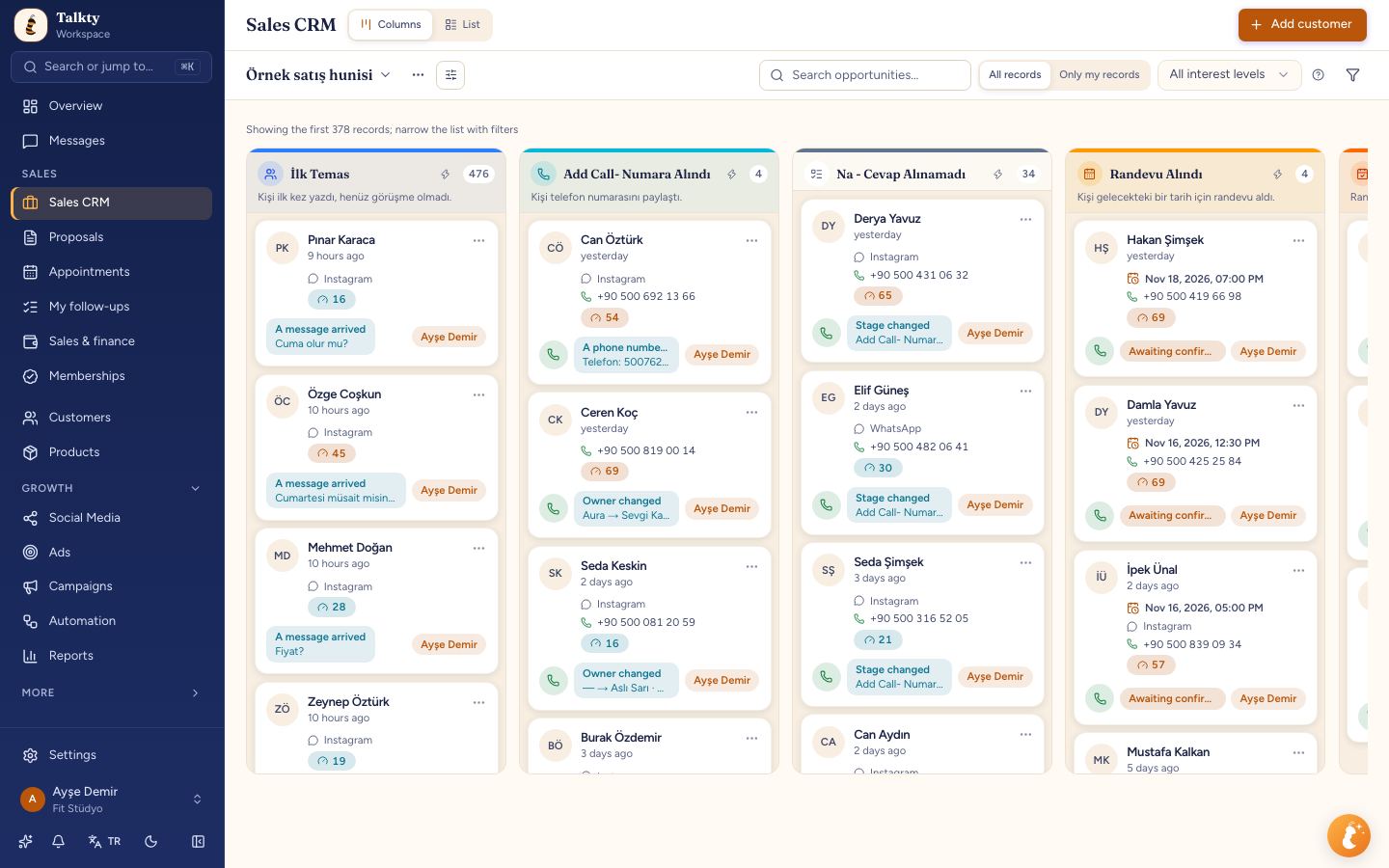
Review what is due and keep the history useful
Follow-ups due within the next seven days appear in the next 7 days list of My follow-ups. Check this list as part of your regular work, then open each opportunity to see its details and choose the appropriate next action. If a follow-up is overdue, the red Overdue label makes it easier to spot.
The opportunity’s dated activity history helps you understand what has happened with the customer. Keep the plan specific enough that the next person who opens the card can see the reason for the contact and what needs to happen. When the customer’s situation changes, update the opportunity rather than leaving an old plan in place.
For a broader view of CRM tools that help small businesses organize customer work, see Best CRM Features for Small Businesses: How to Choose.
Use conversation insights to choose a next step
When a conversation has a few messages, Talkty’s AI can suggest a summary, sentiment, intent, category, and next step. For example, the suggested next step may be to send a proposal, call, or book an appointment. These are suggestions, not actions applied automatically: review the card and press Apply or Assign if you want to use one.
The Follow up suggestion sets a reminder for you; it does not send a message to the customer. You send the message yourself when it is time. This distinction helps you use AI to organize the work without mistaking a reminder for an outgoing reply. If a summary is out of date, use Refresh insights. You can rate a summary with Good or Bad summary.
Step-by-step: build a plan you can maintain
Use this routine whenever a customer needs another contact:
- Open the right opportunity. Find the customer’s card in Sales CRM and check the details and activity history.
- Decide the next action. Choose a practical follow-up method, such as a call, message, appointment confirmation, or another meeting.
- Set the owner and date. Use Follow up and choose the due date in Follow-up in. Confirm that the opportunity has the right sales owner.
- Add useful context. Select the relevant product, package, or service when appropriate, so the reason for following up is clear.
- Save and review. Saving moves the opportunity to the follow-up column. Check My follow-ups and its next 7 days list, and act when the reminder is due.
- Update the card after the contact. Keep the opportunity’s activity history current and create or edit the next follow-up if another action is needed.
This process keeps the plan focused on a real customer and a specific next step. It also avoids treating a CRM reminder as an automatic customer message.
Keep appointments in the shared calendar
If the next step is an appointment, create one from the opportunity using Create appointment. The appointment is linked to the opportunity and appears in Talkty’s calendar. Appointments booked by your team or the AI assistant land in the same calendar, where you can see confirmation and attendance status and manage reminders.
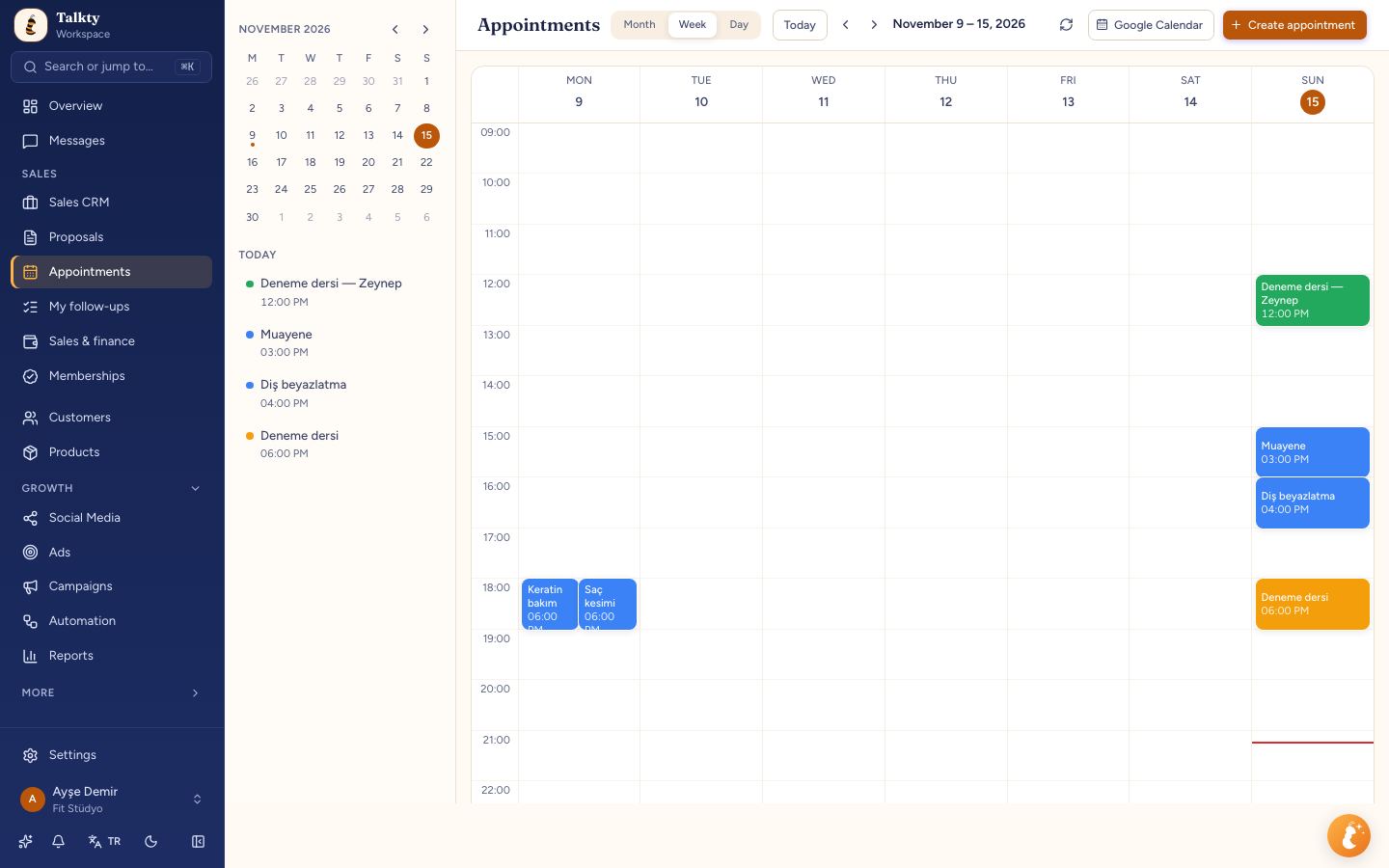
When a conversation suggests that an appointment may be the right next step, you can review the AI suggestion and decide whether to apply it. The appointment itself can then be created from the opportunity, keeping the customer record and scheduled meeting connected.
Summary
An effective follow-up plan records the reason for contacting a customer, the next action, its owner, and its due date. In Talkty, create it from the opportunity with Follow up, choose a date in Follow-up in, and use My follow-ups to review what is coming due. For meetings, create an appointment from the opportunity and manage it in the shared calendar.
Frequently asked questions
- How do I create a follow-up plan in Talkty?
- Open the customer’s opportunity in Sales CRM, choose Follow up, select how you will follow up, choose a date in Follow-up in, and save. The opportunity moves to the sales flow’s follow-up column.
- Where can I see follow-ups that are coming due?
- Follow-ups due within the next seven days appear in the next 7 days list of My follow-ups. Overdue follow-ups are marked Overdue in red.
- Does the AI Follow up suggestion send a message to the customer?
- No. The Follow up suggestion sets a reminder for you. You send the customer’s message yourself.
- Can I link an appointment to a customer opportunity?
- Yes. Open the opportunity and choose Create appointment. The appointment is linked to the opportunity and appears in Talkty’s calendar.
- What happens if an opportunity has no sales owner?
- When you open the follow-up form, you are assigned as the owner if the opportunity has none. For reps, the owner is always themselves.
Emily Carter