
How to Send Personalized Bulk Messages with Talkty
Learn how to choose a customer group, personalize WhatsApp campaign templates, select a channel, schedule a send, and review campaign results in Talkty.
By Emily Carter · · 6 min read ·

Sending a message to many customers does not have to mean sending the same generic note to everyone. This guide explains how to send personalized bulk messages in Talkty: choose the right audience, use customer details in approved WhatsApp templates, and check what happened after the campaign starts.
Choose the right kind of bulk send
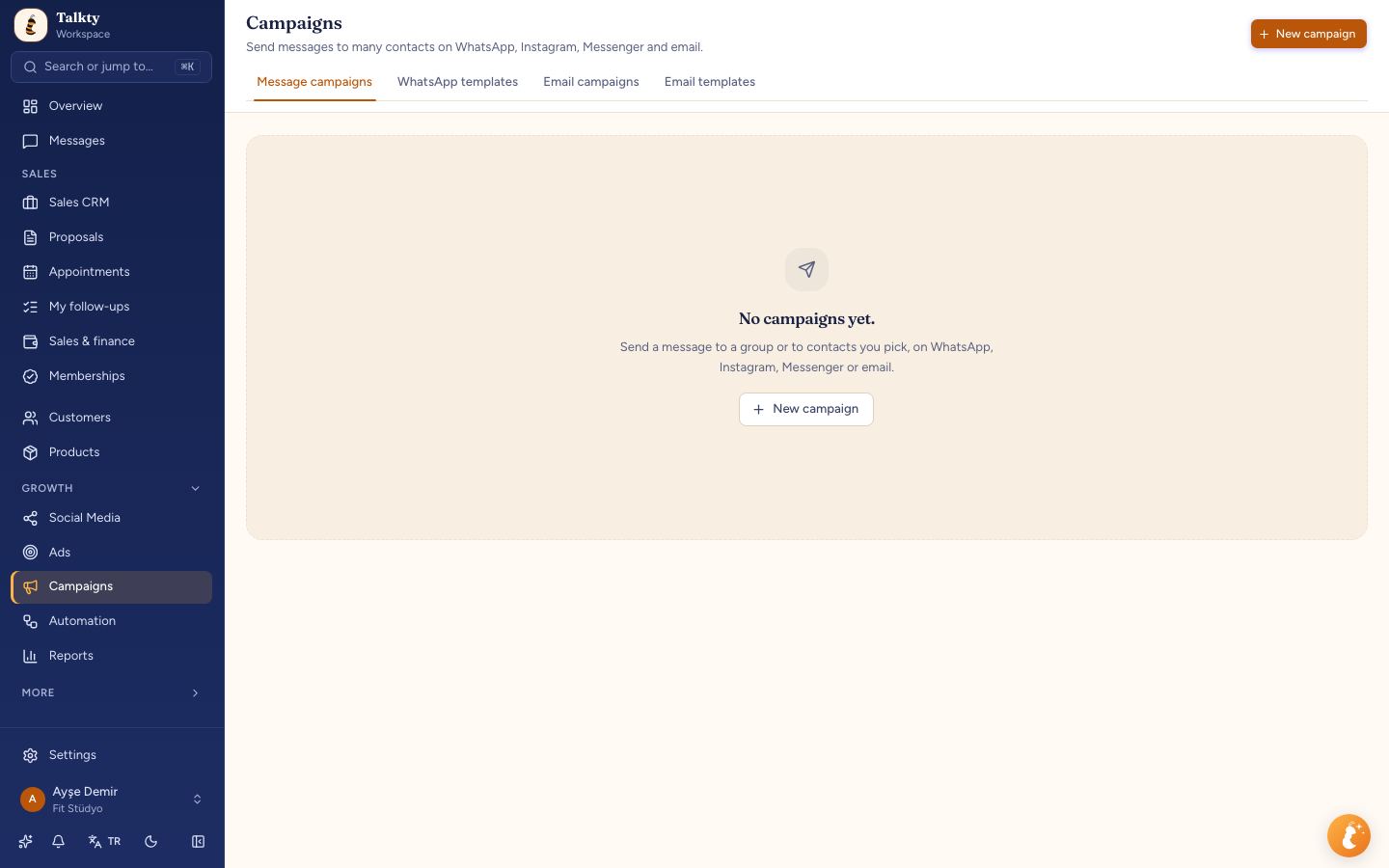
Talkty has two useful ways to message a group. Use Campaigns › Messaging campaigns for a one-off send to selected contacts or a saved group. You can choose WhatsApp, Instagram, or Messenger there; email campaigns are available for email.
Use a saved group when you want to message people who match a CRM filter, or when you want a recurring send. You can create the filter in Sales CRM and save it, then choose Send a message to this group from the saved filter’s menu. You can also select contacts on the Customers screen and choose Add to group or More › Save filter as group.
Step 1: Build or choose your audience
For a one-off campaign, go to Campaigns › Messaging campaigns and press New campaign. In To whom?, choose a saved group or select Pick people one by one. If you choose contacts individually, select the channel first; the contact list depends on the channel. Narrow the list with a filter, tag, or sales flow.
The audience preview helps you check who can be reached. Contacts without a number are hidden and counted. Invalid numbers and people who opted out by writing STOP are excluded. The preview also explains when someone is unreachable, such as having no contact details or being on the blocklist.
For a group built from a CRM filter, apply the filter in Sales CRM and save it before starting the send. This is useful when the audience should follow a business condition, rather than a hand-picked list. A saved group can also be selected as the audience when you create a new campaign.
Step 2: Pick a channel and check who is eligible
In Which channel?, select the channel that fits the audience and message:
- WhatsApp: Talkty sends an approved template to selected people who have a phone number and have not opted out with STOP.
- Instagram or Messenger: You can write free text, but recipients must have messaged your business within the previous 24 hours.
- Email: Use Email campaigns for email. The Email option in the messaging campaign form is for saved groups; it is not used to email individually selected contacts.
- Automatic: For saved groups, this option chooses a channel for each person: Instagram or Messenger if they wrote within the last 24 hours, otherwise a WhatsApp template if available, otherwise email.
For WhatsApp campaigns, getting prior consent from recipients and registering with İYS, Turkey’s commercial message system, is your responsibility. Check the audience preview and channel rules before you continue.
Step 3: Personalize the message
Under What to send?, choose an approved WhatsApp template or write the message for Instagram or Messenger. WhatsApp templates appear as cards. If a template includes variables, choose the source for each variable—for example, the customer’s name. Talkty fills each recipient’s message with their own available value.
If a required value cannot be found for a recipient, that person is skipped. The template’s sample value is not sent in place of missing customer information. This helps prevent a message from going out with an example name or other placeholder text.
If you do not yet have an approved WhatsApp template, create one before setting up the campaign. You can check your available templates in the WhatsApp templates list.
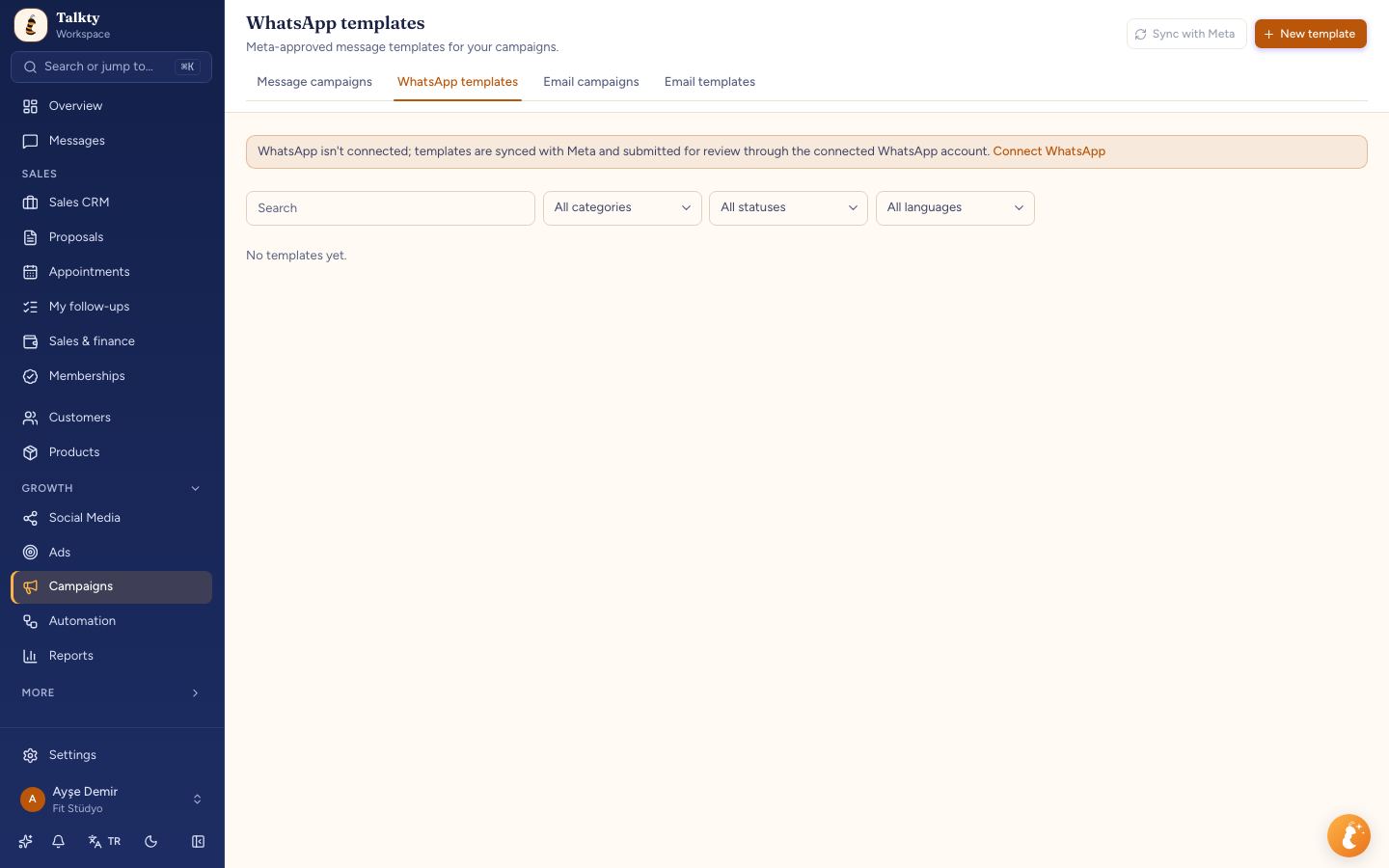
Before creating the campaign, you can test a WhatsApp template. With a template selected, enter your number in Send yourself a test under the summary and press Send test. The test uses sample values and does not create a campaign.
Step 4: Set the send time and review the summary
Under When?, choose Right away or set a later date and time. A campaign set to Right away starts sending as soon as it is saved. Give the campaign a name for your own reference; customers do not see this name.
For WhatsApp, you can turn on Skip people who got a campaign recently and choose the number of days to check. This leaves out people who received another campaign within that period. Meta may also hold marketing messages for people who receive them often.
Read the summary before starting. It shows the recipient count, send time, and estimated cost, and notes anything missing. If you are sending a commercial message, confirm that your audience and consent requirements are in order before you proceed.
For saved groups, you can also create recurring sends: choose every day or selected days, then set a time in the workspace time zone. If a person has several cards, they receive the message once. Use this option when you want a message to go to everyone matching the saved filter on a schedule.
Step 5: Check results and manage replies
Open a campaign by clicking its name or Details in the campaign list. The results show Sent, Delivered, Read, Replied, and Converted. A reply is the recipient’s first message within 72 hours of the send. A conversion is recorded when the contact’s card is opened or won within 7 days; sales won during that period are also shown.
The recipient list shows each person’s status, send and reply times, and any error. Use the Status list to filter recipients. If a send fails, the campaign details provide an explanation and next step. You can also download the recipient list as a CSV file.
The campaign message is added to the customer’s conversation history. Replies appear in Messages, where your team can see what the customer is responding to. For more guidance on handling conversations across channels, read How to Manage Multiple Chats in One Inbox.
From a campaign’s Retarget option, you can start a draft for people who did not read, did not reply, or were not delivered. The draft keeps the same message, but excludes anyone who has since opted out. Review the audience and message before pressing Start. You can also start, pause, cancel, or duplicate a campaign from its details page.
Summary
To send personalized bulk messages in Talkty, choose a saved group or select contacts, pick a channel, and use an approved WhatsApp template with customer-specific variables when sending through WhatsApp. Review eligibility and the campaign summary, set the send time, then check recipient statuses and replies in the campaign details. For ongoing sends to a changing audience, use a saved group and set a recurring schedule.
Frequently asked questions
- How do I personalize a WhatsApp bulk message in Talkty?
- Choose an approved WhatsApp template with variables, then select where each variable’s value comes from. Each recipient receives their own available customer value. People whose value is missing are skipped, and the template’s sample value is not sent.
- Can I send bulk messages through Instagram or Messenger?
- Yes. You can send free-text campaign messages to people who messaged your business within the previous 24 hours.
- Can I schedule or repeat a campaign?
- A campaign can start right away or at a later date and time. For a saved group, you can also set a recurring send for every day or selected days at a chosen time.
- Where can I see whether a campaign was delivered or answered?
- Open the campaign by clicking its name or Details. The results and recipient list show delivery status, replies, send times, and any errors.
- What happens if a WhatsApp recipient has opted out?
- People who wrote STOP are excluded from the campaign. The audience preview explains why a person is unreachable, and campaign details can show an opt-out as the reason for skipping.
Emily Carter