
How to Tag Messages for Team Follow-Up with Talkty
Learn how to tag messages effectively in Talkty's shared inbox to ensure smooth team follow-up and never miss a customer message.
By Emily Carter · · 3 min read

Why Tagging Messages Matters for Team Follow-Up
Managing customer conversations can get overwhelming when messages come from multiple channels like WhatsApp, Instagram, Messenger, and web chat. Talkty’s shared inbox collects all these messages in one place, making it easier to keep track. Tagging messages is a simple but powerful way to organize conversations and assign follow-ups, so no message slips through the cracks.
What Does Tagging Do in Talkty?
Tags are labels you add to conversations to mark their status, topic, or priority. For example, you can tag messages as "urgent," "billing question," or "needs follow-up." This helps your team quickly see which conversations need attention and what kind of response is required.
With Talkty, you can assign and tag conversations, so everyone on your team knows who is responsible for each message. This avoids confusion and ensures a smooth workflow.
Step-by-Step: How to Tag Messages in Talkty
Open Your Shared Inbox Log in to Talkty and go to the Messages screen where all chats from WhatsApp, Instagram, Messenger, and web chat appear together.
Select a Conversation Click on the message or conversation you want to tag.
Add Tags Look for the tagging option in the conversation panel. Choose from existing tags or create a new one that fits the message context.
Assign the Conversation Along with tagging, assign the conversation to a team member responsible for following up. This keeps accountability clear.
Use Filters to Track Tags Use the filter options to view conversations by tags. This helps your team focus on specific groups of messages, such as those marked for urgent response.
Update Tags as Needed As conversations progress, update the tags to reflect their current status, like "waiting on customer" or "resolved."
Tips for Effective Tagging and Follow-Up
- Keep Tags Simple and Consistent: Use a clear and limited set of tags so everyone understands their meaning.
- Combine Tags with CRM Cards: Every customer in Talkty has a card in the Sales CRM, where you can track follow-up plans and history alongside tags.
- Automate Tagging When Possible: Use Talkty’s automations to tag messages based on keywords or message sources, saving your team time.
- Use Tags to Trigger Automations: For example, a tag like "new lead" can start an automated follow-up message.
How Tagging Fits into the Bigger Picture
Tagging messages is part of Talkty’s broader solution to streamline communication and customer management. Along with tagging, you can use features like the AI assistant to answer common questions instantly, and the appointments calendar to manage bookings efficiently.
If you want to learn more about assigning chats to team members, check out our guide on Best Ways to Assign Chat Conversations for Small Businesses.
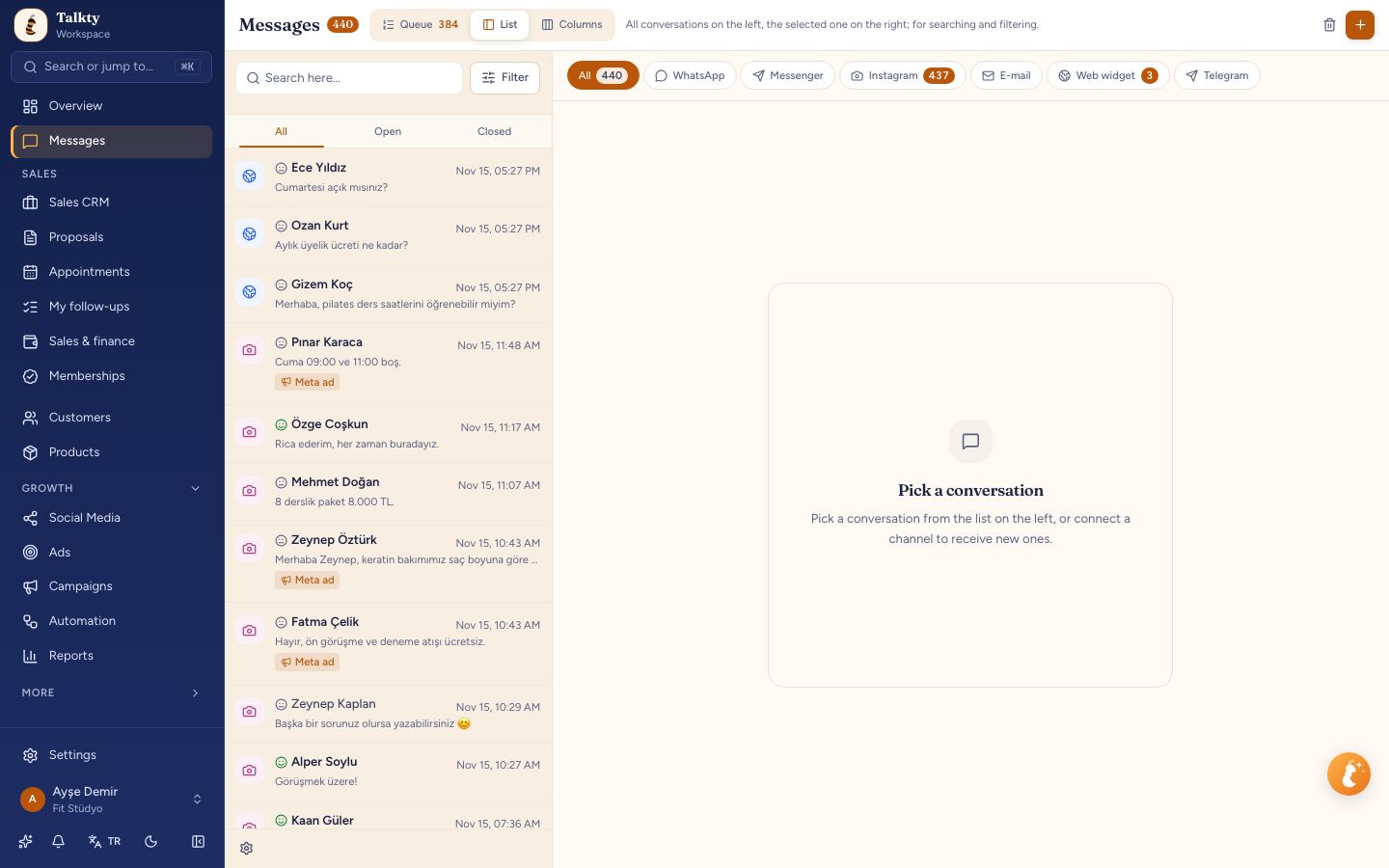 The shared inbox where you can tag and assign messages
Summary
Tagging messages in Talkty’s shared inbox helps your team stay organized and ensures every customer message gets the attention it deserves. By following simple steps to tag and assign conversations, you can improve team collaboration and customer satisfaction.
Explore Talkty’s other features like the Sales CRM and Automations to build a smooth, efficient workflow for your small business.
For more tips on managing multiple chats, see How to Manage Multiple Chats in One Inbox with Talkty.
Frequently asked questions
- What is the benefit of tagging messages in Talkty?
- Tagging messages helps organize conversations by status or topic, making it easier for your team to follow up and keep track of customer needs.
- Can I assign tagged messages to specific team members?
- Yes, in Talkty you can both tag and assign conversations to team members to ensure clear responsibility and follow-up.
- Are tags customizable?
- You can use existing tags or create new ones that fit your business needs, helping your team categorize messages effectively.
- Can tagging trigger automated actions?
- Yes, Talkty’s automation feature can use tags to trigger follow-up messages or notifications, helping automate repetitive tasks.
Emily Carter