
How to Manage Team Permissions in Talkty
Learn how to assign Talkty roles, create custom permissions, and control which sales flows and financial details each teammate can see.
By Emily Carter · · 5 min read

If you’re wondering how to manage team permissions, start by matching each teammate’s access to the work they need to do. Talkty includes built-in roles and lets you create custom roles with permissions for individual modules. You can also control which sales flows and financial details a user can see.
Understand Talkty’s built-in roles
Talkty has four built-in roles for day-to-day team access:
- Admin can do everything except manage the subscription and billing.
- Manager can handle day-to-day work but cannot change users, subscription details, or system settings.
- Rep can work with cards and customers on their own sales flows, messaging, appointments, proposals, sales, and payments.
- Read only can see everything but cannot make changes.
The person who created the account is the owner and has every permission. The Super Admin role is not available to assign from the team screen. A user cannot grant permissions they do not have themselves, whether they are creating a role, assigning one, or inviting a teammate.
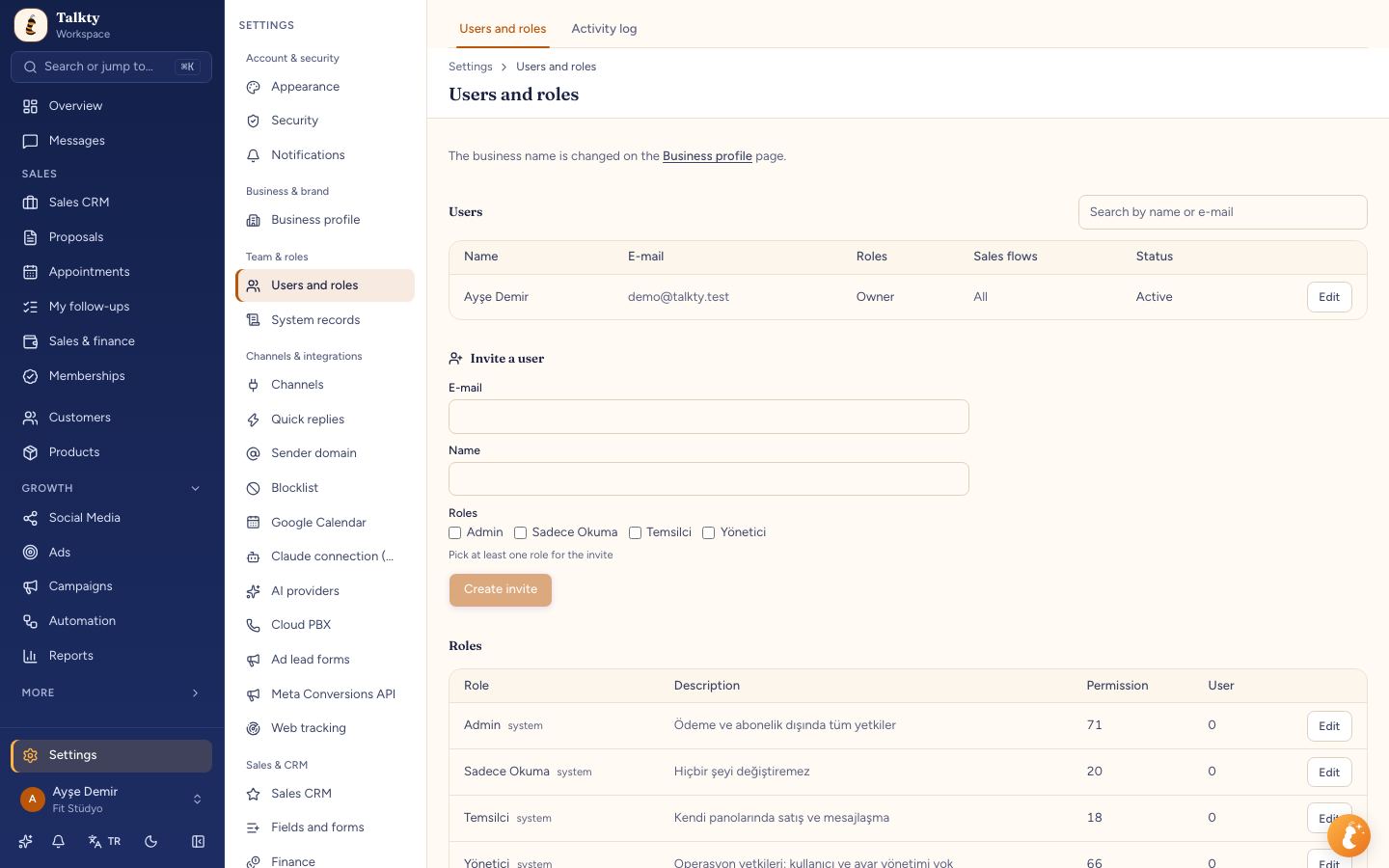
Invite teammates and assign roles
Use the Users and roles area to manage team access:
- Open Settings › Team & roles › Users and roles.
- Invite the teammate or find an existing user in the list.
- Assign at least one role that fits the work they need to do.
- Review the role before saving, especially if it includes access to finance or sales flows.
Every user must have at least one role, so you cannot remove someone’s last role. The actions available on this screen depend on your own permissions. For example, a Read only user can view the list but cannot change it. You also cannot deactivate, remove, or change the roles, sales flows, or password of someone with broader permissions than you.
For a closer look at handling conversations across the team, see How to Manage Multiple Chats in One Inbox. That guide covers the shared inbox rather than role setup.
Create a custom role
Built-in roles may not match every team’s needs. To set more specific access, create a role and choose permissions for each module:
- Go to Settings › Team & roles › Users and roles › Roles.
- Create a role.
- Choose the permissions needed for each module, such as Sales CRM, Customers, Messages, Finance, Campaigns, or Reports.
- For each available permission, choose the level of access, such as view, write, delete, or export.
- Save the role and assign it to the relevant teammate.
Choose only the access needed for the person’s responsibilities. For example, someone who needs to review records may need view access without permission to edit or delete them. Keep in mind that a user cannot give themselves or another person permissions beyond their own authority.
Limit access to sales flows
Sales CRM permissions include separate controls for working with opportunities and changing CRM settings. The Sales CRM permissions cover actions such as viewing, editing, deleting, and assigning cards. The Manage permission opens sales flow and column settings and the main sales flow.
The separate Sales CRM settings permissions apply to the Settings › Sales & CRM › Sales CRM page. View opens that page, while Edit allows changes to its settings. Giving someone permission to work with sales flows does not automatically give them access to these settings.
You can also hide an individual sales flow column from non-managers. In the sales flow, open the column menu and choose Edit column. Under General, use Hide from reps to hide that column from non-managers. This column visibility setting is separate from role permissions, which control access to Sales CRM features.
Control what teammates see in Finance
Finance access has specific visibility rules. If a role has Finance › View turned on and Finance › Manage turned off, its settings include a Finance visibility section.
Use Only see their own sales to limit the user to sales they are responsible for. This is on by default. The Days back field can limit the view to sales and payments from a recent period; for example, entering 30 shows only the last 30 days. Leave the field empty to apply no time limit.
These rules apply across the Overview, Finance screen, sales on deal and customer screens, and finance reports. If a person has several roles, the broadest role applies. The account owner and users with Finance › Manage can see everything.
A user without Finance › View will not see amounts on the Overview, including sales and collected cards, the financial summary, recent sales, today’s payments, or the sales amount in rep performance. The exported panel file shows sales and collected as zero for that user.
Review access before you finish
Before completing a role change, check that the teammate can do the work assigned to them without receiving unrelated access. In particular, review:
- Whether they need to edit, delete, or export records, rather than only view them.
- Which sales flows and columns they should be able to access.
- Whether they need Finance visibility, and whether it should be limited to their own sales or a time period.
- Whether they need access to Sales CRM settings as well as sales flow work.
If a user has multiple roles, remember that the broadest access applies. Review all assigned roles when a teammate’s access seems wider than expected.
Summary
To manage team permissions in Talkty, choose a built-in role or create a custom one under Settings › Team & roles › Users and roles. Set module permissions to match each person’s work, then review sales flow and Finance visibility separately. Users need at least one role, and they cannot grant access they do not have themselves.
Frequently asked questions
- Where do I manage team roles in Talkty?
- Open Settings › Team & roles › Users and roles. Use the Users area to manage teammates and the Roles area to create custom roles.
- Can I create a custom role in Talkty?
- Yes. Go to Settings › Team & roles › Users and roles › Roles, create a role, and choose permissions such as view, write, delete, or export for each module.
- Can a user grant permissions they do not have?
- No. A user cannot grant permissions beyond their own authority when creating a role, assigning one, or inviting a teammate.
- How can I limit a teammate’s Finance visibility?
- For a role with Finance › View on and Finance › Manage off, use Finance visibility. Turn on Only see their own sales, or enter a value in Days back to limit the period shown.
- What happens if someone has more than one role?
- The broadest role applies, so review all roles assigned to the user when checking their access.
Emily Carter