
Appointments and tasks
Appointments and Google Calendar
Create appointments, track their status and sync with Google Calendar.
Appointments is the calendar of your customer appointments, meetings and other events. Switch the view with the Month · Week · Day buttons at the top and move between dates with Today and the arrows. In week and day view a red line marks the current time, and each appointment shows its start time. On wide screens the appointments of the selected day are listed under the mini calendar on the left; click one to open it.
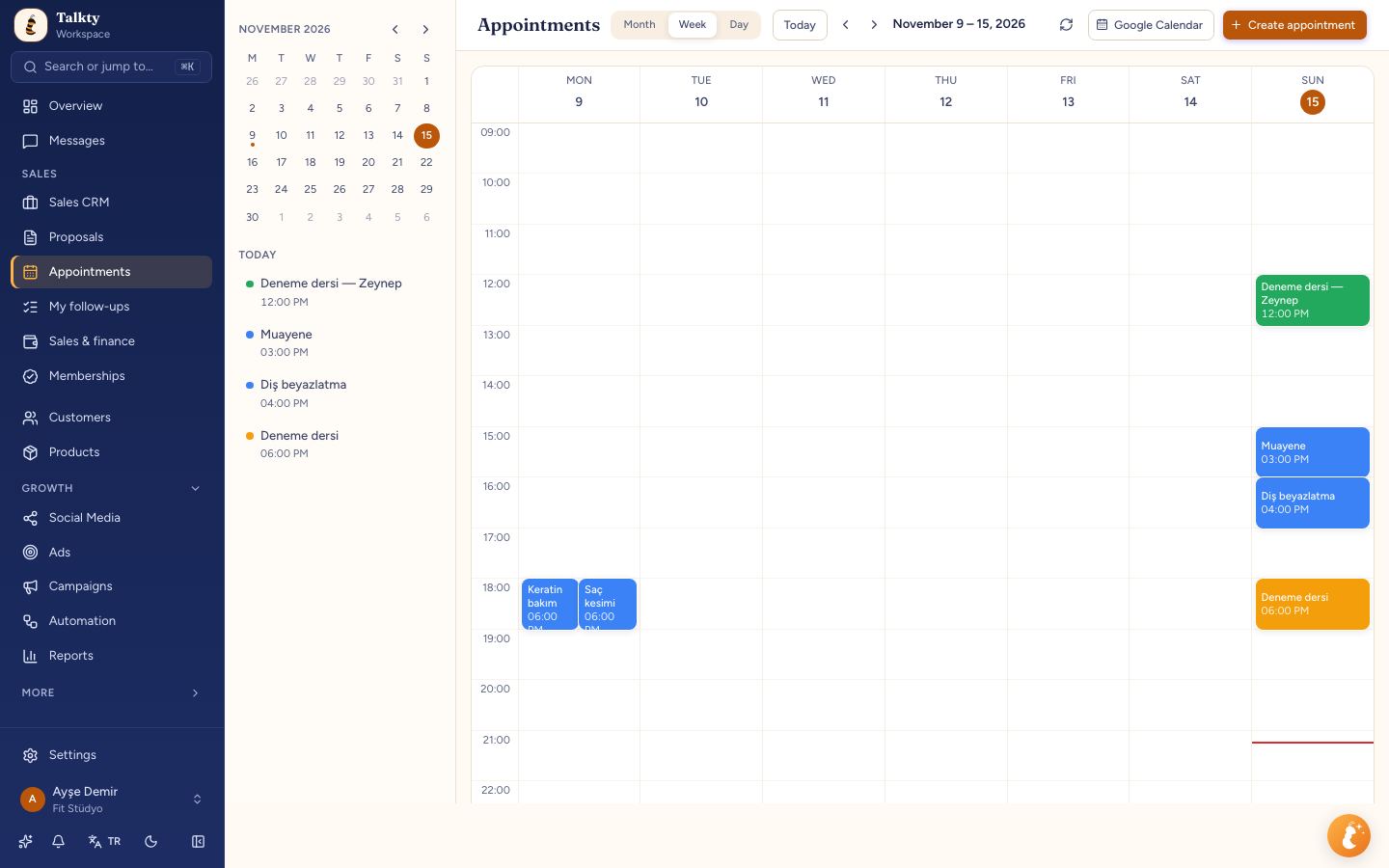
Creating an appointment
- Click a day in the calendar or press Create appointment (+ on a phone).
- Enter the title and start/end date and time (or All day). If you clicked a time in the calendar, that time is filled in; otherwise the start is the next half hour (e.g. 21:30 at 21:16). When you pick the start, the end is set one hour later; change the end for a different length.
- Pick a color and an Appointment status.
- Type the customer's name in Opportunity and pick their opportunity from the list; the appointment is linked to that opportunity and shows on its Appointments tab. Unlink removes the link.
- Add attendees by email or phone and write notes. Email addresses get an invitation email.
- If Google Calendar is connected, you can turn on Create Google Meet link.
You can also create appointments from an opportunity: Schedule an appointment on its Appointments tab. It opens the same form as the calendar; instead of picking an Opportunity, the form shows the opportunity's name, the title is pre-filled with the customer's name and the appointment is linked to that opportunity. Your AI assistant can also book appointments during a conversation.
When you change an appointment's date, time or status in the calendar, the linked opportunity's Appointments tab and its appointment date field update too.
Appointment statuses
Opportunities and the calendar show each appointment's status: Awaiting confirmation, Confirmed, Attended, No-show, Cancelled, To be rescheduled. In the Sales CRM, appointment columns can be organised by these statuses; for example, appointments due today land in a "Today's appointments" column. If you move an opportunity out of that column by hand, its appointment for today is deleted and the opportunity isn't pulled back; appointments marked Attended or No-show are kept.
You're notified when an appointment is coming up. Overview has a Today's appointments list.
Syncing with Google Calendar
Under Settings › Google Calendar, press Connect Google account and grant access.
- All upcoming appointments in the workspace (including those booked by the AI assistant) are added to your Google Calendar; edits and deletions sync both ways. Appointments of a teammate who connected their own Google Calendar go to their calendar.
- Events you create in Google Calendar also come into the Talkty calendar and are visible to everyone in the workspace.
- Syncing runs when you press Sync calendar under Settings › Google Calendar.
- Use Create Google Meet link on a meeting to generate a video call link.
- When you disconnect, events stay in Talkty; only the Google link is removed.
If you see "Google integration is not configured on this installation", contact our support team.