
AI assistant
Creating an AI assistant
Set up the AI assistant (agent) that replies to your customers for you.
An AI Agent is an AI assistant that replies to messages on your channels on your business's behalf. It answers price questions, books appointments, learns the customer's name and needs, opens a card in the Sales CRM, and hands the conversation over to you when needed.
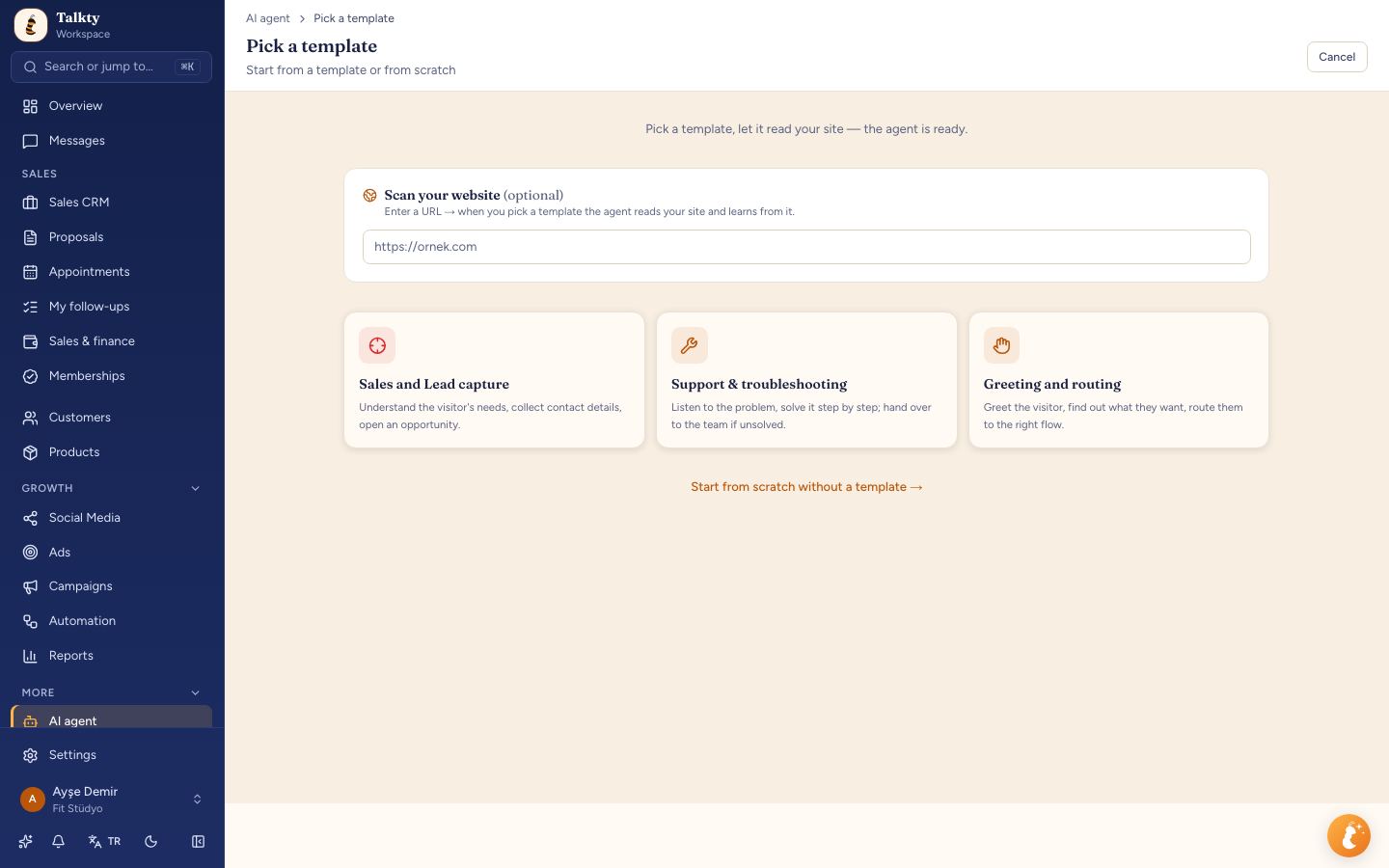
Creating a new assistant
- Open More › AI Agent in the left menu and press Create agent.
- In Choose a template, pick a starting template:
- Sales and Lead capture: understands the visitor's needs, collects contact details, opens an opportunity.
- Support and troubleshooting: tries to solve the issue step by step and hands over to your team if it can't.
- Greeting and routing: greets, finds out what the person wants and routes them.
- If you enter your website address in Scan your website, the assistant reads your site to learn about your business.
- If you don't want a template, press Start from scratch without a template.
- Business name, sector and description come prefilled from your Business profile; scanning the site does not change the business name. If the business name is empty, the site name is suggested.
Settings
- Agent name: the name you'll see on screen (for example "Booking Assistant").
- Business information: business name, sector and a short description.
- Instruction: how the assistant should behave: tone, what it should and shouldn't do. If you're stuck, Generate instruction with AI drafts one from your business information, which you then edit.
- Context: general details the assistant needs, such as opening hours, address, shipping and returns. You don't need to list products and prices here: if the Products page has active items, the assistant looks up price, stock and link there when a customer asks (the note under the field says so too). Update context with AI can summarise it from the knowledge base.
- Model: the AI model the assistant uses. If unsure, pick the one marked (Recommended). Each model in the list shows the approximate tokens for a typical AI reply; the box under the selected model shows a short description, how many times cheaper or more expensive it is than your saved model, and OpenAI's shutdown date (if any). OpenAI shuts down GPT-4.1, GPT-4.1 Mini and GPT-4o Mini on 14 January 2027; the new-generation options are GPT-6 Luna (very cheap and fast; recommended and the default for new assistants), GPT-5.6 Luna and GPT-6.1 Terra (stronger). After changing the model, try it with a few real questions on the Test tab.
- Message buffer: if a customer splits their details over several messages, the assistant waits for them to finish and replies once.
- Use recent posts as context (on by default): in Instagram and Messenger DMs the assistant knows your open stories (last 24 hours) and the captions of your latest posts, carousels and reels published from Talkty. If someone answers a quiz in a direct DM instead of replying to the story, or asks about a post's topic, the assistant still understands what they mean. Turn it off and this information is not given to the assistant. See Instagram and Messenger.
Tips for a good instruction
- Keep it short and clear: "If asked about prices, give the price list from the context. Don't make things up; say 'our team will get back to you'."
- Also write what the assistant should not do (for example never promise discounts).
- Set the reply length (for example "at most 3 sentences").
- After changing the instruction, always test it.
What the assistant can do (actions)
In Actions to take, turn on what the assistant may do during a conversation:
- Create opportunity, add a note to the opportunity, change column, change sales flow, tag the opportunity
- Create appointment: books an appointment in the calendar and links it to the card.
- Hand over to a human: when the customer wants a person or the topic is outside its scope, it turns off AI in that conversation and notifies you.
- Call webhook: sends a request to your own system (advanced).
- Search products: searches the product catalog by name, code, category, brand, tag and options, and answers with price ("Y instead of X" when on sale), stock status and product link. If your catalog has active products it's used even when unticked; if no store is connected, use the Connect your store link below the actions. See Connect your store.
- Order status: when a customer asks where their order is, gets the store orders (status, total, shipment tracking) of the customer it is talking to. Only orders matching that customer's WhatsApp number, email or contact record are returned; even if the customer gives someone else's order number, the assistant can't see that order. Orders arrive through the WooCommerce plugin. Read-only.
- Current promotions: when a customer asks something like "Is your November promotion still on?", it checks the copy and start/end dates of your live ads and ads that ended in the last 60 days, plus posts you published from Talkty in the last 30 days, and compares the end date with today. If any of these exist it's used even when unticked. Broadcast campaigns are not checked (so an offer meant for one group isn't told to everyone). Put a promotion that isn't in an ad or post into the knowledge base. Read-only.
The AI assistant uses tokens for every reply. See Plans, tokens and subscription.