
Channels
Channel management and health
Monitor connected channels and link them to a sales flow and an AI assistant.
Settings › Channels & integrations › Channels shows every connected channel at a glance: is it connected, is it healthy, and which sales flow new messages land on.
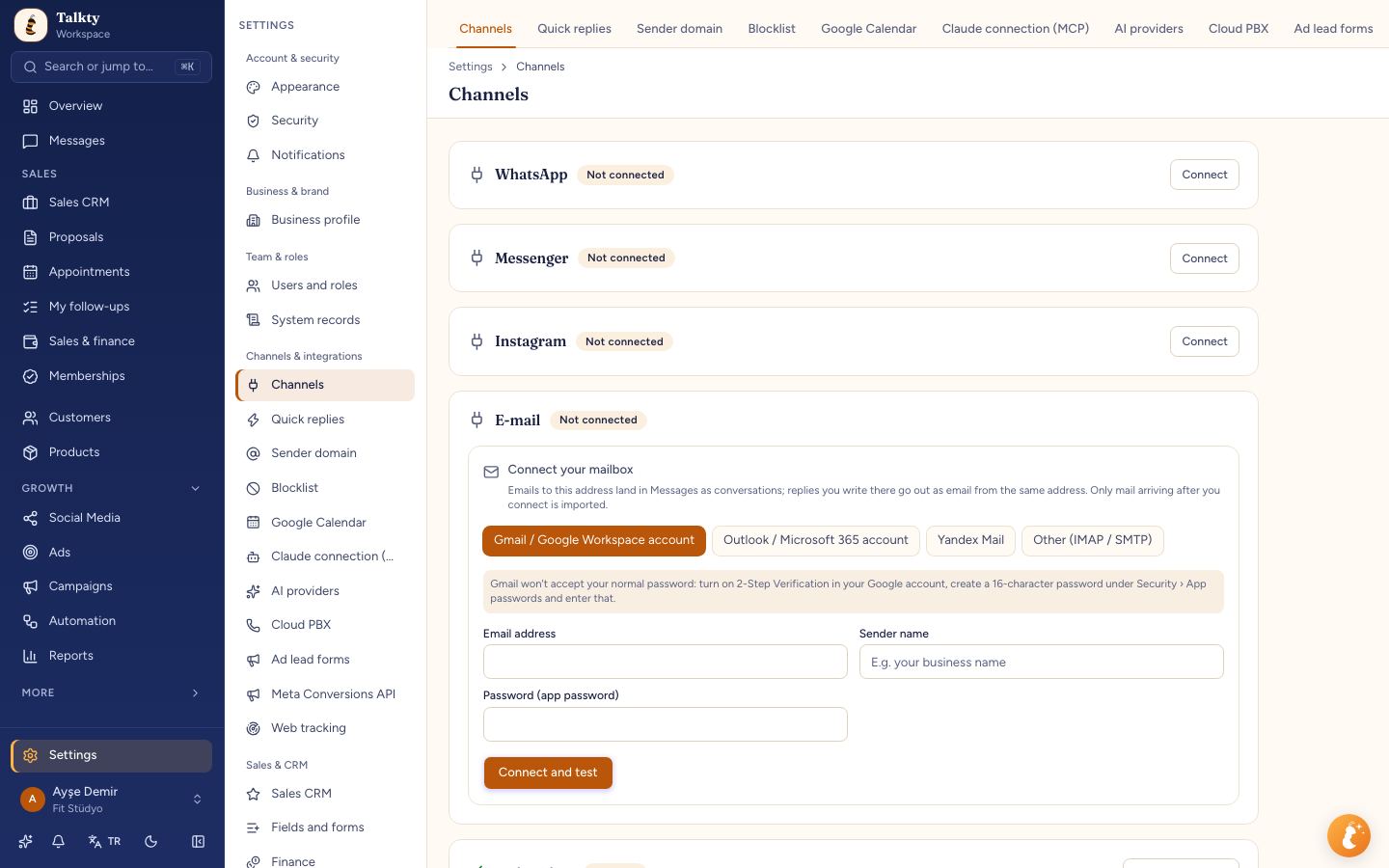
What the channel card shows
Status: connected / not connected and its health. These details appear only on connected channels:
Number and display name (WhatsApp): the connected number and the business name in Meta.
Last message: when a message was last received or sent on the channel.
Meta access expires (WhatsApp, Instagram, Messenger): when the Meta connection permission needs renewing. You're warned before it expires; reconnect to renew it. It has nothing to do with your AI token balance.
Errors in last 24h: receiving/sending errors in the last 24 hours. If it's above zero, check the channel.
AI agent: which AI assistant replies to messages on this channel.
Which sales flow should messages go to
For each channel, choose which Sales CRM sales flow new customers are added to (except the web bubble). If you leave it on Main sales flow, cards open in the main sales flow, or on the first sales flow you created if no main sales flow is set.
Linking a channel to the AI assistant
When you choose an AI assistant on the channel card, it automatically replies to that channel's messages. Clear the selection to turn it off. Details: Testing and connecting the assistant.
Disconnecting and reconnecting
Disconnect doesn't delete past conversations. When you reconnect the same account, conversations continue where they left off.
The Web card has no disconnect; use Configure widget to edit the bubble's assistant, look and embed code. See Adding a chat bubble to your website.
Plan limit
The number of channels you can connect depends on your plan. See Plans, tokens and subscription.