
Campaigns
Sending a messaging campaign
Send a bulk message to many people over WhatsApp, Instagram and Messenger, follow the results and retarget.
Campaigns › Messaging campaigns sends one message to many customers at once.
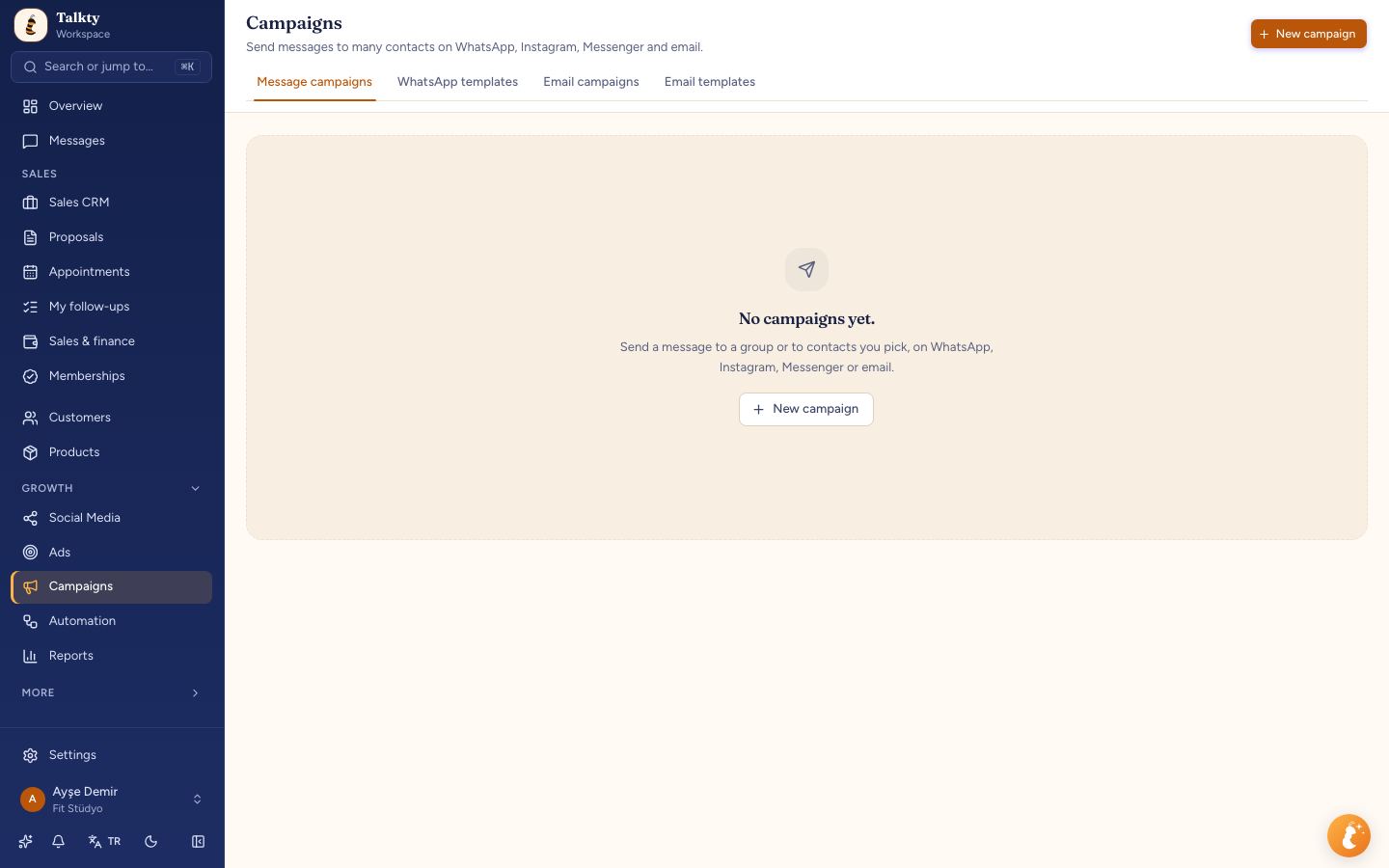
Creating a campaign
Press New campaign. The form goes step by step, with a live preview and summary on the right.
1. To whom?
- Saved group: a filter you saved in Sales CRM. See Group sends.
- Pick people one by one: the contact list opens in the Pick contacts step after you choose the channel (the list depends on the channel). Choose from your customer list and narrow it by filter, tag or sales flow. Contacts without a number are hidden and counted. The same person isn't added twice; invalid numbers and people who opted out (wrote STOP) are dropped. You can see the STOP list, add numbers manually or remove them under Settings › Channels & integrations › Blocklist in the WhatsApp / SMS opted-out numbers section. The group preview also says why people are unreachable (blocklisted or wrote STOP / no contact details). The Automatic channel, Email and Repeating sends work only with saved groups; to email contacts you pick, use Email campaigns.
2. Which channel?
- WhatsApp: sent with an approved template to everyone you picked who has a number and hasn't written STOP. A campaign message is a commercial electronic message: getting prior consent from recipients and registering with İYS (Turkey's commercial message system) is your responsibility.
- Instagram / Messenger: free text, but only to people who wrote to you within the last 24 hours (Meta rule).
3. What to send?
- For WhatsApp, your approved templates appear as cards. If the template has variables (such as the customer's name), choose where each one is filled from; every recipient gets their own name. People whose value can't be found (for example no name on file) are skipped; the template's sample value is never sent. If you have no approved template, first create a template.
- For Instagram/Messenger, write the message text.
4. When?
Right away or at a later date and time. With Right away, the campaign starts sending as soon as it's saved.
For WhatsApp, turn on Skip people who got a campaign recently to leave out anyone who got another campaign within the number of days you pick. The same person doesn't get messages back to back, and Meta may hold marketing messages for people who get them often.
Give the campaign a name (only you see it). The summary shows the number of recipients, send time and estimated cost. If anything is missing, it's noted under the button.
Send yourself a test
With a WhatsApp template selected, enter your number in Send yourself a test under the summary and press Send test. The template goes to that number with sample values; no campaign is created.
Cost
For WhatsApp campaign messages, Meta charges per message. Meta takes this from the payment method linked to your WhatsApp Business account; Talkty shows the estimated cost in the summary.
Campaign details
Click a campaign's name or Details in the list to open its page (the address of a deleted campaign shows a Back to campaigns link):
- Results: Sent, Delivered, Read, Replied and Converted, with rates. A reply is the first message within 72 hours of sending. A conversion is the contact's card being opened or won within 7 days of sending; the sales won in that time are shown too.
- Failed sends and reasons: a plain explanation of each error and what to do; Meta's own text and error code appear in small print below. People on the STOP list are listed as Skipped with an opt-out (STOP) reason. Messages held by the per-person marketing limit (error 131049) are retried automatically twice, after 12 and 24 hours; meanwhile the campaign shows as Sending.
- Recipients: each recipient's status, send and reply time, and error. Filter with the Status list.
- Download CSV: downloads the recipient list as a file you can open in Excel.
- Start / Pause / Cancel and Duplicate: Duplicate opens a new draft with the same message and recipients.
The campaign message you sent is also written into the customer's conversation history, so when they reply both you and the AI assistant see what they're replying to. Conversations land in Messages.
Retargeting
From Retarget on the campaign page you can open a new campaign for people who Didn't read, Didn't reply or were Not delivered. It opens as a draft with the same message; people who have since opted out are left out. Check it and press Start.
To message everyone matching a filter on a schedule (for example every week), use group sends.