
Social media
Connect Claude (MCP)
An MCP connection that lets Claude read your Talkty social accounts, comments, messages, ads, Sales CRM and reports and, if you allow it, draft posts for approval, write replies and pause ads.
Talkty provides an MCP server. Once you connect Claude (claude.ai, Claude Desktop or Claude Code) to it, you can ask Claude in plain language: "Which of my Reels got the most reach last month?", "Summarise today's Instagram comments" or "Which Instagram messages are waiting for a reply?", "Which ad brought the most expensive leads this week?" or "How many appointments booked by the AI turned into sales?". Claude connection is available on the Enterprise plan.
What Claude can see
Claude sees the areas the connecting person (or the key) has permission for; for example, Claude connected by a rep without ad permission can't see ads.
- Social media: connected Instagram, Facebook, YouTube and TikTok accounts; posts in the planner (scheduled, awaiting approval, published, failed); metrics of posts published from Talkty (reach, views, likes, comments, shares, saves; where the platform reports them, refreshed once a day)
- Instagram comments and your keyword rules
- Inbox: conversations and their latest messages (Instagram, Messenger, WhatsApp, web chat…)
- Media library and images approved in the design studio
- Ads: Meta ad campaigns, budgets, spend, cost per result and leads/sales that reached the CRM; a detailed campaign report with Talkty's findings (Ad report)
- Sales CRM: deals (stage, value, board and column, who booked the appointment), contacts and calendar appointments
- Reports: every report on the Reports screen, with the same numbers for the date range you choose
Claude reads social data from Talkty's own records and sends no extra requests to Instagram, so it does not interfere with Talkty's automatic replies and publishing. The ad report is fetched from Meta at that moment.
What Claude can do (optional)
If you also allow writing on the permission screen (or, with a key, give it the Messages › Edit scope, and Campaigns › Edit for ads), Claude can do the following. Everything goes through Talkty's own flows and appears in System records as "Claude (MCP · app or key name)":
Draft posts: Instagram, Facebook, YouTube and TikTok posts prepared by Claude are never published directly. Even if your approval setting is off, they go to Social Media › Needs approval and team members with approval permission are notified. The approver can edit the text and pick the time, then Talkty publishes. Details: Posts and loops.
Add images: It can import an image or video from a public address into the media library.
Reply to comments: It can post public replies to Instagram comments received by Talkty. A private reply is possible once per comment within 7 days; if your keyword rule already messaged that person, Claude does not send a second one.
Send messages: It sends a message in an inbox conversation as if a team member wrote it. The AI agent is switched off in that conversation so the customer does not get two answers (you can change this, see below); you can switch it back on from the conversation screen. On Instagram and Messenger you can reply within 24 hours of the customer's last message.
Pause and resume ads: it pauses or restarts the campaign on Meta. Changing the ad budget is a separate option and is off by default.
Claude can make at most 60 write actions per hour per connection. Claude asks for your confirmation before using a write tool.
Claude's options
In the Claude (MCP) options section of Settings › Channels & integrations › Claude connection (MCP) you choose what Claude may do. A tool you turn off is not shown to Claude at all.
- Can draft posts for approval, Can reply to Instagram comments, Can send messages in conversations, Can pause and resume ad campaigns
- Can change ad budgets (off by default): if you turn it on, Claude can change a campaign's daily or lifetime budget; this spends money.
- Turn off the AI agent in a conversation when Claude sends a message (on by default): the AI agent and Claude don't both answer the same customer. If you turn it off, the AI agent keeps replying in that conversation.
- Don't message conversations assigned to a team member (on by default): Claude stays out of conversations a team member has taken.
- Don't reply to comments a keyword rule already answered (on by default): if your comment rule already replied, Claude doesn't add a second reply.
Set up the connection
Setup is explained on Settings › Channels & integrations › Integrations › Claude connection (MCP). There is no key to copy: you give Claude the server URL, sign in with your Talkty account and allow access. Claude connection is available on the Enterprise plan.
- Copy the server URL: press Copy next to Server URL on the page (
https://talkty.tr/api/public/mcp). - Add it to Claude and sign in.
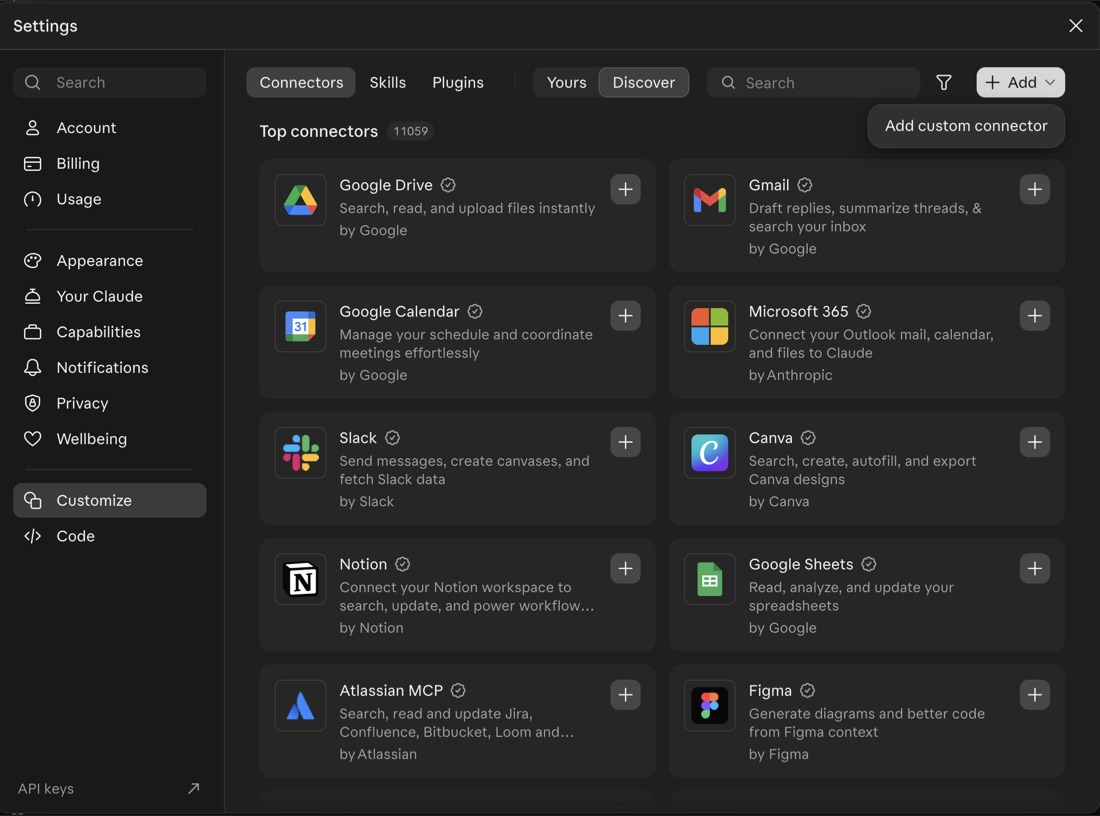
claude.ai and Claude Desktop: in Claude, click your name at the bottom left and open Settings, go to Customize on the left, and on the Connectors tab choose Add custom connector from the Add menu at the top right.
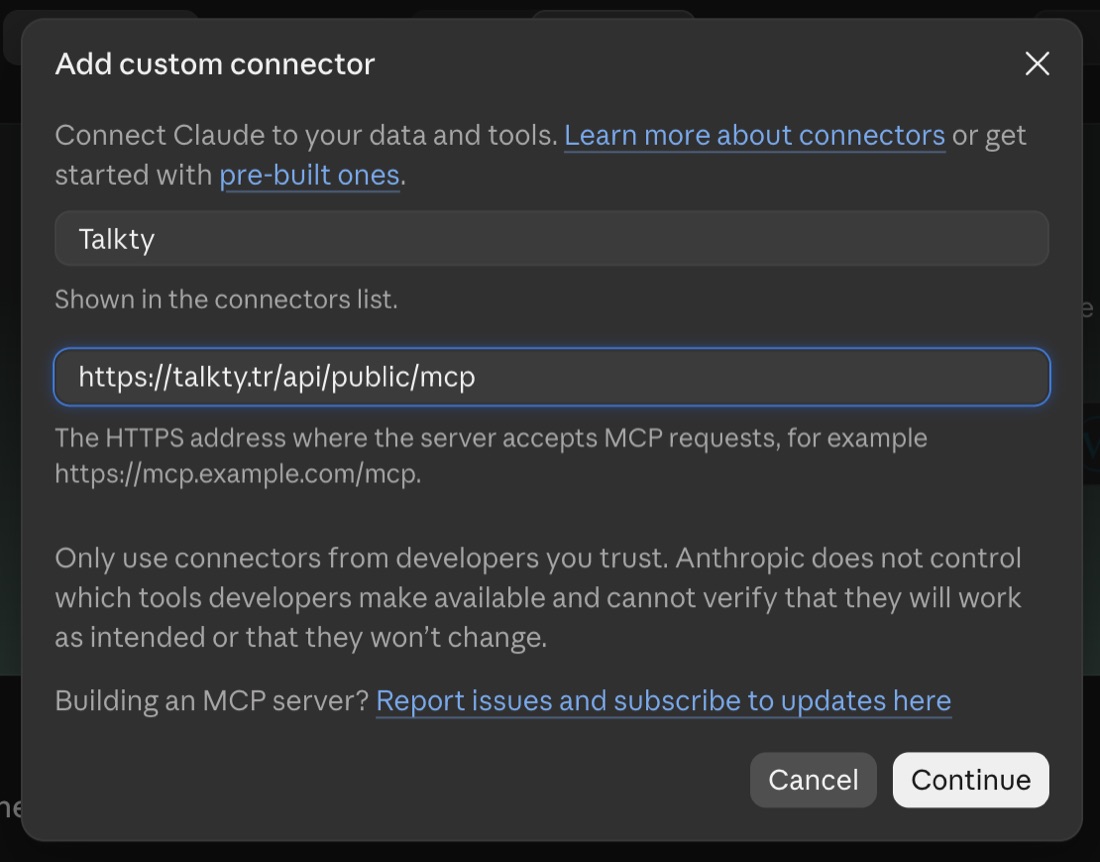
Type Talkty in Name, paste the URL into MCP server URL and press Continue.
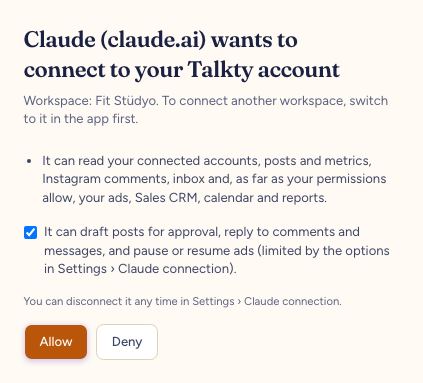
The Talkty permission screen opens (if it doesn't, press Connect next to Talkty under Customize › Connectors › Yours): sign in with your Talkty account, choose whether Claude may draft posts and write replies, and press Allow.
Then turn Talkty on from the + or tools menu in a chat. Menu names may differ slightly between Claude versions and languages.
Claude Code: run
claude mcp add --transport http talkty https://talkty.tr/api/public/mcpin a terminal, then type/mcpin Claude Code, pick talkty and press Authenticate; the same permission screen opens in your browser.
- Try it: ask Claude "List my connected accounts in Talkty".
The permission screen shows the workspace being connected; to connect another workspace, switch to it in the app first. Claude works with the role of the person who allowed access: if that person can't edit messages, the write option isn't offered, and if their role is lowered later, Claude's access drops too.
Connected Claude apps appear in Connected Claude sessions on the same page (who connected, read or write, last used); disconnect one with the trash icon.
Connecting with a key
If your MCP app doesn't support signing in, press Create key under Connect with a key at the bottom of the page and send the Authorization: Bearer <key> header together with the server URL. Keys are listed and revoked on Settings › Account & security › Security (API keys).
Security
- Within the selected scope the key can also read your customer messages (and, with Edit, send messages); never share it.
- Posts drafted by Claude are saved under the name of the person who created the key.
- To disconnect, delete the session on Settings › Channels & integrations › Claude connection (MCP) (if you connected with a key, revoke it on Settings › Account & security › Security); Claude stops receiving data immediately.
- The key list shows the last-used date, so you can see when the connection was used.