
Campaigns
WhatsApp templates
Create Meta-approved template messages, submit them for approval and use them.
On WhatsApp, to write to a customer more than 24 hours after their last message, or to someone you've never chatted with, you need a template approved by Meta. Campaigns and reminders are also sent with templates.
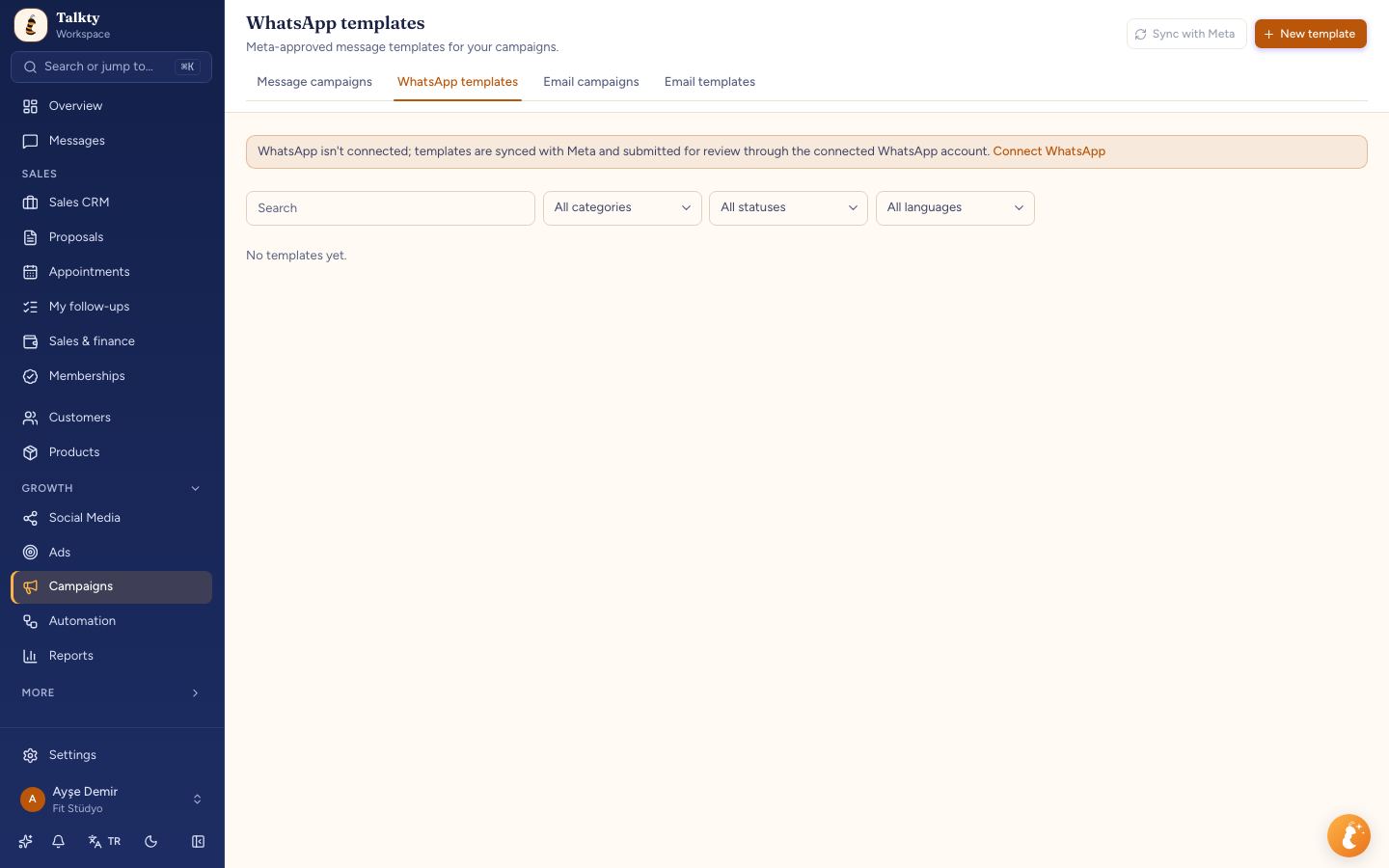
Creating a template
- On Campaigns › WhatsApp templates, press New template.
- Template name: lowercase with underscores (for example
october_discount). Customers don't see it. - Category:
- Marketing: campaigns, discounts, announcements.
- Utility: appointment reminders, order/membership information.
- Authentication: one-time codes.
- Choose a language.
- Header type: none, text, image, video or PDF/file. A media header needs a sample file for Meta's review; the same file is sent in campaigns.
- Body: the message text. For parts that change per person, write named variables as in automation messages:
{{ad}}(first name),{{ad_soyad}}(full name),{{randevu_saati}}(appointment time) (for exampleHi {{ad}}, an October-only 20% discount is waiting for you.). A name may only use lowercase English letters, digits and underscores. Enter a sample value for each variable. Older templates synced from Meta show numbered variables like{{1}},{{2}}and keep working; don't mix the two styles in one template. - Optionally add Buttons: Reply (quick reply), Link (web address), Call (phone).
- To show several products, add Carousel cards. With a carousel, the template header and template buttons can't be used, and all cards use the same header type.
The phone preview on the right shows how the message will look.
Submitting for approval
After saving, press Submit for approval next to the template in the list. The result usually arrives within a few minutes.
| Status | Meaning |
|---|---|
| Draft | Not sent to Meta yet. |
| In review | Meta is reviewing it. |
| Active | Approved and ready to use. |
| Rejected | Meta didn't accept it; the reason is shown. Fix it and resubmit. |
| Paused | Meta paused it temporarily because of negative recipient feedback. |
Sync with Meta fetches the latest statuses from Meta and templates you created earlier in your WhatsApp Business account. If WhatsApp isn't connected, a notice with a Connect WhatsApp link appears at the top; syncing and submitting work once the channel is connected. If syncing fails, the reason (WhatsApp not connected, WABA ID missing, or the error Meta returned) appears below the button; Check WhatsApp connection next to it takes you to Settings › Channels & integrations › Channels. Templates don't sync on a QR-linked account; you need the official connection (see Connect WhatsApp).
Avoiding rejection
- The message must not start or end with a variable (for example don't put
{{ad}}at the very end; finish with a sentence). - Put meaningful text between variables; don't write
{{ad}} {{randevu_saati}}back to back. - Don't put marketing content in the Utility category.
- Don't write misleading or prohibited content, or use someone else's brand.
Visibility
To let only certain team members use a template, restrict it with Visibility; Everyone removes the restriction.