
Getting started
Inviting teammates and roles
Inviting users, assigning roles and deciding who can see what.
Invite your teammates to Talkty and give each of them a role. The role decides which screens they see and what they can do.
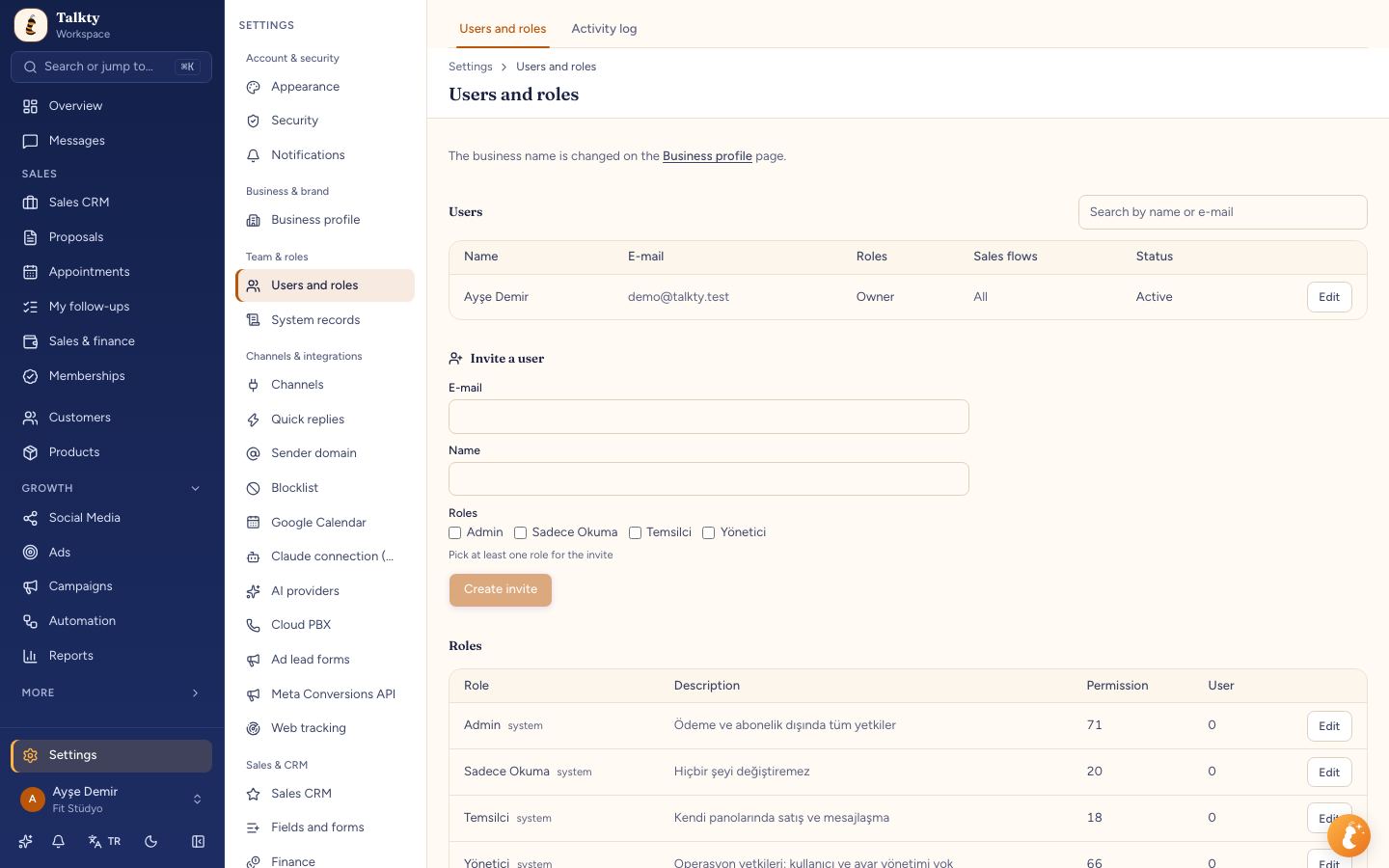
Sending an invitation
- Open Settings › Team & roles › Users and roles.
- Click Invite user, enter the person's email and choose at least one role; Create invite stays disabled until you do. The pending invitations list shows the role next to each email.
- An invitation email is sent. You can also copy the invitation link and send it over WhatsApp.
The invitation link is valid for 7 days. Once the person opens it and sets their name and password, they join your team. If that email already has a Talkty account, the person doesn't set a new password; they enter their current password to join (or open the link while signed in to that account). You can cancel a pending invitation from the list.
The number of users depends on your plan. Pending invitations also take up a seat; if you've reached the limit, cancel a pending invitation or upgrade your plan. Reactivating an inactive user also uses a seat.
Changing the business name
The name you entered at sign-up (your business name) is changed under Settings › Business & brand › Business profile › General. See Business profile.
Built-in roles
| Role | What they can do |
|---|---|
| Admin | Everything except subscription and billing. |
| Manager | All day-to-day work; cannot change users, subscription or system settings. |
| Rep | Cards and customers on their own sales flows, messaging, appointments, proposals; entering sales and payments. |
| Read only | Sees everything, changes nothing. |
The person who created the account is the owner and has every permission.
The Super Admin role does not appear on the team screen and cannot be given to anyone, not even by the owner. Users who already hold it are visible only to the owner. Nobody can grant a permission they do not have themselves, whether by creating a role, assigning one or inviting someone; for example, an Admin cannot give a role with billing permissions to themselves or anyone else.
Creating your own role
Under Settings › Team & roles › Users and roles › Roles, create a role and choose permissions such as view, write, delete, export for each module (Sales CRM, Customers, Messages, Finance, Campaigns, Reports…).
Finance visibility
When a role has Finance › View on and Finance › Manage off, the role form shows a Finance visibility section:
- Only see their own sales: when on (the default), the user only sees sales they're responsible for.
- Days back: for example, enter 30 and they only see sales and payments from the last 30 days. Leave it empty for no time limit.
The rule applies everywhere: the Overview (sales and collected cards, Financial summary, Recent sales, Today’s payments, the rep sales amount), the Finance screen, sales on deal and customer screens, and finance reports (Cash flow projection, Daily earnings, Payment records, Overdue payments, Product sales analysis). If someone has several roles, the broadest one applies. The account owner and roles with Finance › Manage (e.g. Admin) see everything.
A user without Finance › View doesn't see amounts on the Overview either: the sales and collected cards, Financial summary, Recent sales, Today’s payments and the sales amount in rep performance are hidden; the exported panel file shows sales and collected as 0.
Sales CRM has two separate rows on the role screen:
- Sales CRM — view, edit, delete, assign cards… The Manage permission opens sales flow and column settings and the main sales flow. This is where you give reps their sales flow permissions.
- Sales CRM settings — the Settings › Sales & CRM › Sales CRM page (general settings, loss reasons, opportunity code, auto-assignment, interest score). View opens the page, Edit allows changes. Sales flow permissions don't open these settings; only the Idle opportunities tab is also open to reps who can edit sales flows, and the general Settings permission isn't needed.
The Social media posts › Approve permission lets someone publish without approval while approval before publishing is on, and approve or reject waiting posts. The owner, Admin and Manager have it by default.
Sales flow visibility
Reps only see the sales flows opened to them. You choose which rep sees which sales flow in the sales flow settings. Managers can also hide some columns from reps.
Deactivating a user
When a teammate leaves, set them to inactive in the list: their account isn't deleted and their name stays on past records, but they can no longer sign in.
Who you can act on
- You can't deactivate, remove, or change the roles, sales flows or password of someone with broader permissions than you (for example, an Admin can't do this to the account owner).
- Every user needs at least one role; the last one can't be removed.
- You can't change your own sales flow access.
- Password reset only works for users who belong to your team alone. If the person is also in another team, their password can't be reset here; they should use Forgot password on the sign-in screen (if there is no such link, they ask the other team's admin for a reset). Resetting a password signs the person out everywhere.
- Buttons on this screen only show for actions you're allowed to take; the Read only role sees the list but can't change it.