
Messages
Using the inbox
Reply to messages, assign, close and search conversations, and use quick replies.
Messages gathers conversations from every channel in one list: the conversation list on the left, the selected conversation in the middle and the customer info panel on the right. On a phone you see the list first; tap a conversation to open it and use Back to the list to return.
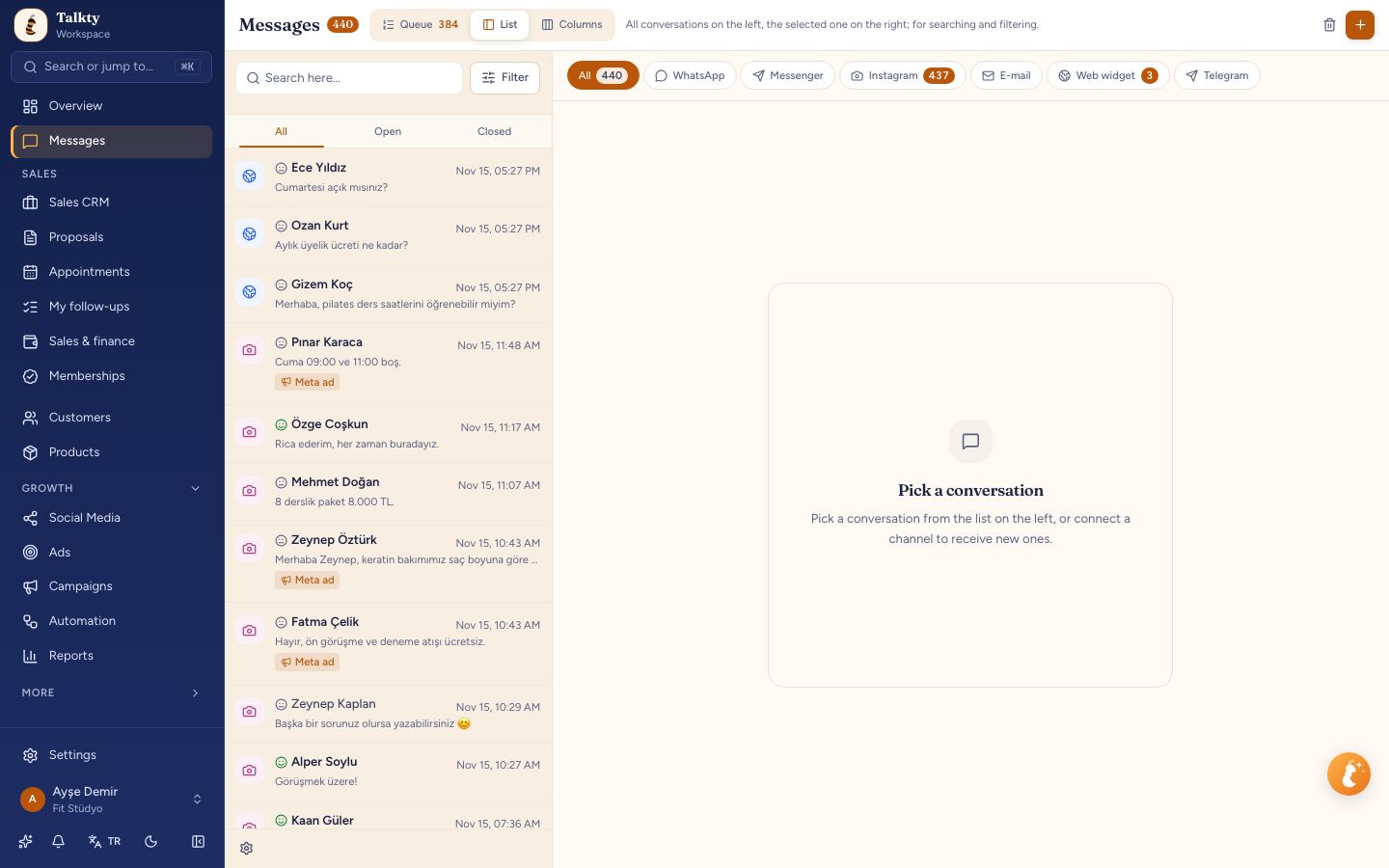
Views: Queue, List, Board
Use the Queue · List · Board buttons at the top of the screen to choose how you work. Your choice is remembered in this browser; what each view does is written next to the buttons.
- Queue — Open conversations with unread messages come to you one by one, longest waiting first. After you send a reply, the next conversation opens. The bar at the top shows how many conversations are waiting; Hand to AI turns AI on for the conversation and marks it read, Look later moves it to the end of the queue, and the arrows go to the previous and next one. When nobody is waiting you see Nobody is waiting.
- List — All conversations and filters on the left, the selected conversation in the middle, customer info on the right. Searching, filtering and connecting channels happen in this view.
- Board — Conversations sit in four columns: Waiting for reply (unread messages), AI on (read, AI on in the conversation), With the team (read, AI off) and Closed. Drag a card to another column or pick Move to column from the card's ⋯ menu: AI on turns AI on, With the team turns it off, Closed closes the conversation. Waiting for reply fills with incoming customer messages and cannot be a target. Click a card to open the conversation on the right.
Opening Queue or Board resets the channel, status and other filters from List.
Filtering and searching
- The channel filter above the list shows only WhatsApp, Instagram, Messenger or web chat.
- Assigned to me shows only your conversations; Unassigned shows conversations without an owner.
- The search box looks in contact names, the linked deal's name (the name you see in the CRM), phone numbers and emails, the assigned rep's name and message contents. Inside a conversation, Search in chat lets you step through results with Previous / Next. When you rename a deal, its conversation title follows (unless you gave the conversation a different name yourself).
- Clear filters resets everything.
Replying
- Type your message and press Enter to send; Shift + Enter starts a new line.
- To send an image or file, save it as a quick reply. Images, videos, voice notes and documents the customer sends on WhatsApp, Instagram or Messenger appear in the chat: click an image to view it large, play voice notes in place, download documents. For very old or very large (over 25 MB) files only the type is shown.
- You can send free-form text within 24 hours of the customer's last message. After that, WhatsApp requires an approved template: click Send template next to the message box, pick an approved template, fill in the variables, check the preview and click Send. If Meta rejects a message, the warning says why (for example, after 24 hours you're asked to send a template). See WhatsApp templates.
- To recommend a product, click Send product next to the message box, search for the product by name, choose it and click Send. On WhatsApp, Instagram and Messenger the customer gets a card with image, name, price (with the old price when on sale) and a View product button; on other channels the name, price and link go as text. If the product has no link, its name and price go instead of a card. The card you send appears in the chat with the product image. If a Meta catalog is connected to your WhatsApp number, products that match the catalog go as a WhatsApp product message and you can pick several products (up to 30) in the window (see WhatsApp catalog and product messages).
- When the AI assistant recommends a product and gives its link (see Connect your store), the same product card follows its reply on WhatsApp, Instagram and Messenger. If it lists several products, no card is sent, only text. Cards can't be sent over a WhatsApp QR connection.
- Conversations that started from an ad show a Came from an ad label.
Quick replies
Save answers you type often (price list, address, opening hours) as quick replies.
- Under Settings › Channels & integrations › Quick replies, press New quick reply.
- Enter a shortcut (for example
price), a title and the text. You can attach an image or file instead of text. - While typing a message, type
/and the shortcut (for example/price); the list opens and the chosen reply is inserted.
You can use variables in the text; they take the same values as automation messages: {{ad}} (first name), {{ad_soyad}} (full name), {{telefon}} (phone), {{eposta}} (email), {{temsilci}} (the name of the person assigned to the conversation) and {{isletme}} (your workspace name). A variable with no value stays as it is in the text; fill it in before sending.
Assigning a conversation
Use the Rep field at the top of the conversation to assign it to a teammate. They get a notification. To distribute new conversations automatically, see Auto-assignment and idle cards.
Pausing AI in a conversation
If an AI assistant is linked to the channel, the AI in this conversation switch at the top turns off AI replies for this conversation only, so you can take over.
Inbox settings
In the List view, the gear button at the bottom left of the conversation list opens Inbox settings. These settings apply to everyone in the workspace; changing them requires settings permission.
- Keep unread until replied — When off, opening a conversation clears its unread badge. When on, opening is not enough; the badge clears only when you send a reply from the Messages screen, so unanswered conversations don't slip through.
- Pause AI when you reply from your phone — If you write to a customer yourself from the WhatsApp Business app or the Instagram / Messenger / Meta Business Suite inbox, the AI and automations stay quiet in that conversation for the number of days in Pause for how many days? (default 30). While paused, the AI reply switch above the conversation shows as off with the end date below it; turn it on to resume the AI right away. They resume on their own when the time is up. The AI's own replies don't trigger this. When off, replying from your phone doesn't pause the AI. This setting also shows up in Automations as the Pause AI on phone reply system automation, where you can turn it on or off.
- Delay AI replies — The AI replies after a random wait between Minimum and Maximum instead of instantly (default 5–15 seconds, up to 300). If the customer sends another message during the wait, the wait starts over and the AI reads all the messages together and sends one reply. Applies to WhatsApp, Instagram, Messenger, Telegram and web chat; email and automations don't wait. If you take over the conversation during the wait, the AI doesn't send its reply.
Closing a conversation
Close a finished conversation with Close and optionally pick a close reason. If the customer writes again, it reopens automatically; to reopen it manually use Reopen.
Deleting and restoring
Delete chat moves the conversation and its messages to the trash. Within 30 days you can bring it back from Deleted chats with Undo; after that it's deleted permanently.
Starting a new conversation
Open the Start conversation window and choose the channel and contact. On WhatsApp, the first message needs a template (24-hour rule); once the conversation opens, send one with Send template. If the number belongs to a saved opportunity, the chat is linked to it automatically and the contact's name becomes the title. If a campaign message went to this number in the last 3 days, it appears at the top of the chat.