
Sales CRM
Customers and import
Manage your customer list and bulk-import customers from Excel/CSV.
Customers lists all your contacts; the Contacts and Companies tabs at the top switch to the company list. Click a contact to open their details, company, channels and linked opportunities in the side panel. Open profile in the panel opens the customer profile: a summary at the top (phone, email, company, lead score, balance due and the card's quick actions), then the Activity tab (a timeline of all records), Conversations, opportunities, Orders, memberships and proposals. Edit on the profile opens the same panel. The panel's Source shows where the contact came from; pick a value from the list to change it (values come from Option lists). For contacts added by hand, imported or coming from a channel, that value stays selected and is shown separately in the list. Closed linked opportunities show a Won or Lost badge. The panel's Company is free text; type a saved company's exact name and the contact is linked to it (no new company record is created). You can also search for and pick a record from Companies directly in the Company record list below it; a linked contact shows on the company's page. If you can view memberships and Finance, the panel also shows the contact's memberships (package, end date, sessions used) and open balance (Balance due).
The panel's Open opportunity, Record sale and Plan appointment buttons open the contact's opportunity on a full page (the open opportunity if there is one, otherwise the latest). Enter the sale and the appointment there from the opportunity's quick actions; Plan appointment opens the opportunity on the Appointments tab. If linked opportunities fail to load, the panel shows an error and Try again instead of "No linked opportunity".
Every customer record has an opportunity in Sales CRM: when a contact you add here, import, or sell to in Finance has no opportunity yet, one is opened automatically (on the same sales flow and column as lead forms; without that setting, the first sales flow's İlk Temas column). When you add a contact here, you choose the Sales flow and Opportunity column for the opportunity in the dialog (default: first sales flow, first column). If a contact with the same phone or email already exists, no second record is created; the dialog warns you and Show contact in list takes you to the existing contact. Follow-up, Won and Lost are not listed because each needs its own form; move the opportunity there from the sales flow.
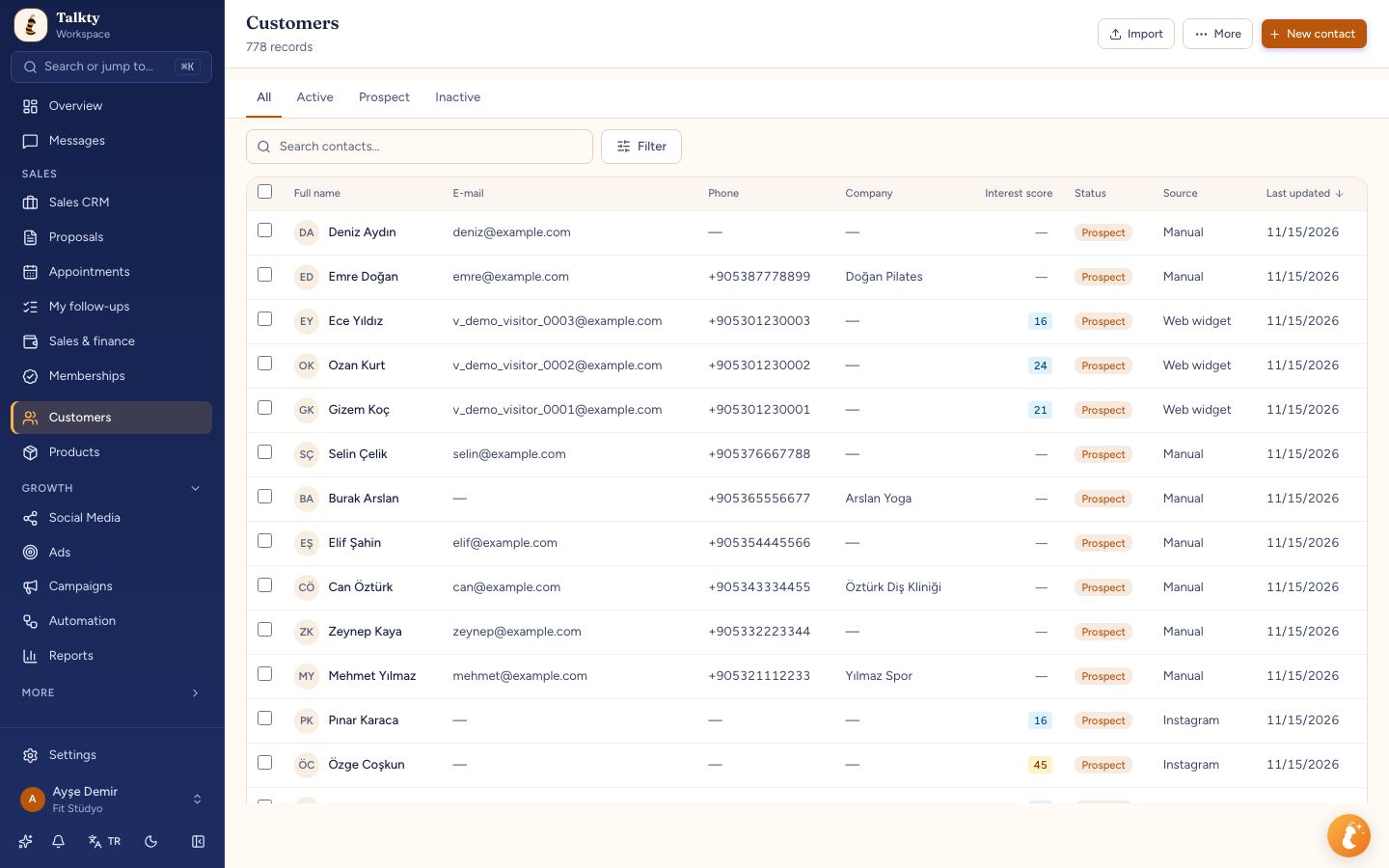
Search and bulk actions
- The All · Active · Prospect · Inactive tabs above the list switch to a single status. To see several statuses together, use the status buttons in the Filter panel.
- Type a name, phone or email in the search box.
- You can also find them from any screen: open the command palette with ⌘K (Ctrl+K on Windows) and type at least two characters (a name or phone). Matching records are listed under Customers, Opportunities, Products and Companies; only the groups you are allowed to see appear. Picking a customer opens their profile, an opportunity opens its card, a product opens the product form and a company opens the company list. Move with the arrow keys, open with Enter and close with Esc; on a phone the palette opens full screen. The palette also finds pages, settings sections and actions such as Add a new product and Connect your store.
- Select several contacts for bulk actions; the action bar appears below the table and stays at the bottom of the screen while you scroll. Release them with Clear selection. The selection is kept when you change pages and cleared when the search, tab or filters change. For bulk delete, the confirmation shows how many records are selected. If the selected contacts have linked deals, the same window also says how many; when you confirm, the contacts and their deals are deleted in one go. The deals go to the Trash and can be restored within 30 days; the contacts are deleted permanently. A contact whose deal has an active sale in Finance is kept and listed by name in the result; cancel the sale first.
- Click a column header to sort; a second click reverses the order. On a phone the list shows as cards; pick the order from the Sort box above the list and the direction with the arrow button next to it.
- Change which columns are shown and reset with Back to default.
Score, stage and status
The Interest score and Stage in the list come from the contact's opportunity: its open opportunity if there is one, otherwise the most recently closed opportunity. Moving the opportunity in the sales flow or recalculating the score updates the list too.
Status changes on its own based on the opportunities:
- A contact with a won opportunity becomes Active.
- With no open opportunity, the contact turns Inactive a set number of days after the last won opportunity. Change the number of days in Settings › Sales & CRM › Sales CRM › Contact status (default 15 days).
- A contact with no won opportunity stays Prospect. A contact whose opportunities are all lost or cancelled (for example a customer whose sale was cancelled) also becomes Prospect.
If you change the status by hand in the contact panel or with a bulk action, that contact's status no longer changes on its own.
Contact groups and broadcasts
You can group the contacts you want to message here:
- From selected contacts: tick the contacts and press Add to group in the bar below. Name a New group or add them to an existing one. This group is fixed; new contacts don't join on their own.
- From the filter: apply a search, status, score or date filter and press More › Save filter as group. This group is recalculated at every send; for example an "Inactive" group covers everyone who is Inactive that day.
Send broadcast in the notification after saving takes you to Campaigns with the form open on that group. You choose the send and channel there (see Group sends). See your groups under More › Groups, where you can open a broadcast or delete a group. Deleting a group keeps the contacts.
Import (Excel / CSV)
- Press Import and download the sample file with Download contact template.
- Paste your list into the template and save it as CSV (in Excel: Save As › CSV UTF-8).
- Choose the file and press Preview. Check which field each column maps to; the preview shows how many contacts will be added, how many updated and how many rows skipped, and rows with errors (for example "Not a number") are shown.
- Confirm. The result shows how many contacts were added and how many updated.
If a contact with the same phone or email already exists, no new record is created; the existing one is updated.
If you're moving from Kommo, Zoho or HubSpot, you can upload the CSV that system exports: columns such as Name, First Name, Last Name, Email, Phone and Company are matched automatically. Import opportunities in Sales CRM with Import / export.
Mind your plan's customer record limit. See Plans, tokens and subscription.
Channels and duplicate contacts
The Channels section in a contact's panel shows every channel the contact wrote on (WhatsApp, Instagram, Messenger, Telegram, web chat, email) with the latest message; press a row to open that conversation in Messages. Conversations are not merged; each stays on its own channel.
The same Instagram or Messenger user is linked to the same contact on every message. Records from different channels match automatically only on the same phone or email; name similarity alone is never used. This also applies when the number arrives later: if a contact who started on Instagram without a phone shares their number in the chat and that number is already on file from another channel (e.g. WhatsApp), the two records merge into one contact automatically. The older record is kept; its name is replaced by the new channel's name only if it was a placeholder ("Bilinmeyen", "WA +90…"). The contact's open deal cards collapse to one too: the card further along on the same board (or, if equal, the card of the chat where the number was shared) stays and the other goes to the Trash, where it can be restored. A card with a sale, membership or appointment is never removed automatically. If the card is linked to another channel's chat, this channel's conversation panel also shows the contact's open card.
If one person ended up as two records, open More › Possible duplicates:
- Groups are listed with the reason they may be the same person: Same phone, Same email or Same name only — please check (look at these carefully; two different people can share a name).
- Choose the Record to keep and press Merge. The other record's opportunities, notes, calls, memberships and channels move to the kept record; its empty phone, email and company fields are filled in.
- If you merged by mistake, press Undo in the notification and the record comes back as it was.
Apart from the same-phone/email match above, no records are merged automatically. Merges and undos are written to the activity log. This requires permission to delete contacts.
Custom fields
Add your own fields for customers (date of birth, ID number, sports history and so on). See Custom fields, forms and terms.