
Memberships and finance
Sales and finance
Sales, payments, instalments, expenses, commissions and the partner share report.
Sales › Sales & finance is your business's sales and payments ledger. It has four tabs: Sales, Report, Expenses and Payments.
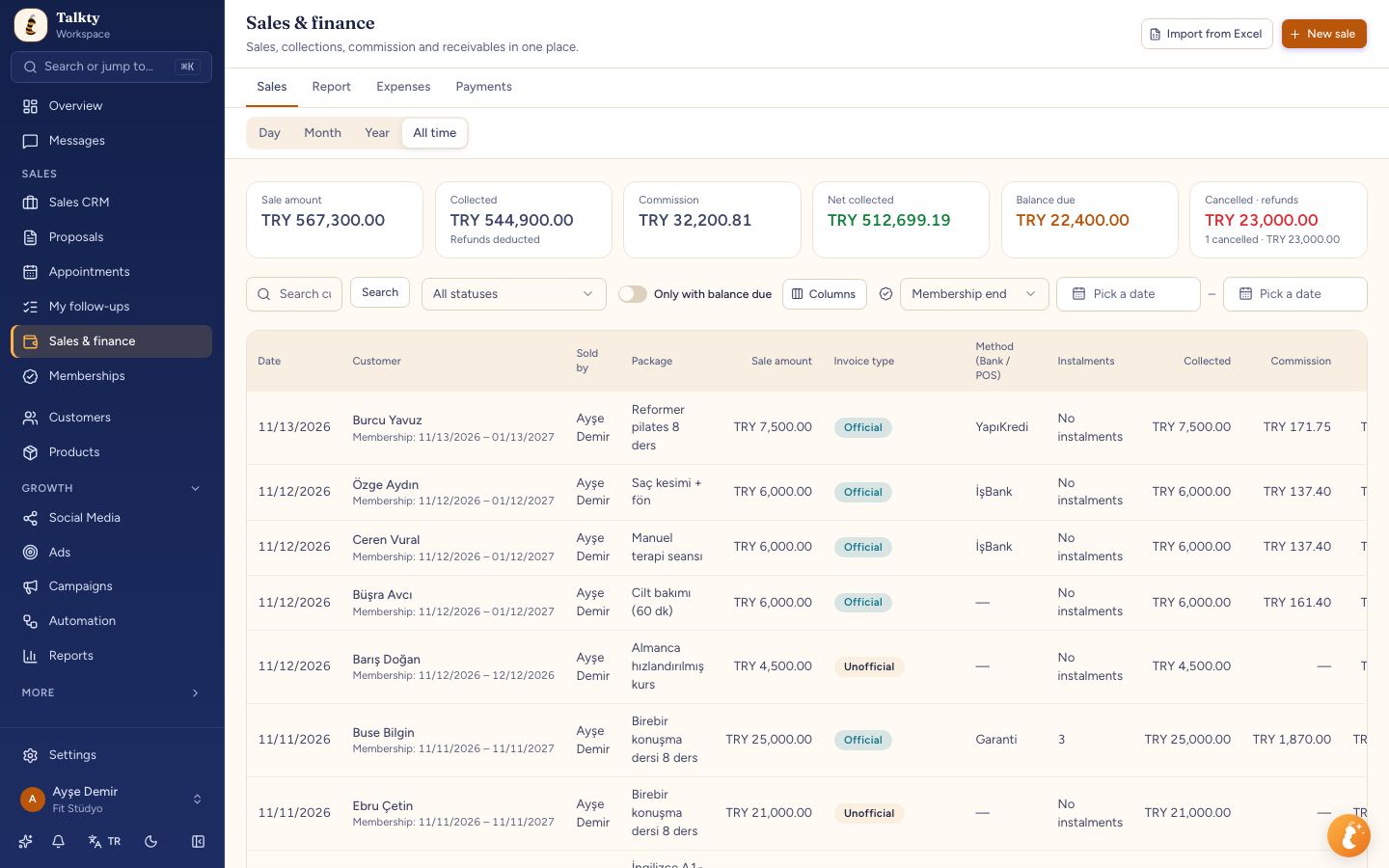
Sales
- Choose the period with Day · Month · Year · All time below the tabs (the page opens on All time); in Day, pick a date or use the arrows to go to the previous or next day; in Month, use the arrows to go to the previous or next month. You see the sales made in the selected period and older sales that received a payment in it: customer, Package, sale amount, Invoice type (invoiced / no invoice), Method (Bank / POS) (cash, transfer or the card's bank), Instalments, paid, commission, net collected, remaining and next payment date.
- The Collected and Net collected cards at the top go by the date the payment was received: a payment received on 11 November for a sale made on 29 October is added to Collected when you pick 11 November in Day, and the sale appears in the list. On such rows, This period: … under the Collected column shows the amount received in that period. The sale amount and Remaining cards are calculated from sales made in the period.
- Use the Columns button to hide or show table columns you don't need (e.g. Package, Method (Bank / POS), Commission); the choice is remembered in this browser. Date and Customer are always shown.
- The Package column shows the package of the membership linked to the sale, or the names of the products sold when there is no membership.
- The Collected card at the top shows the amount after refunds when the period has refunds (it reads Refunds deducted underneath); the Collected column in the table is each sale's collection before refunds. The refund total is on the Cancelled · refunds card.
- Enter a sale with New sale. For an existing customer, pick their opportunity in the Opportunity search; otherwise a new contact and opportunity are created in the Sales flow and Opportunity column you choose (Won by default) and the sale is linked to that opportunity. If the chosen column has required fields, the dialog asks for them too; the sale cannot be saved until they are filled in. If you choose a follow-up column, the follow-up form opens after the sale is saved; completing it moves the opportunity there, and if you cancel the opportunity stays in the sales flow's first column. Membership sales and sales recorded from opportunities also land here.
- While you type in the Opportunity search, Searching… appears; if no opportunity is found or the connection drops, it says so (with Retry on a connection error). Don't create a new record just because nothing was found; the name may be spelled differently.
- If the product list (The product sold) fails to load, a warning with Retry appears below it; if you have no products yet, the Add product link takes you to Products.
- Discount amount (₺) is the amount taken off the sale price, not the final price; the To pay line below shows what the customer pays. (In the new customer and membership forms, Discounted price is the final amount the customer pays.)
- Invoice type: Invoiced (official) means an invoice or receipt was issued, No invoice (unofficial) means none was. Cash, card or transfer is picked from the Bank / POS list, where Cash / Transfer and Card / POS are separate groups.
- For membership sales, the Membership: start – end dates appear under the customer name.
- Click a sale to open its details: Add payment for later payments (if the sale is linked to an opportunity, the payment is written to its history as Payment received with the amount and invoice type; when the sale becomes Cancelled · refunded, the refund is written as Refund issued with its amount), enter a refund amount if needed, or delete the sale. Deleting a sale also cancels its linked membership. Deleting can't be undone: the sale is removed together with its payments and refund record, and past Daily earnings and Net collection figures change; the confirmation says how many payments (and what amount) go with it. If the customer backed out, set the status to Cancelled · refunded or Cancelled · deposit kept instead; the record stays in reports.
- The last card in the summary at the top is Cancelled · refunds: the large figure is money given back (refund amounts of refunded sales); below it, the number and amount of sales cancelled in the selected period (refunded or deposit kept).
- When a card with an active sale is moved into a Cancelled (excluded from revenue) column or the Lost column in Sales CRM (from Won or from any column it moved to in between; also when you change the column in the card edit form), you pick We kept the payment (deposit) or Money was refunded in the move dialog, and its active sales become Cancelled · deposit kept or Cancelled · refunded; both drop out of revenue. With a deposit, payments received stay as income; with a refund, the refund amount is set to the amount collected (for a partial refund, open the sale and correct it). If the card moves from Cancelled back to Won, deposit-kept sales become Active again; refunded sales stay closed.
- It also works the other way: when you set a sale here to Cancelled · deposit kept or Cancelled · refunded, cancel the sale from a membership, or delete the sale, and the card has no other active sale, the card moves from Won to the Cancelled column (or Lost if there is none) with the lost reason Sale cancelled or Sale refunded. The card amount stays the same, but since it no longer counts as won it drops out of revenue; a kept deposit shows only in collections. If the card has another active sale, it stays in Won. Setting the sale back to Active returns the card to Won.
- A card with an active sale cannot be moved to the trash; cancel the sale first.
- In the Membership dates filter, choose Membership start or Membership end and enter a date range; only sales whose membership starts or ends in that range are listed. Entering a date switches the period to All time (so the sale shows whatever month it was made). Remove it with Clear filters.
- Only with balance due filters sales with money still owed. Late instalments are marked Overdue.
- By default, reps only see the sales they entered (My sales). The role's Finance visibility setting decides this and how many days back they can see (see Inviting teammates and roles).
Report
A summary of the selected period:
- Sale amount, credit card commission, net collected by card and by cash/transfer, and remaining revenue.
- Cancelled sales are left out of the sale amount and count; payments kept as a deposit stay in collections. A refund is deducted from net collected in the month the refund was made, not the month of the sale (refunds entered before refund dates were recorded stay in the sale month). The Payment records and Cash flow projection reports on the Reports page, the Collections row of Period comparison and Net collected on the Overview use the same calculation. Won revenue in Period comparison comes from won cards, not Finance; a card whose sale was cancelled or refunded is left out.
- Breakdown by bank and by rep.
- Partner share distribution: (net collected − expenses) split by the partner shares you define. Only managers see this section.
Expenses
Enter expenses such as rent, salaries and bills with a type, payment method and note. Expenses are deducted from net income in the report.
Payments
- Every payment received in the selected period (Day · Month · Year · All time) is one row; the date the payment was received counts, not the sale date. Each row shows the date, customer, Package, seller, amount, Invoice type, Method (Bank / POS), instalments and commission.
- The cards at the top show the period's unofficial and official payment totals, commission and net collected.
- Click a row to open that sale's details, where you can correct or delete the payment. If the sale doesn't match the search and filters on the Sales tab, the details don't open; clear the filters first.
Importing from Excel
If you kept your books in Excel, upload the file with Import from Excel. The DATA, GECEN_AY_KALAN and GİDERLER sheets are read; you see a preview first, and rows already imported are skipped.
Finance settings
Under Settings › Sales & CRM › Finance:
- Banks and POS: add the banks you use. Commission applies to those marked Card / POS; not to cash or transfers.
- Commission table: commission rates by number of instalments. You can also give a bank its own rates.
- Partner share distribution: partner names and percentage shares.
- The Exchange rates tab manages rates for sales in foreign currencies.